
 Share
Share
 Print
Print
|
|
|
|
|


When parts (serialized, non-serialized, repairable or kits) are required for maintenance or provisioning, a Picklist is required to obtain the components from the store. The Picklist Issue  button is used by the store personnel to register the part movement in Trax. Once the picklist-reserved part is issued to the Work Order, the Picklist is closed. Serialized parts will be in status 'Pending Technical Records' after issuing.
 Note: In Trax Version 15 and other later releases, the Picklist Issue Selection window provides details for each Picklist for the selected location. The user is able to select the Expand
  button to view the details of the selected Picklist. For additional information, refer to Picklist Issue Button [V15], via Inventory Transaction.
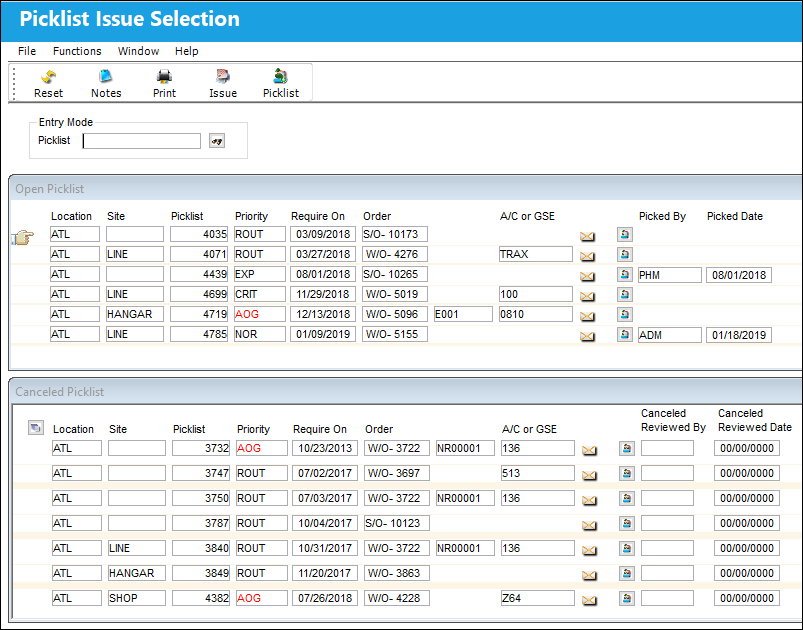
From the Picklist Issue Selection window, select the picklist to be issued. Once selected, click on the Issue button to issue the picklist.
In TRAX Version 15 and later releases, open items on a picklist for a W/O that's Closed will prompt the user before issuing the P/N from stock. Select yes to return the item to inventory.
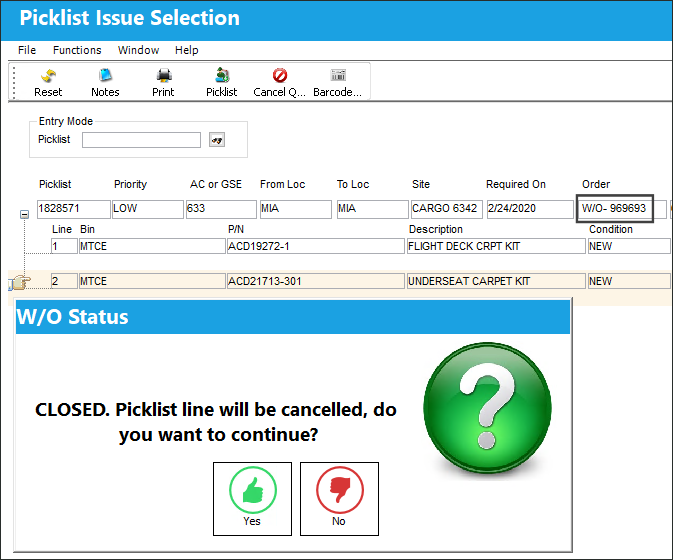
Note: This functionality only exists with the Production Switch  WOPOSTCM set to No. When WOPOSTCM switch is set to Yes and the W/O enters a Post Completed status, open picklists attached to the W/O will automatically be canceled and the picklisted parts returned to inventory.
The following information/options are available in this window:
_____________________________________________________________________________________
Entry Mode
Enter picklist here and select the Find  button to find a particular picklist.
Location
The inventory location the user wants to issue parts from.
Site
The Site where the work is to be carried out (if applicable).
Picklist
List of reserved components for a maintenance event or for transfer.
Priority
The level of importance placed on the need for a part. Notification based on the requisition priority may be defined by location.
Required On
The date the picklist is required.
Order
The Work Order the part/picklist is attached to.
A/C or GSE
Aircraft or Ground Service Equipment.
Click To Mark as Picked  button
Select to mark the picklist as picked or assigned. The picklist will be assigned to the user/employee who is logged in to the system and selected the button. Once a picklist has been assigned to an employee, the employees credentials will be populated in the Picked By field. The date of the assignment will populate in the Picked Date field as shown below.
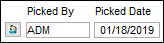
This button only appears if switch PKLSTMRVW is set to Yes.
Picked By
The employee the picklist is assigned to.
Picked Date
The Date the Picklist was Picked or Assigned.
_____________________________________________________________________________________
_____________________________________________________________________________________
Click To Mark as Reviewed button
Select this button to remove a canceled picklist from the cancel queue. Selecting this button indicates that a canceled picklist has been reviewed, and can therefore be removed from this queue. A picklist that is removed from the canceled queue, can still be viewed from the Picklist Query window.
_____________________________________________________________________________________
The Canceled Picklist section of this window only appears if switch PCKLISTCAN is set to Yes.
The following buttons offer additional functionality:
- Notes button
- Print button
- Issue button
- ASRS button
- Picklist button
Share
Print
|
©1997-2026 Trax USA Corp. All rights reserved. This manual may not be copied, photocopied, reproduced, translated, or converted to any electronic or machine-readable form, in whole or in part, without prior written approval from Trax USA Corp. |
 |