
 Share
Share
 Print
Print
|
|
|
|
|


Picklists can be re-printed as required by selecting the Print  button.
Select the Picklist Issue  button in Inventory Transaction. TRAX will request the location that you wish to issue Picklists from. Following the selection of the location, the following screen is displayed:
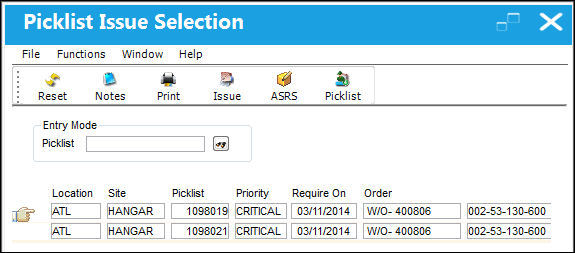
The following information/options are available in this window:
_____________________________________________________________________________________
Picked  button
This button appears to inform the user that this part was auto selected from the warehouse.
 PKLSTMRVW - When set to Yes, the Picked button is available in the Picklist Issue Selection window. When set to No, the Picked button is not available in the Picklist Issue Selection window. For more information on this switch refer to the Inventory Switches Manual.
_____________________________________________________________________________________
Select the Picklist required so that the Hand  pointer points at it and double-click on the record.
Select the Print button to re-print the picklist as required.
Share
Print
|
©1997-2026 Trax USA Corp. All rights reserved. This manual may not be copied, photocopied, reproduced, translated, or converted to any electronic or machine-readable form, in whole or in part, without prior written approval from Trax USA Corp. |
 |