
 Share
Share
 Print
Print
|
|
|
|
|


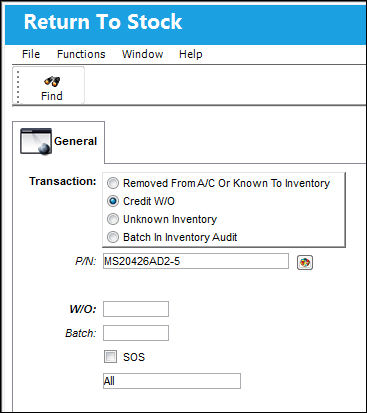
From Inventory Transaction, select the Return to Stock  button after first entering the appropriate Part Number. The Credit W/O option is used when returning a part to stock that was previously issued to a Work Order but was not used by the time the Work Order was closed. Once the Credit W/O option is selected, enter the Work Order that the part was issued to. Completing the Return to Stock process with this transaction will affect the finances related to the specified Work Order.
 Note: If a consigned consumable or repairable part is issued to a Work Order and then Returned To Stock – Credit W/O, the new batch number will be flagged as consigned and the owner field will re-populate. Exception: when switch CONSINED is set to Yes and switch CONSINEX is set to No, a partial batch number not issued or batch number Returned To Stock – Credit W/O, will not retain or re-populate consigned owner information.
The following information/options are available in this window:
_____________________________________________________________________________________
Credit W/O radio button
Select this radio button to return a part to stock which was issued to a Work Order but not used. Completing the process with this transaction will affect the finances related to the specified Work Order.
_____________________________________________________________________________________
Enter the Work Order number the parts were issued to and select the Find  button.
TRAX displays items that were issued to the Work Order. Ensure the Hand  pointer is selected to the batch or serial number that will be returned and click the Select
  button.
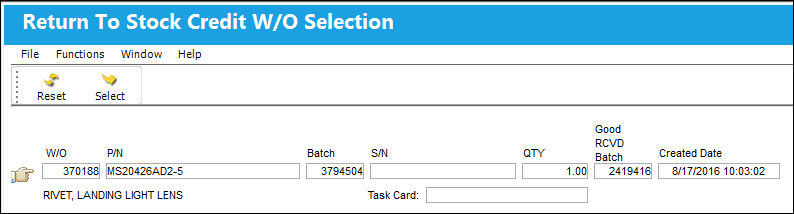
TRAX displays the following screen:
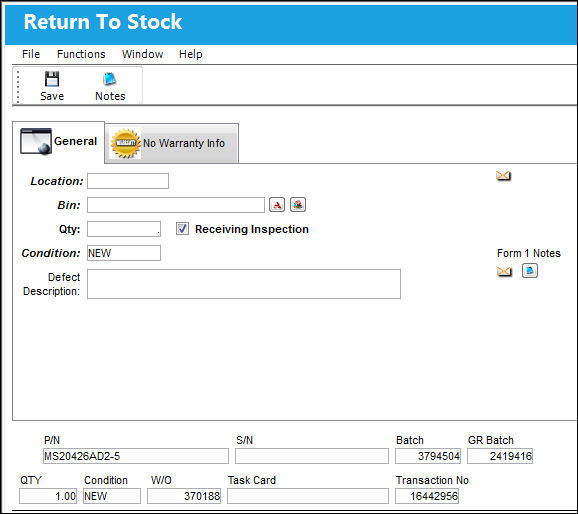
The following information/options are available in this window:
_____________________________________________________________________________________
Location
The Location for maintenance events, inventory stores, orders, transactions, or training events.
If a quarantine location is entered, the system will request an unserviceable (U/S) code for the item. This will move the item quantity into the Unserviceable field.
Bin
The specific storage bin within the inventory location.
Auto Populate Bin  button
Select this button to auto populate the bin for this part. The bin must be set up against the part in the P/N Master. For additional information, refer to the Bin Category field, via the P/N Master, Optional Tab of the Settings Training Manual.
Qty
The quantity of part(s) being returned to stock.
Receiving Inspection checkbox
Check to indicate that Receiving Inspection is required for the part.
U/S Code
Unserviceable code if part is to be stored in Quarantine location. This field is only available, in lieu of the Receiving Inspection checkbox, upon selecting a Location that has been designated as Quarantine in the Location Master, General tab.
U/S NO 
An Unserviceable Number that is used to help identify U/S parts without a serial number (i.e. Repairables). This is informational only and is only available, in lieu of the Receiving Inspection checkbox, upon selecting a Location that has been designated as Quarantine in the Location Master, General tab.
Condition
The condition of the part.
Defect Description
The description of the Defect related to the part that was removed from the aircraft. This text will be automatically copied to any Repair Order that is created for the part. The information will be placed in the Defect field of the Removal and Removal History Tabs.
Hazardous Material  icon
icon
This icon appears if the part contains hazardous materials. For additional information, refer to the P/N Master, Inventory Tab via P/N Master of the Settings Training Manual.
Form 1 Notes  button
Select to add a note to be added in the Remarks section of the Form 1 for the part.
_____________________________________________________________________________________
Select the Save  button to save all information. TRAX produces a tag which can be printed if required.
The part will now show on the Inventory Transaction window as available (if serviceable), unserviceable, or in Receiving Inspection depending on the data entered. The Work Order will be credited for the items that were returned and relevant financial adjustments made.
Auto Update Credit W/O to Batch In Inventory Audit:
The system can now automatically override the Credit W/O transaction with the Batch In Inventory Audit transaction.
From Inventory Transaction, return the following part to stock.
Select the RTN Stock button.
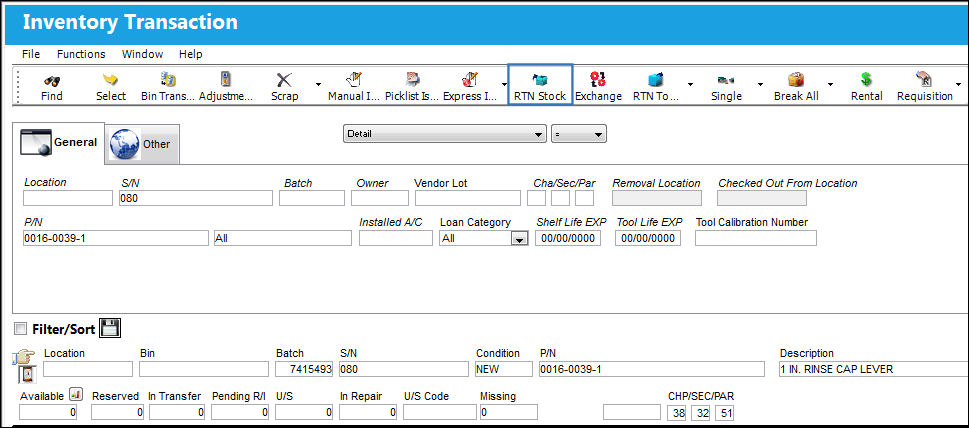
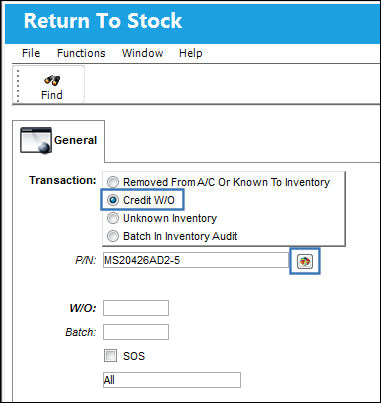
From the Return To Stock window, select the Credit W/O radio button to return the unused part to stock.
Select the Inventory Detail Transaction History  button to look up the batch number for the part.
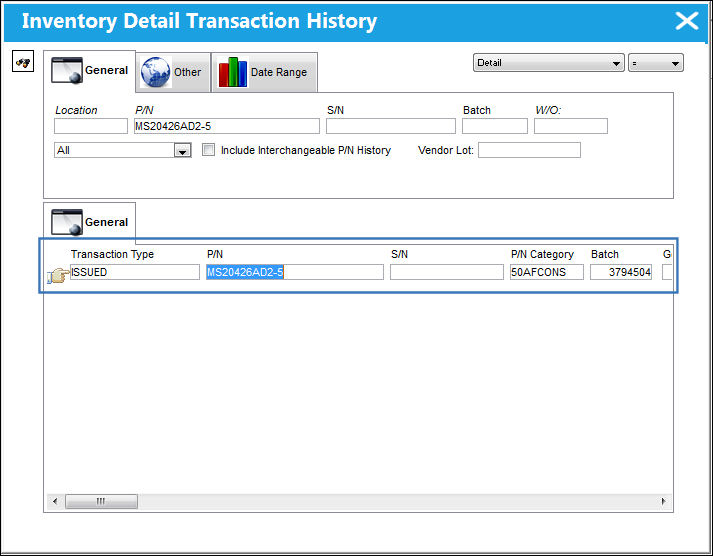
The Inventory Detail Transaction History window appears. Notice that the system has updated the transaction to the correct RTS transaction type 'Batch In Inventory Audit' because the part has a transaction history. Double select the highlighted section from the Inventory Detail Transaction History window.
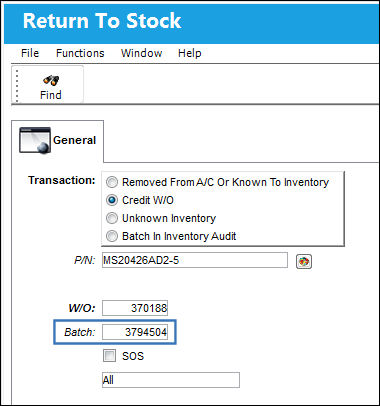
The Batch number is auto populated and the user may continue with the Return to Stock 'Batch In Inventory Audit' transaction.
Share
Print
|
©1997-2026 Trax USA Corp. All rights reserved. This manual may not be copied, photocopied, reproduced, translated, or converted to any electronic or machine-readable form, in whole or in part, without prior written approval from Trax USA Corp. |
 |