
 Share
Share
 Print
Print
|
|
|
|
|


Location Master, General Tab
Either select an existing Location from the pop-up window or select the New  button to create a new one.
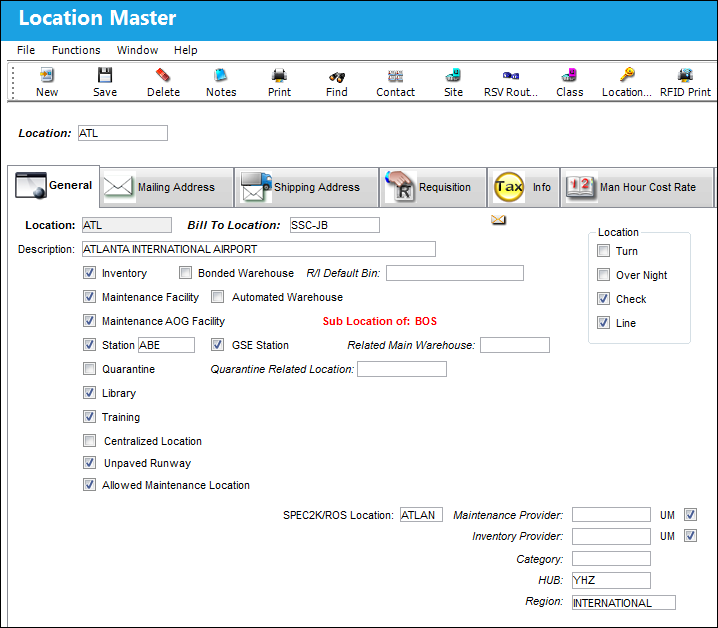
The following information/options are available in this window:
_____________________________________________________________________________________
Location
The Location for maintenance events, inventory stores, orders, transactions, or training events.
Bill To Location
This field is to specify your common billing address for the purpose of automatic printing of your P/O, R/O for etc. This can be the same address as the company or you can have different billing addresses for each location.
Description
The description of this location.
Inventory checkbox
This location can be used for inventory transactions and to store parts. The user must click this if planning to store parts at this location; either Serviceable parts or U/S parts.
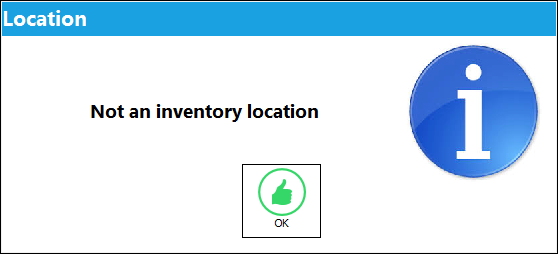
 If the main location is not set up as in Inventory location, the user cannot add a sub location to the main location. When the Sub Location button is selected, the following warning appears, preventing the user from accessing the Sub Location Master:
For this to function correctly, switch  SUBLOCATION must be set to Yes, and switch REORLOC must be set to No.
Bonded Warehouse checkbox
This location is a bonded warehouse, no additional functionality. If the user has a special customs clearance warehouse, check this.
R/I Default Bin
If the user wants to have a default bin for your receiving inspection Items, he/she will specify it here.
Maintenance Facility checkbox
This location can be used for Work Orders (Production/Shop). This same Location can also be set as the Maintenance Facility (like A/C OH, Line Maintenance, etc.).
Automated Warehouse checkbox
Select this checkbox to designate this location as an Automated Warehouse location. When this checkbox is selected, the Default Bin field becomes activated.
 This checkbox is a customized configuration and may not be available for your company. For additional information consult your TRAX Interface Administrator.
Default Bin - Select the default bin the part will go to in the warehouse.
Maintenance AOG Facility checkbox 
Select this checkbox to indicate that this will be an AOG (Aircraft On Ground) Maintenance location. This location can be used for Work Orders (Production/Shop).
Sub Location of
This red text indicates that the current location is a sub location of the location identified in the red text as shown below.

Station checkbox
The Station field that comes up to the right of the checkbox when selected is often used to specify an ICAO international airport code (e.g., 'KATL') if the main Location reference is the national code (e.g., 'ATL'), or vice versa. This field is informational.
Station Code - The specific code utilized to reference the Location Station.
GSE Station checkbox
Select this checkbox to indicate that this will be a GSE (Ground Service Equipment) location. For additional information regarding GSE, refer to the GSE Training Manual.
Related Main Warehouse 
The main inventory warehouse that's related to the currently selected Location. Select into the field to choose from all Locations that have the 'Inventory' checkbox selected. This field is informational.
Quarantine checkbox
Select this checkbox to indicate that this is a Quarantine location. This location is used to store unserviceable/hold parts (Inventory and Receiving) for repair. An additional 'U/S Code' will need to be entered. Here you link your U/S or Quarantine location to your already created S/V location. Now the system will look at the two locations with relation to each other.
: Quarantine Locations should be separate from the main inventory Location.
Quarantine Related Location
The main location linked to this Quarantine location.
Library checkbox
This location can be used for Manuals and Documents entered on the Library system.
Training checkbox
This location will conduct Training programs.
Centralized Location checkbox
This location will be the main warehouse for parts marked accordingly (in P/N Master). When working with a centralized location, the average usage of parts of the outstations will also be taken into consideration when calculating the reorder level. In TRAX, only one location can be marked as a centralized location.
Unpaved Runway checkbox
This checkbox indicates that the Location's runway is unpaved. The checkbox is only available when Settings Switch GRAVELCONTROL is set to Yes. This functionality helps track the impact of parts installed on an aircraft that lands on unpaved runways. For detailed information refer to Switch GRAVELCONTROL via the Settings Switches Manual.
Automated Removal Information
These fields work in conjunction with Switch RMVRTSNT which, when set to Yes, the system marks all parts that are removed from an aircraft as Unserviceable and will send it to the registered Quarantine Location. For this reason these Automated Removal Information fields must be populated. When the switch is set to No, these fields are not available. For more information refer to Switch RMVRTSNT via the Technical Records Switches Manual.
TRX Interface Station
This field represents a TRX station that is mapped to the TRAX Location via the TRX Interface.
This field is part of the TRX interface functionality and is only available for customers using this interface. For more information on the TRX interface refer to the TRX Interface (TCS) manual.
TRX Interface Address Code
This field represents the TRX station's address that is mapped to the TRAX Location's address via the TRX Interface.
This field is part of the TRX interface functionality and is only available for customers using this interface. For more information on the TRX interface refer to the TRX Interface (TCS) manual.
Location checkboxes
These checkboxes refer to the Inventory Optimization (Rotable) functionality which allows users to coordinate inventory based on resources in the selected Location instead of via the selected part through the P/N by Location  button. The Location checkboxes from the Location window correspond to Part Numbers that have the same Location checkboxes selected in the P/N Master, Inventory tab. From the Inventory Optimization (Rotable) window, once the P/N by Location button is selected and the given Location is entered, the corresponding P/Ns will appear. For detailed information on the P/N by Location button functionality, refer to the P/N by Location Button via the Inventory Training Manual. The Location checkbox options are as follows: Turn, Over Night, Check, and Line. Multiple checkboxes can be selected.
SPEC2K/ROS Location Code
Enter the location code. This field is used to transmit the location code for ROS/Spec2000 messages to AeroXchange. This field allows for the Return To Location. This is a free text field. For additional information, please contact the appropriate Interface Administrator.
Maintenance Provider
Allows users to add specifications to the selected Location regarding maintenance provision. This field is controlled by a transaction code called Maintenance Provider. This field is informational.
Inventory Provider
Allows users to add specifications to the selected Location regarding inventory provision. This field is controlled by a transaction code called Inventory Provider. This field is informational.
UM checkboxes
Indicates that the Maintenance Provider and/or Inventory Provider location is Unmanned (UM). This checkbox is located next to each of the above 'Provider' checkboxes. These checkboxes are informational.
Category
The Category code for the selected Location. This field is controlled by a transaction code called Location Category. This field is informational.
HUB 
The code for the main connecting point for the specified location. Select from the list the HUB location. This field is for reporting purposes only. The HUB location is a System Transaction Code in the Settings Module.
Region
The Region (NE, SW, SE, etc.) of the location relative to the airline. Select from the list provided the Region location. This field is for reporting purposes only. The Region is a System Transaction Code in the Settings Module.
Allowed Maintenance Location checkbox
Select this checkbox to indicate that this location is a maintenance location. Only locations with this checkbox selected will appear in the drop down menu that appears when the Allowed Locations Helper button is selected. This button can be found in the Allowed Location Tab which is available throughout the system.
 This checkbox is security controlled via Settings/ Update/ Location Master/ Allowed Maintenance Location Checkbox. Although the checkbox will always be visible in the Location Master, General tab, the user may only select the checkbox if they have security access to it. For additional information, refer to the Security Explorer, via the System Administration Manual.
_____________________________________________________________________________________
The selection of the Location type will affect the functionality for the rest of the system as follows (if a transaction is trying to be performed for a location in an applicable module without the location selection activated, an error message will appear).
A location cannot be deleted if there are inventory components associated to it. 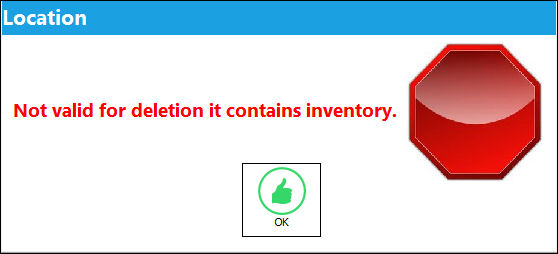
Share
Print
|
©1997-2026 Trax USA Corp. All rights reserved. This manual may not be copied, photocopied, reproduced, translated, or converted to any electronic or machine-readable form, in whole or in part, without prior written approval from Trax USA Corp. |
 |