
 Share
Share
 Print
Print
|
|
|
|
|


P/N Master, Optional Tab
Select or create the Part Number and go to the P/N Master, Optional tab.
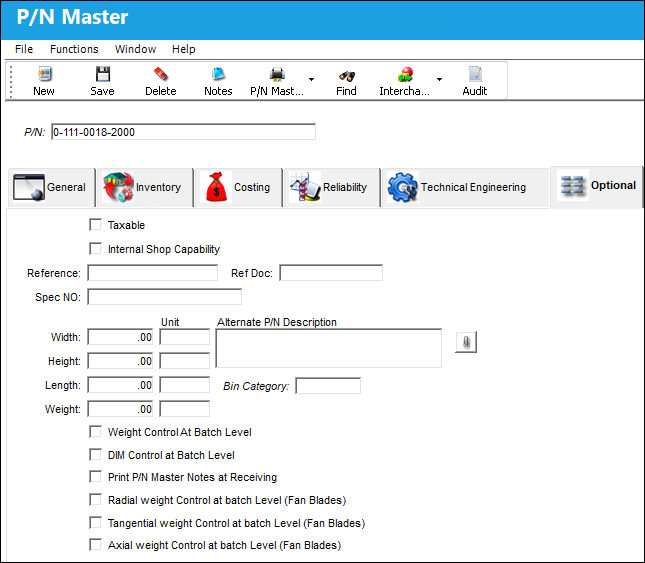
The following information/options are available in this window:
_____________________________________________________________________________________
Taxable checkbox
Check this to have taxes applied to this part. The percentages that will be applied are set up in Settings/ Update/ Location. Then, when a new Order is created, the taxes for this part will automatically be calculated.
Internal Shop Capability checkbox
Select this checkbox if this part is internal shop (maintenance) capable.
Reference
You may note any reference information here.
Ref Doc
You may note a document to be referenced here.
Spec NO.
The spec number for the part.
Width
The width of the part. Unit information may also be entered.
Height
The height of the part. Unit information may also be entered.
Length
The length of the part. Unit information may also be entered.
Weight
The weight of the part. Unit information may also be entered.
Unit
The unit of measure.
Alternate P/N Description
Enter an alternate P/N Description from the one in the P/N Master, General tab.
Document Control  button
Select this button to associate documents, TraxDoc Line to the PS_DOCUMENT_NO field. This will allow documents that are only related to Packing and Shipping to be associated to a P/N, so they can be used in the Packing and Shipping module. This button does work similarly to the standard Document Control button that can be found throughout the system. For additional information, refer to the Document Control button via the Standard Buttons, of the System Standards Training manual.
Bin Category
The bin category code.This information can be set up via Settings/ Explorer/ System Transaction Codes/ Settings/ Bin Category.
Weight Control at Batch Level checkbox
Click this checkbox if there is to be Weight Control at the Batch level.
When this checkbox is selected, the user may enter the weight of a package via the Box button, Box tab which is located in Inventory Transaction.
DIM Control at Batch Level checkbox
Select this checkbox to allow the user to specify that they would like the DIM (dimension) fields (width, height, and length) of the part to be controlled at the batch level. When this checkbox is selected, the user may enter the width, height and length of a package via the Box button, Box tab which is located in Inventory Transaction.
Radial weight Control at batch Level (Fan Blades) checkbox
Select this checkbox if there is to be Radial Weight Control at batch level for fan blades.
Note: When this checkbox is selected, the Radial Weight Control field becomes mandatory in the Receiving Inspection window and must be populated before saving. Refer to the Receiving Inspection Detail, General Tab.
Tangential weight Control at batch Level (Fan Blades) checkbox
Select this checkbox if there is to be Tangential Weight Control at batch level for fan blades.
Note: When this checkbox is selected, the Tangential Weight Control field becomes mandatory in the Receiving Inspection window and must be populated before saving. Refer to the Receiving Inspection Detail, General Tab.
Axial weight Control at batch Level (Fan Blades) checkbox
Select this checkbox if there is to be Axial Weight Control at batch level for fan blades.
Note: When this checkbox is selected, the Axial Weight Control field becomes mandatory in the Receiving Inspection window and must be populated before saving. Refer to the Receiving Inspection Detail, General Tab.
Print P/N Master Notes at Receiving checkbox
Click this checkbox if the P/N Master Notes are to be printed at Receiving.
_____________________________________________________________________________________
Share
Print
|
©1997-2026 Trax USA Corp. All rights reserved. This manual may not be copied, photocopied, reproduced, translated, or converted to any electronic or machine-readable form, in whole or in part, without prior written approval from Trax USA Corp. |
 |