
 Share
Share
 Print
Print
|
|
|
|
|


P/N Master, General Tab
Create a new part number by clicking on the New  button.
The basic P/N information is contained in the first window and its associated tabs.
Many of the fields required in the P/N file are pop-up fields (right-click with your mouse). These field values should be entered first in the System Transaction Code Explorer.
Some of the values can be set to default according to the setup in the Part Category transaction code.
TRAX displays the P/N Master, General tab as follows:
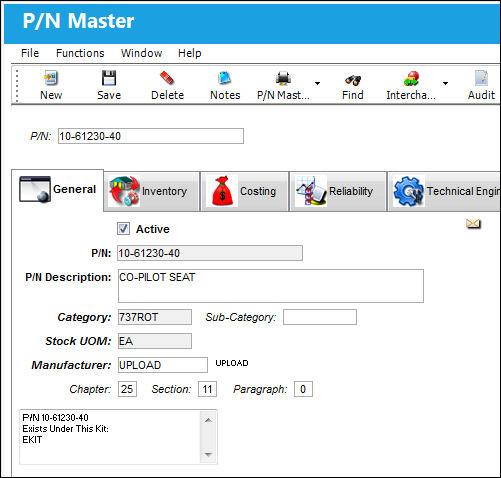
The following information/options are available in this window:
_____________________________________________________________________________________
Active checkbox
Select this checkbox if the part number is in active status. Deselect to make the part inactive (the word 'Active' will be displayed in red). Parts classified as inactive have limited transactional functionality throughout the system.
 NWPNAUTH - (New P/N to Authorization) - If set to Yes and then Config Other field is blank, the system will make the Active checkbox protected on all new P/N Inactives. It will also send the new P/Ns to Settings/ Explorer P/N Authorization Explorer. Once authorized, the status of the P/N will be automatically changed to 'Active'.
- If set to Yes and then Config Other is set to 'Active', the system will make the part automatically Active for all new P/N. It will also send the new P/Ns to Settings/ Explorer/P/N Authorization Explorer.
- When set to No, upon creating a new part into the system, the part can automatically be set to 'Active'.
For more information on the Active checkbox, please refer to the P/N Master P/N Interchangeability button section of this manual.
P/N
The Part Number reference for the aircraft part. This reference number is used system-wide throughout the system. Once saved, this field cannot be edited.
 This field can contain up to 35 characters. Previous to TRAX Version 11 this field has a character limit of 25.
P/N Description
The description of the part.
Category
The category of the part as defined in Settings/ Explorer/ System Transaction Code Explorer/ Settings/ P/N Category (e.g. Rotable, Consumable, Repairable) and entered for the particular part in the P/N Master. The most important field in the first window for the P/N is the Category field. This determines how the system will handle this part. If the Category entered is a 'serialized' one, then the system will be expecting serial numbers for every item you have on the system for this part number. If the Category is a 'non-serialized' or a 'kit' type then the system will not be expecting serial numbers for every item. Once a part category has been set, it is not a good idea to change it. Changing the part from serialized to non-serialized is possible but not recommended. If you have just created the part and there is no inventory associated with it, the part category can be changed. As soon as there is inventory available, it is more difficult to change the part category. The Part Type change will not allow if some conditions are not met, for additional information please see the P/N Master P/N Category Change button.
Sub-Category
The Sub Category for each part.
APU
When a P/N has this Sub-Category Code, the P/N's hours and cycles are to be updated via Technical Records/Update/P/N APU Reading. Switch APUREAD (System Administration/Explorer/System Transaction Configuration/Technical Records/APUREAD) must be set to Yes to activate the functionality.
The Technical Engineering subcategory radio button replaces the requirement for following sub-categories: Module, and Disk.
ENGINE
Allows for the P/N to be included in a number of prints (via Technical Records/Print/A/C Component Print) specifically developed to capture engine data. DISK is for capturing engine DISK data.
Stock UOM
The ATA code for Unit Of Measurement (or internal code if preferred). The Order UOM differentiates by Stock UOM a unit of conversion may be defined in the UOM code which will automatically convert the Order UOM to the Stock UOM at receiving.
Manufacturer
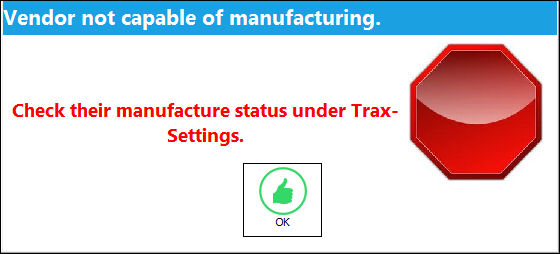
The Manufacturer or main Vendor for this part. The Vendor must be flagged in the Vendor Master as a Manufacturer to populate this Manufacturer field. If not, then TRAX displays this warning message:
Chapter / Section / Paragraph
The ATA chapter/section/paragraph, as applicable. The ATA Chapter and Section data for the part allows reporting throughout the system, such as P/N Reliability, Recurrent Removals, etc.
The Chapter and Section fields may be individually flagged as mandatory. This depends upon the PN Category Transaction Code's Chapter Mandatory checkbox being selected.
_____________________________________________________________________________________
Once a part has been set up, the General Tab of the part will indicate any special relationships (i.e. whether the part belongs to a Kit, N/H/A, etc.) on the lower portion of the window:

Share
Print
|
©1997-2026 Trax USA Corp. All rights reserved. This manual may not be copied, photocopied, reproduced, translated, or converted to any electronic or machine-readable form, in whole or in part, without prior written approval from Trax USA Corp. |
 |