
 Share
Share
 Print
Print
|
|
|
|
|


The Interchangeable  button is used to make parts interchangeable with other parts in the system.
Interchangeability can be either One Way or Both Way.
For Both Way Interchangeability, the P/N entered MUST NOT exist in the system. Any information attached to this main part will be applicable to the Interchangeable part also (except for P/N Controls, which are defined with the P/N Control  button). Both Way Interchangeability implies that if a Part B is added to the system as Both Way Interchangeable with Part A, the system will treat both part numbers as the same. If you request a Part B on a Picklist, the system may give you Part A. If you query the stock on Part A, the system will show you Part B along with it (you will see the actual part number).
The following tabs and buttons are available.
P/N Interchangeability Tabs |
P/N Interchangeability Buttons |
|---|---|
One Way Multi buttons
|
 Reset button
 New button
 Save button
 Delete button


 P/N Control button
 Effectivity button
 Engineering button
 P/N Interchangeable Audit button
 Select Interchangeable From Main P/N:
When selecting a part number, the user may select the Interchangeable button to view and select any interchangeable parts associated to the Main P/N.
From the following drop down menu, select the Interchangeable button for the Main P/N.
This option is system wide where ever part number selection applies.
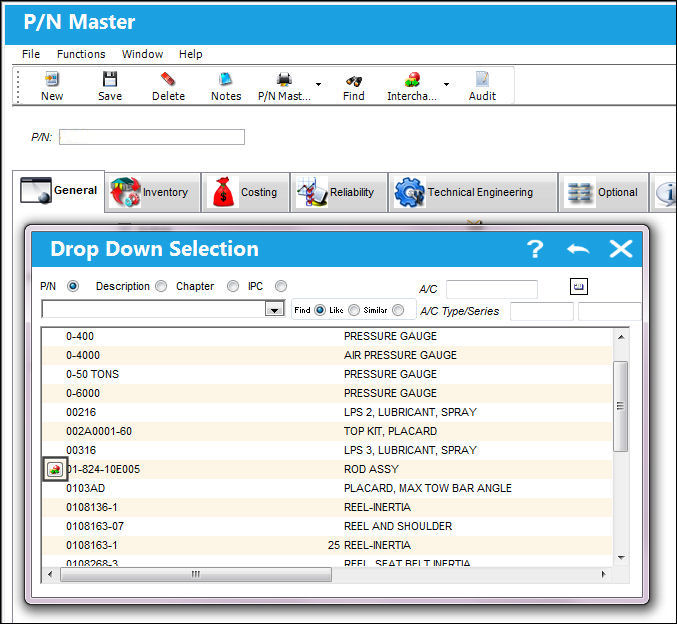
The P/N Interchangeable window appears displaying all of the interchangeable parts for the Main P/N. Select one of the interchangeable parts.
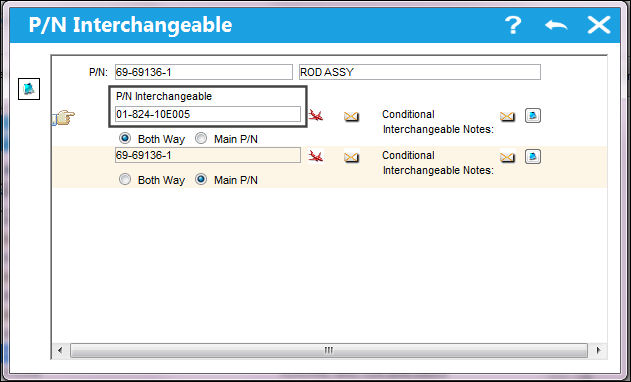
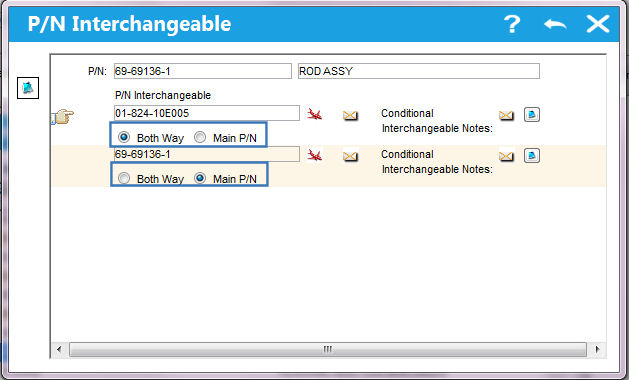
 The P/N Interchangeable window includes an indicator for which of the interchangeable parts are Both Way or the Main P/N. This cannot be changed from this window and is informational only.
Share
Print
|
©1997-2026 Trax USA Corp. All rights reserved. This manual may not be copied, photocopied, reproduced, translated, or converted to any electronic or machine-readable form, in whole or in part, without prior written approval from Trax USA Corp. |
 |