
 Share
Share
 Print
Print
|
|
|
|
|


The P/N Category Change  button allows for the change of any P/N’s category as required. The new P/N Category that is being assigned must have parts currently associated before a P/N Category Change can occur. When a P/N Change is attempted, the system will check for open; Loan, Exchange, Repair, and Transfer Orders before allowing the P/N category change. Positions and Time Controls against the current part must also be removed before changing the P/N Category.
Select the P/N Category Change button. Right click in the To Category field. The Drop Down Selection appears as shown below. Select a part type by double clicking on selection and click on the Find  button.
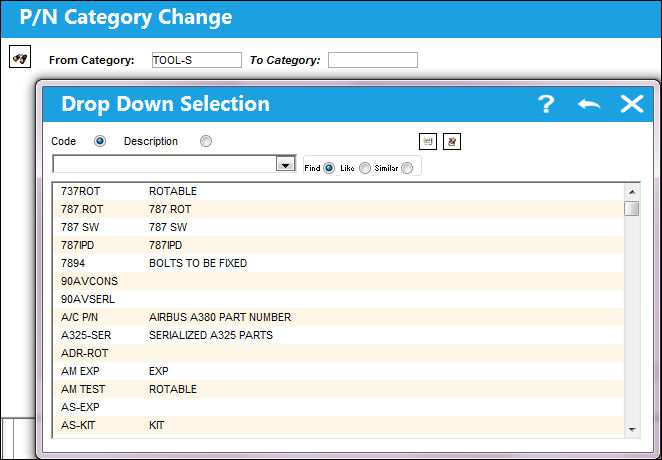
The following information/options are available in this window:
_____________________________________________________________________________________
From Category
The current category of the part.
To Category
The new category for the part.
S/N
The Serial Number for the specific serialized part.
_____________________________________________________________________________________
A list of P/Ns appear for the selected part type.
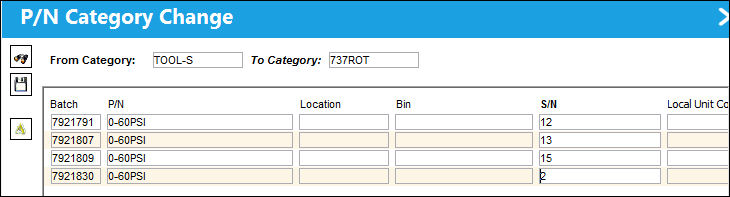
The user can manually enter a S/N, or click on the Auto Serial Number Assign  button to have the system automatically create and assign serial numbers to all parts in the list.
For more information on the Auto Serial Number Assign button, please refer to the topic Auto Serial Number Assign Button.
When a P/N is changed to serialized, a new Goods Received Batch number (GRB) is assigned to the part in inventory. As a result, the history of the of the part will be lost, but it could be referenced in the Inventory Transaction History Query window using the old GRB number.
The P/N Category Change will only add a Journal Entry for the upgrade/downgrade from Rotable (Serialized) to Expendable (Consumable) and vice versa. There is not a J/E association from Expendable to Expendable, Rotable to Rotable, or Repairable to Repairable since they are of the same P/N Transaction Category. For more information, refer to the P/N Category System Transaction Code.
Warnings:
Users cannot change the P/N Category for tools that are checked out.
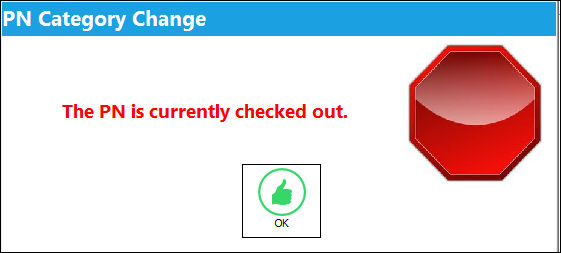
If the P/N order has been received but the order remains un-invoiced before attempting to change the P/N Category, the following error will appear:
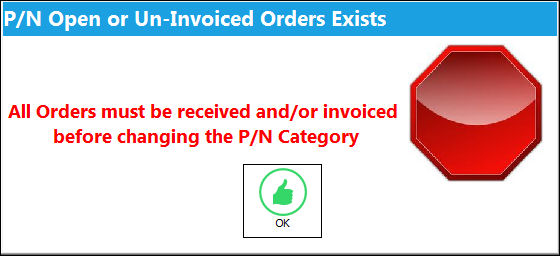
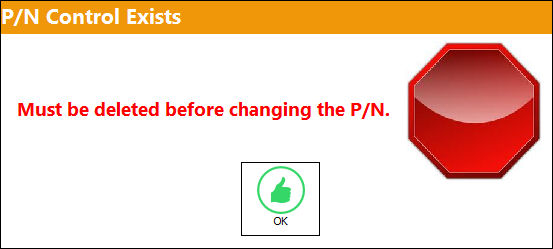
If a P/N Control already exists, the following error will appear:
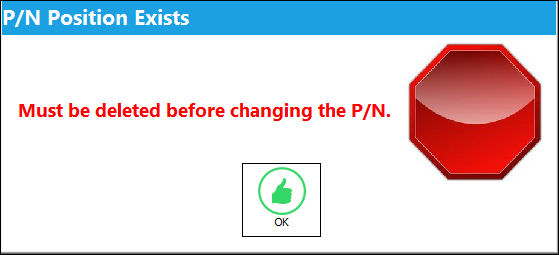
If the P/N position already exists, the following error will appear:
If the P/N exists in the P/N Master, but is not present in Inventory, the following soft warning will appear:
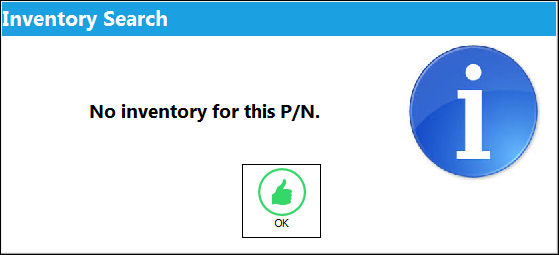
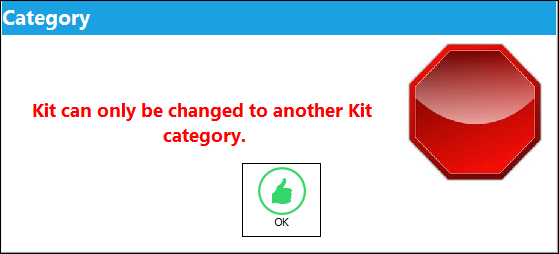
This message pops up when there is inventory for the part. If there is no stock, the P/N Category Change can be performed.
Share
Print
|
©1997-2026 Trax USA Corp. All rights reserved. This manual may not be copied, photocopied, reproduced, translated, or converted to any electronic or machine-readable form, in whole or in part, without prior written approval from Trax USA Corp. |
 |