
 Share
Share
 Print
Print
|
|
|
|
|


Users are allowed to create kits from the P/N Master window by selecting the Kit  button.
The following tabs and buttons are available.
P/N Kit Tabs |
P/N Kit Buttons |
|---|---|
|
 Reset button

 Interchangeable button
From the P/N Category transaction code, the P/N Transaction radio buttons must be set to ‘Kit’ and the P/N Costing Method should be set to ‘Actual Cost’ for this functionality to work. 'Average Cost' can be selected, but it is best to use 'Actual Cost'.
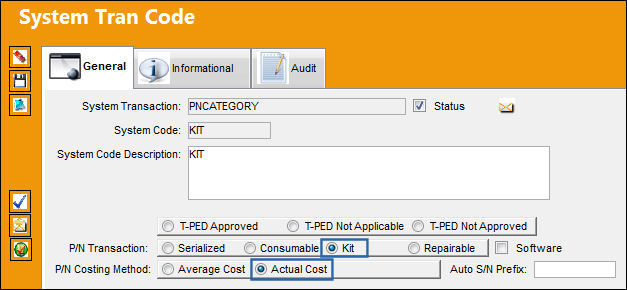
If these criteria are not met then the following error message appears from the P/N Master when the Kit button is selected.
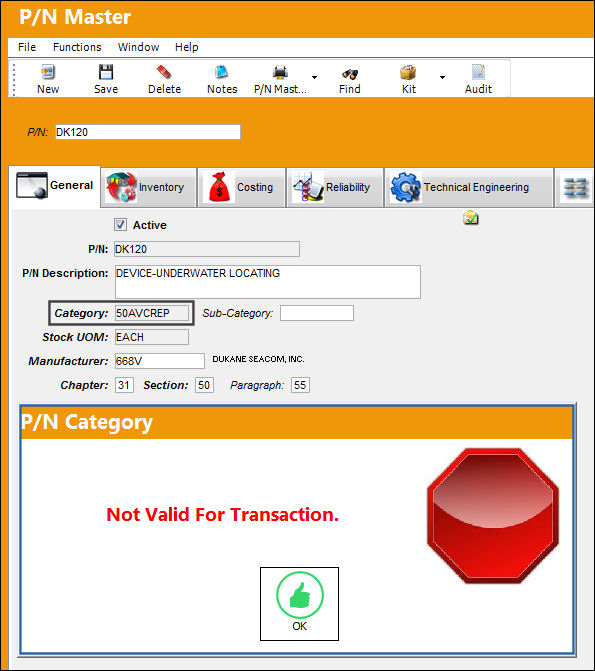
For more information refer to the P/N Category via the Settings Transaction Code Manual.
To add parts to the kit, select the New  button then populate the NLK P/N field and add the Quantity. Select the Save
  button to save the kit.
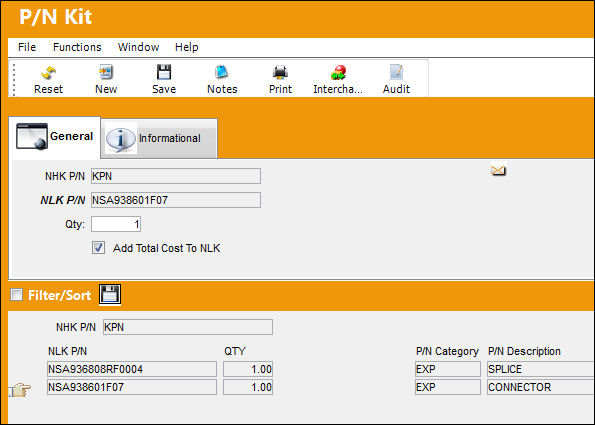
When receiving the kit into the system, a kit window will appear to confirm that all P/Ns and S/Ns contained in the kit are included.
Kits can be assembled or rebuilt as required via Inventory/Update/Inventory Transaction/Build Multi-Kit button :
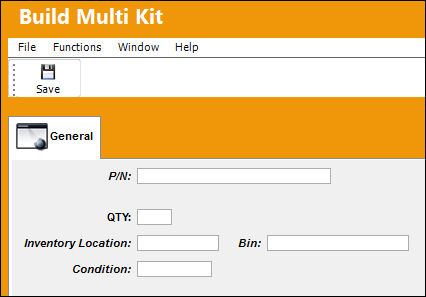
For additional information about the Kit button, please refer to the Build Multi-Kit Button section of the Inventory Transaction Manual.
Additional Functionality:
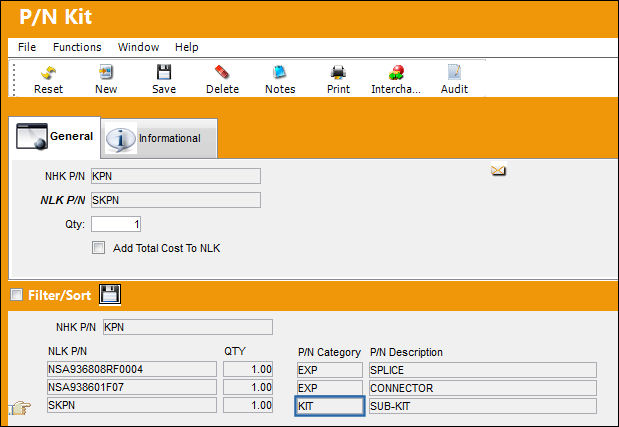
Parent kits can contain sub-kits. The part entered in the NLK P/N field can be a kit; it is no longer mandatory to enter serialized or non-serialized parts only.
Notice the below NLK P/N contains P/N Category 'KIT'.
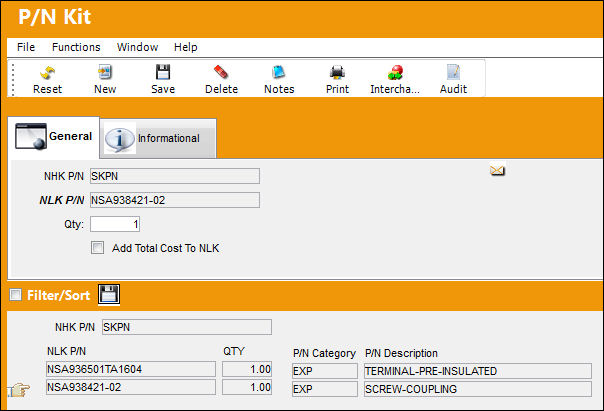
The above NLK P/N is also a kit as displayed below:
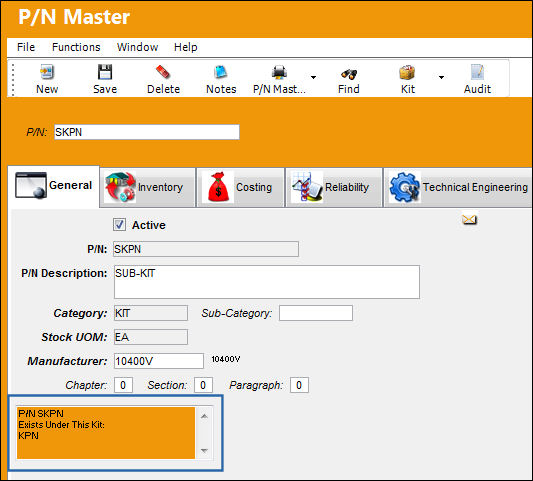
Once the kits are entered into inventory, the relation ship between the parent kit and sub-kit can be seen. From the P/N Master of the Sub-Kit, notice the note regarding its Parent Kit.
Share
Print
|
©1997-2026 Trax USA Corp. All rights reserved. This manual may not be copied, photocopied, reproduced, translated, or converted to any electronic or machine-readable form, in whole or in part, without prior written approval from Trax USA Corp. |
 |