
 Share
Share
 Print
Print
|
|
|
|
|


Engineering Authorization Management, General Tab
The Engineering Authorization Management option allows users to view and modify the E/C (if required) and release the E/C so that it can be sent to the E/C Authorization Queue (Engineering/Explorer/Engineering Authorization).
Once an E/C has been created and that E/C is pending Authorization, the E/C will appear in the Engineering Authorization Management queue awaiting modification and then release to Authorization.
The Engineering Authorization Management, General tab is used to query E/Cs that are pending authorization based on the following search criteria. Enter any of the below search criteria to query for a desired E/C and select the Find  button.
As with the majority of the query selections on the system, it is better to select as many parameters as required to minimize the search result.
For Shop E/Cs, the exact name of the Shop E/C in the E/C field must be entered for the system to find it.
Enter the E/C information to locate the E/C to release for authorization.
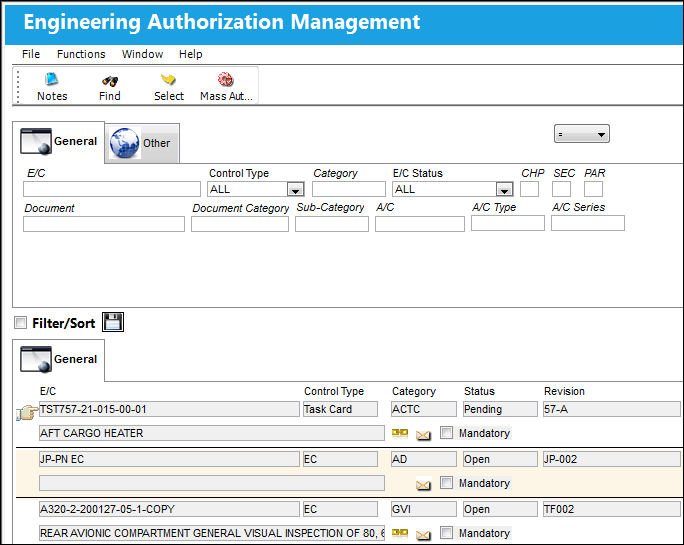
Query:
The following information/options are available in this window:
_____________________________________________________________________________________
E/C
The Engineering Control that specifies aircraft or component scheduled maintenance intervals.
Control Type
The Engineering Control Type (E/C or Task Card).
Category
The category of the E/C (e.g., AD, SB, CHECK).
E/C Status
Select the status of the E/C from one of the following options:
ALL - All records.
Applicable/Not Embody - The E/C is applicable to an A/C Type/Series or Part Number, but may not be mandatory. This status allows the E/C to be entered in the system, but does not require compliance.
Cancel - The E/C has been cancelled.
N/A - The originating document (AD, SB, MOD, etc.) has been evaluated and is deemed not effective to a specific A/C or P/N.
Open - The E/C is Open.
Pending - This is the default status. This will be the status until the E/C is authorized. If the user requires holding this E/C until ready, it can be left as Pending even after the record has been saved. Once the E/C is authorized the status will show as Open.
Rejected - The E/C was rejected or not authorized and may need to be sent back through the authorization process for revision. This status should not be selected manually.
Terminated - The E/C is no longer in use. It has either been complied with for all effective aircraft or components, or the action of another E/C has terminated it. When an E/C is terminated, the termination applies to the entire fleet. This status should not be selected manually.
CH/SEC/PAR
The ATA chapter/section/paragraph, as applicable.
Document
The document reference number associated to the E/C.
Document Category
The document category code for the document reference associated to the E/C.
Sub-Category
A Sub Category can be used to further define the E/C Category, if applicable. For example, users may want to classify their ADs for Engines, APUs, and Landing Gear separately. The Sub Category System Transaction Code is set up via Settings/ Explorer/ System Transaction Code/ Engineering.
A/C
The individual aircraft tail number. Enter the aircraft the E/C is effective to.
A/C Type
The aircraft type the E/C is effective to.
A/C Series
The aircraft series the E/C is effective to.
Company
The name of the airline company for which the E/C will be utilized.
This field appears only when G/L Interface Switch  COMPANYMULTI is set to 'Yes.' This feature is part of the Multi-Company functionality. Parent company's airlines are entered into this field. Then, when the P/N is entered into the detail window, the G/L field will be auto-populated with this airline's previously created G/L Account. When the switch is set to 'No' the field is titled Category and functions as defined above. For more information see the G/L Interface Switch COMPANYMULTI via the G/L Interface Switches Manual.
If the Control Type 'Task Card' is selected when querying by Company, no results will appear.
Control
Select a Control Type from the drop down menu to query by:
- A/C
- P/N
The user may also right click in the Control field to access the following drop down menu. Here the user may select an aircraft to query for. If the Control Type 'Task Card' is selected when querying by Company, Control or Sub E/C Task Card, no results will appear.
This field only appears when the G/L Interface Switch COMPANYMULTI is set to 'Yes'.
Sub E/C Task Card
Enter the associated Sub E/C Task Card. If the Control Type 'Task Card' is selected when querying by Company, Control or Sub E/C Task Card, no results will appear.
This field only appears when the G/L Interface Switch COMPANYMULTI is set to 'Yes'.
_____________________________________________________________________________________
Results:
The following information/options are available in this window:
_____________________________________________________________________________________
E/C
The Engineering Control that specifies aircraft or component scheduled maintenance intervals.
Description
The description is the basic title of the E/C. The number of characters is limited in this field and a longer description can be entered in the E/Cs E/C Content Tab.
Control Type
The Engineering Control Type (E/C or Task Card).
Category
The category of the E/C (e.g., AD, SB, CHECK).
Status
The status of the E/C.
Mandatory checkbox
Selected if the classification of the E/C is mandatory.
Revision
The revision number of the E/C. This can be alpha numeric. When the revision is changed and saved, the system will prompt the user with a revision control record, where the changes made for the specific revision can be saved for auditing purposes. The 'Revised By' field will be automatically updated with the user's user code, and the revision date can be set as required.
By
The user who accepted the Authorization Update Step in the E/C Authorization process.
Date
The date when the Authorization Update Step in the E/C authorization process was completed.
Amendment
The amendment field normally relates to AD amendment numbers. This is alpha numeric and issued by the authority or company issuing the P/N E/C.
Chp/Sec/Par
The ATA chapter/section/paragraph, as applicable.
_____________________________________________________________________________________
Confirm that the Hand Pointer  is pointing to the record with which you want to work by clicking on the record.
Click on the Select  button to view the selected Engineering Control.
For information regarding the fields and functions of the tabs in the Engineering Control Authorization, refer to the the tabs under Engineering Control.
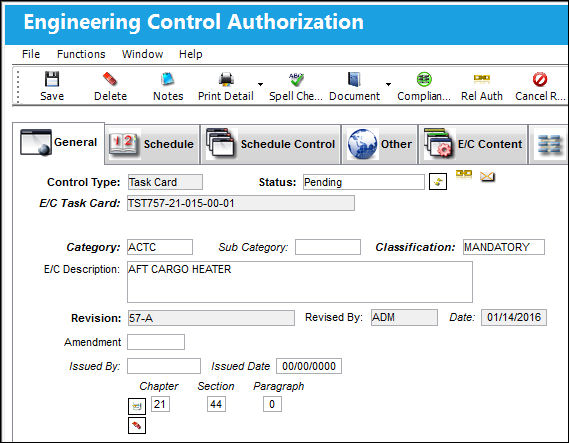
Notice that the E/Cs status is 'Pending'.
If you perform One Step Authorizations, you can have the system automatically change the status of the E/C to 'Authorized' here if desired. Set the ECAUTH (Engineering Authorization) configuration switch to No so that the system will automatically change the Authorization Status of this E/C to 'Authorized' upon clicking on the Save  button (rather than requiring the use of the 'Release To Authorization
  button'). If the switch is set to No, the status of the record will have to be manually changed to 'Open' if you want it to appear in the Planning queue. When set to Yes, authorization is required for all E/Cs that have been revised or newly created. For more information, refer to Switch ECAUTH via the Engineering Switches Manual.
The E/C can now be released to Authorization by clicking on the Release Authorization button.
Share
Print
|
©1997-2026 Trax USA Corp. All rights reserved. This manual may not be copied, photocopied, reproduced, translated, or converted to any electronic or machine-readable form, in whole or in part, without prior written approval from Trax USA Corp. |
 |