
 Share
Share
 Print
Print
|
|
|
|
|


Select the Update A/C Weight Values  button.
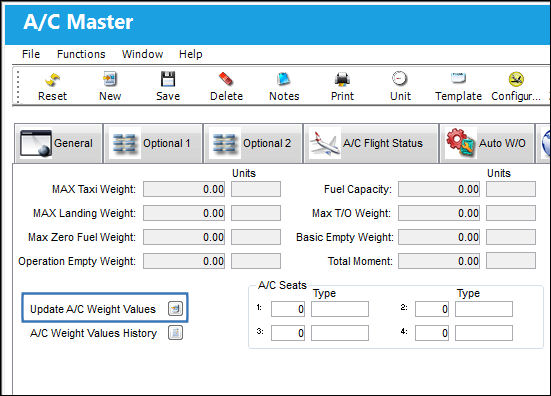
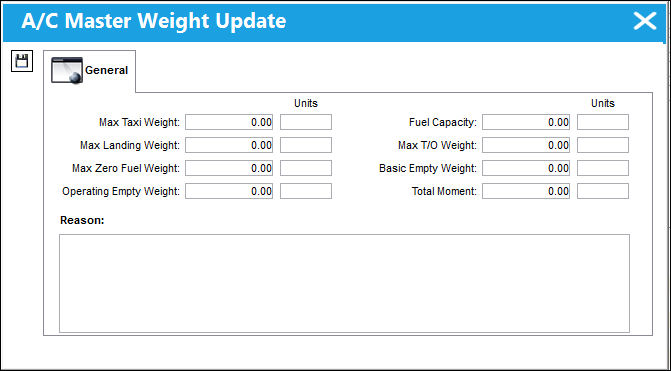
The A/C Master Weight Update Window appears as shown below. Enter a reason in the Reason field. Select the Save  button. The Save prompt will appear. Select OK.
The information that is set up via this button is reflected in the A/C Weight Values History  button. The weight and balance notification displays the information that is set up by the user. For information regarding how to set up a system notification refer to the System Notification section of the Settings training manual.
An E-mail will be sent if set up in System Notification. There are two ways to set up this notification. Go to A/C Master and click on the A/C Service Notification  button or go to Settings/Update/System Notification to set up this feature. For more information, refer to the System Notification Creation Process. Select OK.
Go to Engineering/Task Card and open up an existing T/C. Select the Weight and Balance checkbox. The Weight and Balance  button appears. Select the Weight and Balance button.
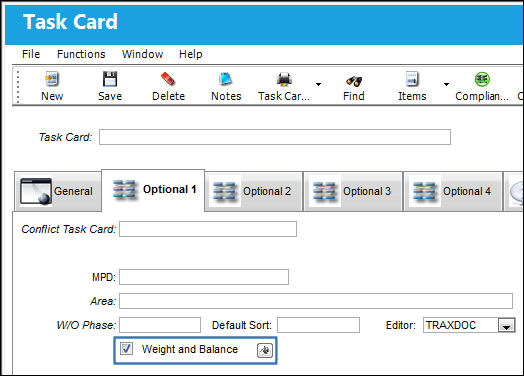
Switch  TCWEIBAL must be set to Yes to allow the Weight and Balance button to appear in the T/C.
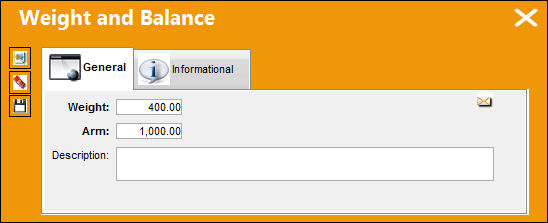
TRAX displays the following window. Select the Find  button to view the Weight and Arm fields. Populate these two fields with values. Select the Save button. The values appear in the bottom half of the screen.
Share
Print
|
©1997-2026 Trax USA Corp. All rights reserved. This manual may not be copied, photocopied, reproduced, translated, or converted to any electronic or machine-readable form, in whole or in part, without prior written approval from Trax USA Corp. |
 |