
 Share
Share
 Print
Print
|
|
|
|
|


The Inventory Optimization (Rotable), Optimization tab is used to select a rotable main P/N and manipulate the below data to find the best results to optimize their inventory. This model is an iterative probability calculation model, which uses cumulative Poisson distribution to calculate the probability of requests for parts being satisfied.
The information in this window cannot be updated at any time. This is a query only window.
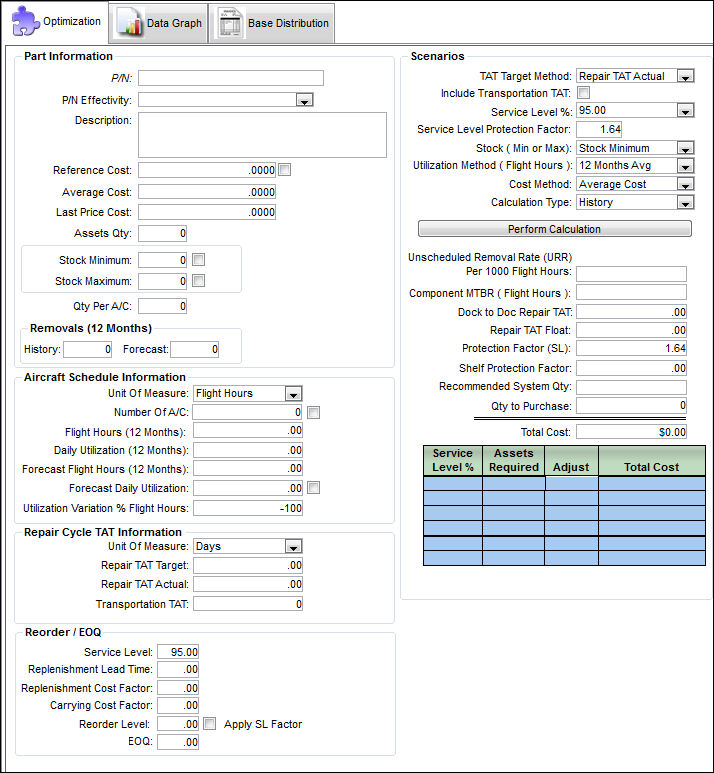
Part Information:
The following information/options are available in this window:
_____________________________________________________________________________________
P/N
The Part Number reference for the aircraft part.
Only main part numbers can be selected for the optimization.
P/N Effectivity drop down
From the drop down menu, select the A/C - Tail effective to the P/N the optimization is being simulated for. The P/N can also be selected by ATA Chapter/Section/Paragraph from the P/N ATA Area.
Description
The description of the part.
Reference Cost
The part’s reference cost is used by the reorder formula to determine the EOQ value in the P/N Inventory Levels window. If left blank, the EOQ field that is updated when the P/N Reorder Level is generated will remain "0.00."
This field functions in accordance with the Switch  PNREFCST. If set to Yes, the system will compare the Part Number Reference Cost to the PO unit cost. If there is a difference the user will receive a prompt asking if they would like to update the Part Number Reference Cost (P/N Master, Cost Tab) with the PO Unit Cost.
Override Reference Cost checkbox
Select the Override Reference Cost checkbox to override the value in the Reference Cost field. Once this checkbox is selected, the Reference Cost field is no longer grayed out and can be edited.
Average Cost
The Average Cost of the Part in local currency, which is re-calculated upon receipt of inventory from Purchases, Invoice Adjustments (if there is a difference between PO Price and INV Price), and Return to Stock (which is unknown inventory returned at average cost or credited to the Work Order, differing the P/N Cost from the Average Cost).
The explanation for the formula is as follows:
(The total number of Unit Costs currently in Inventory) / (The total of all quantities currently in inventory). For example, if you have three parts in inventory for a certain P/N (three parts including all possible instances of the part [available in inventory, available for repair etc.]). And the unit costs on each part are $10, $15, and $20 each. If all information has been entered properly, the current Average cost would be calculated as (10 + 15 + $20) / 3) = $15. Expanding on the example, if you receive a new same part at $18, the current Average cost would re-compute as follows: ($10 + $15 + $20 + $18) / (3 + 1) = 15.75. For additional information, refer to the P/N Master, Costing Tab, via the P/N Master of the Settings Training Manual.
Last Price Cost
The unit cost of the last Purchase Order received.
Assets Qty
The quantity available in inventory.
Stock Minimum
The minimum in stock quantity required (Safety Stock). The minimum stock level can be used to report on items that require urgent action. When this amount is reached, a Re-Order Level Requisition is then created. The Stock Minimum is set up in the Inventory Levels, General Tab, via the P/N Master of the Settings Training Manual.
Override Stock Minimum checkbox
Select the Override Stock Minimum checkbox to override the value in the Stock Minimum field. Once this checkbox is selected, the Stock Minimum field is no longer grayed out and can be edited.
Stock Min & Max  button
Select the Stock Min & Max button to refresh the Stock Minimum and Stock Maximum values in case they have changed since the last time the query was ran. The information in the Min-Max Stock Levels window is set up in the Inventory Levels, General Tab, via the P/N Master of the Settings Training Manual.
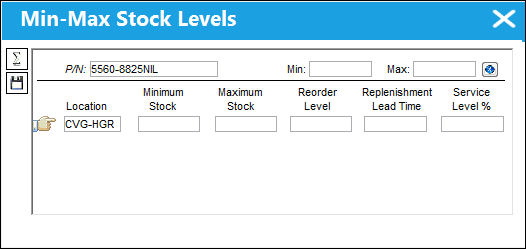
Apply to Optimization Window Only button - Select this button to apply any changes made to the Stock Minimum and Stock Maximum values to the Optimization window.
Calculate Min-Max  button - Select this button to re-calculate any changes made to the values in the Inventory Levels, General tab. The re-calculation will only apply to the Min-Max Stock Levels window.
Save  button - Select the Save button to update the Inventory Levels. For additional information, refer to the Inventory Levels, General Tab, via the P/N Master of the Settings Training Manual.
Stock Maximum
The maximum in stock quantity allowed. The Stock Maximum is set up in the Inventory Levels, General Tab, via the P/N Master of the Settings Training Manual.
Override Stock Maximum checkbox
Select the Override Stock Maximum checkbox to override the value in the Stock Maximum field. Once this checkbox is selected, the Stock Maximum field is no longer grayed out and can be edited.
Qty Per A/C
The number of parts needed for each aircraft.
Removals (12 Months)
The number of Removals for a 12 month period.
History - The number of Removals based on the history of the part.
Forecast - The number of generated Removals based on a 12 month forecast of the part.
Calculate Forecast Removals button
Select this button to re-calculate the number of removals for a 12 month period. This calculation will either be historical or future depending on what information appears in the Calculation Type field in the Scenarios section of the Optimization tab. Selecting this button will launch a query for every maintenance event (ie. P/N Controls, P/N E/Cs) that have the Do Not Allow Reset Production checkbox selected. The system will also query for multiple occurrences.
For P/N Controls, this checkbox appears in the P/N Control Button via the P/N Master. For additional information, refer to the P/N Control Button of the Settings Training Manual.
For P/N E/Cs, this checkbox appears in the P/N Control Button via the Engineering Control Buttons. For additional information, refer to the P/N Control Button of the Engineering Training Manual.
The query begins as follows:
Once the Planning Job is ready, select 'OK'.
_____________________________________________________________________________________
Aircraft Schedule Information:
The following information/options are available in this window:
_____________________________________________________________________________________
Unit of Measure drop down
Select from one of the following units of measure:
- Flight Hours
- Block Hours
- Cycles
Number Of A/C
The number of aircraft the part is effective to.
Flight Hours (12 months)
The flight hours for the aircraft fleet for a 12 month period.
Daily Utilization (12 months)
Flight hours divided by 365 days.
Forecast Flight Hours (12 months)
The forecast hours for the aircraft fleet for a 12 month period.
Forecast Daily Utilization (12 months)
Forecast flight hours divided by 365 days.
Current Daily Utilization Override checkbox
Select the Current Daily Utilization Override checkbox to override the value in the Forecast Daily Utilization field. Once this checkbox is selected, the Forecast Daily Utilization field is no longer grayed out and can be edited.
Utilization Variation Flight Hours
This is the variation between the Daily Utilization and Forecast Daily Utilization.
Formula: Utilization Variation Flight Hours = (Daily Utilization / Forecast Daily) - 1
_____________________________________________________________________________________
Repair Cycle TAT Information:
The following information/options are available in this window:
_____________________________________________________________________________________
Unit Of Measure drop down
Select from one of the following units of measure for the repair cycle TAT (Turn Around Time).
Repair TAT Target
Repair TAT target or lead time. This is the amount of time taken to get a part back from repair.
Repair TAT Actual
Repair TAT Actual. This is the average time for all repairs.
Transportation TAT
Transportation Turn Around Time.
_____________________________________________________________________________________
Reorder/EOQ:
The following information/options are available in this window:
_____________________________________________________________________________________
Service Level
This is the percentage of service the user wants for every request of a P/N. (i.e. For one particular company, it may be acceptable for a P/N to be available for only 50% of the time, based on their need for that part.)
Replenishment Lead Time
The number of days needed for the delivery of the P/N.
Replenishment Cost Factor
The cost of replenishing inventory. The formula for replenishing stock compares forecast stock usage against available stock throughout the coming year. Existing replenishment orders are also considered since these affect future requirement needs. This value is pulled from the P/N Master, Costing tab. For additional information, refer to the P/N Master, Costing Tab, via the P/N Master of the Settings Training Manual. The default value can be defined in the P/N Category Transaction Code. For additional information, refer to the P/N Category Transaction Code, via the Settings Transaction Code Manual.
Carrying Cost Factor
The total cost of holding inventory. This includes warehousing costs such as rent, utilities and salaries, financial costs such as opportunity cost, and inventory costs related to insurance etc. This value is pulled from the P/N Master, Costing tab. For additional information, refer to the P/N Master, Costing Tab, via the P/N Master of the Settings Training Manual. The default value can be defined in the P/N Category Transaction Code. For additional information, refer to the P/N Category Transaction Code, via the Settings Transaction Code Manual.
Reorder Level
The Re-Order point for the Part. The Re-Order point is established so that the system can automatically create Requisitions for parts that have reached a certain stock quantity level. Purchasing action can then be considered. For additional information, refer to Please refer to the P/N Re-order Level section via Inventory Transaction Buttons of the Inventory Training Manual.
Apply SL Factor checkbox
Select the Apply Service Level checkbox to apply the Service Level value to the simulation.
EOQ
The "Economic Order Quantity" field is used to store a value that is calculated outside of the system. The value is usually calculated by materials managers and used to determine the quantity that is the optimum (lowest) total variable cost (unit costs that depend on volume) required to Order and hold inventory. For additional information, refer to refer to the Inventory Levels Button, General Tab via the P/N Master Buttons of the Settings Training Manual.
_____________________________________________________________________________________
Scenarios:
This information helps to plot how to best optimize one's inventory.
The following information/options are available in this window:
_____________________________________________________________________________________
TAT Target Method
Select from one of the following TAT Target Methods to run the scenario.
- Repair TAT Target
- Repair TAT Actual
Include Transportation TAT checkbox
Select this checkbox to include the TAT for the transportation of the part going to and returning from repair.
Service Level % drop down
Select from one of the following Service Level percentages. This is the most acceptable Service Level which is defined by a company's business processes. This defaults to 95%.
Service Level Protection Factor
The Inverse Normal Distribution formula along with the selected Service Level % equals the Service Level Protection Factor variable. (i.e. The Service Level Protection Factor for a 95% Service Level = 1.64)
Stock (Min or Max)
Select from one of the following stocking options:
- Stock Minimum
- Stock Maximum
Utilization Method (Flight Hours)
Select from one of the following Utilization Methods:
- 12 Months Avg
- Forecast Daily
Cost Method
Select from one of the following Cost Methods:
- Reference Cost
- Average Cost
- Last Price Cost
Calculation Type
Select from one of the following Calculation Types:
History - This is based on the number of scheduled and unscheduled removals/
Forecast - This is based on the number of scheduled removals.
Perform Calculation button
Once all factors are chosen, select the Perform Calculation button to view results. Once the calculation is complete, the following information box will appear:
Unscheduled Removal Rate (URR) Per 1000 Flight Hours
This value is derived from the following formula:
URR = [ (12 Months Removals) / (12 Month Unit Of Measure * QPA) *1000 ]
Component MTBR (Flight Hours)
Component MTBR (Mean Time Between Removals) Flight Hours. This value is derived from the following formula:
Component (MTBR) Flight Hours = (QPA * 12 Month Unit Of Measure) / 12 Months Removals
Dock to Dock Repair TAT
Dock to dock Repair TAT (Turn Around Time). This is the time from loading dock to loading dock. This value is derived from the following formula:
Dock to Dock Repair ATA = TAT Target Method + Transportation TAT
Repair TAT Float
Actual float. This value is derived from the following formula:
ACT Float = ROUND [ (12 Months Removals * Dock to Doc Repair ATA) / 365,6 ]
 This field was previously called the ACT Float field in X and previous releases of TRAX.
Protection Factor (SL)
Protection Factor Service Level. This value is derived from the following formula:
Protection Factor (SL) = The inverse of the standard normal cumulative distribution. The distribution has a mean of zero and a standard deviation of 1.
Shelf Protection Factor
This value is derived from the following formula:
Shelf Protection Factor = [ ROUND * SQRT(ACT Float) * Protection Factor (SL) ,6 ]
Recommended System Quantity
The quantity recommended to be available in the system.
Qty to Purchase
The quantity of parts to be purchased.
Total Cost
The cost of removing recommended assets.
_____________________________________________________________________________________
Recommended Adjustments:
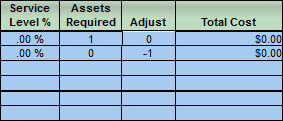
The following information/options are available in this window:
_____________________________________________________________________________________
Service Level %
The result of the Service Level % from the query.
Assets Required
The number of parts required to achieve the Service Level %.
Adjust
The number of parts needed to be added or removed to arrive at the Assets Required value.
Total Cost
The total cost of adding or removing recommended assets based on recommended adjustments.
_____________________________________________________________________________________
Share
Print
|
©1997-2026 Trax USA Corp. All rights reserved. This manual may not be copied, photocopied, reproduced, translated, or converted to any electronic or machine-readable form, in whole or in part, without prior written approval from Trax USA Corp. |
 |