
 Share
Share
 Print
Print
|
|
|
|
|


Select the P/N Software Configuration On A/C  button to view the configuration of installed software parts on the specified A/C Type/Series. As configured hardware and software components are installed on the A/C, this information will also be listed in the window. For detailed information on how hardware and software parts are installed onto an A/C, refer to P/N Software Configuration.
From the P/N Software Configuration window, select the P/N Software Configuration On A/C button. The system displays the following window:
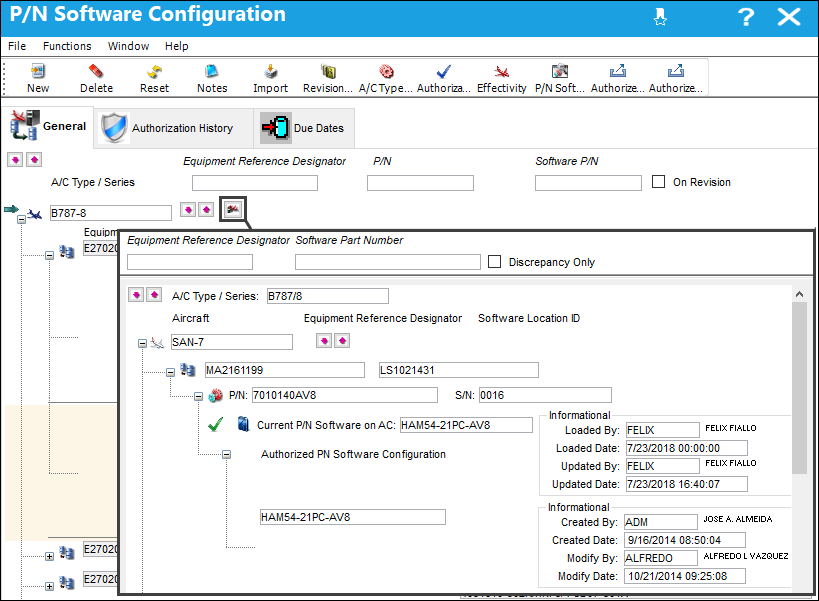
The following information/options are available in this window:
_____________________________________________________________________________________
Equipment Reference Designator
The aircraft position ERD (Equipment Reference Designator) reference. This is the physical position on the aircraft where the hardware part is installed.
 Note: When Settings Swtich
  PNSOFTEC is set to Yes, this search field is Software Location.
Software Part Number
This search field allows users to search for the currently uploaded software part on the aircraft. When entered, only those software components currently uploaded to the Aircraft will be displayed.
Discrepancy Only checkbox
Select this checkbox to only view uploaded software configurations that contain new software parts that have been authorized but not yet uploaded. When selected, each discrepancy will contain the Update to Authorized P/N SW Configuration  button.
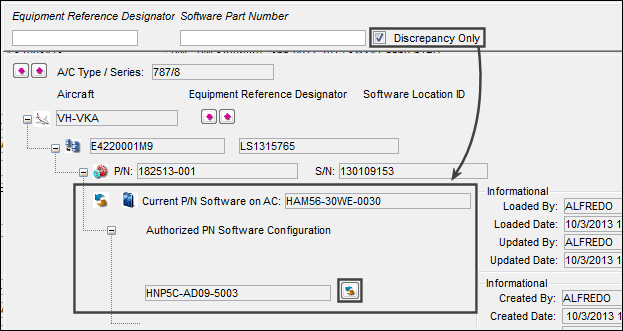
Update to Authorized P/N SW Configuration button
Select this button to upload newly created and authorized P/N Software Configurations without compliance. If a configuration is installed on an aircraft and the user creates and authorizes a new revision for that configuration, this is going to be reflected in the master configuration, however the aircraft will still be associated to the old configuration. By selecting the Update to Authorized P/N SW Configuration button, the system will upload the new configuration to the aircraft, replacing the old configuration that is installed.
 This button must be used with caution as the software part will be uploaded without E/C compliance. If compliance must be written against the updated software's E/C, then that E/C must be linked and closed through a Work Order in order for software to be uploaded/installed automatically and for compliance to be written. For detailed information on how to upload software parts onto an aircraft with compliance, refer to P/N Software Configuration.
Note: When Switch PNSOFTEC is set to Yes, the Update to Authorized P/N SW Configuration button is not applicable because software is not being tracked on hardware P/Ns.
 This button is security-controlled via Settings/ Update/ Update PN Software AC Configuration. For more information refer to the Security Explorer.
_____________________________________________________________________________________
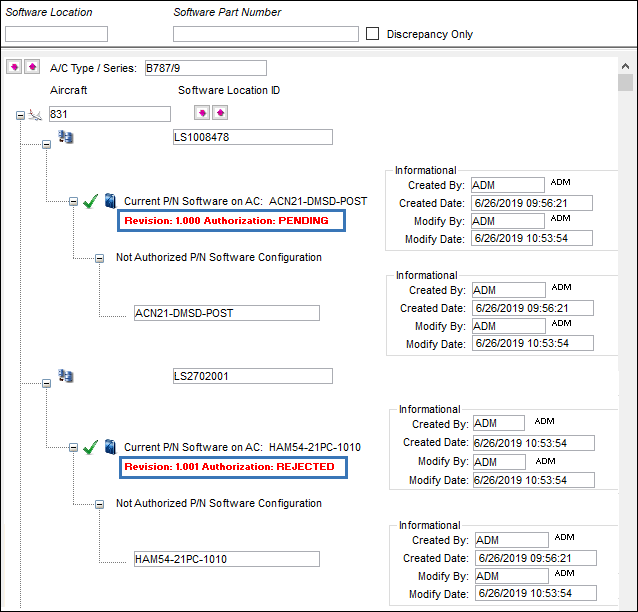
 When Switch PNSOFTEC is set to Yes, P/N Software Configurations in revision will be flagged as such and include the revision status.
Share
Print
|
©1997-2026 Trax USA Corp. All rights reserved. This manual may not be copied, photocopied, reproduced, translated, or converted to any electronic or machine-readable form, in whole or in part, without prior written approval from Trax USA Corp. |
 |