
 Share
Share
 Print
Print
|
|
|
|
|


Import Process, via TRAX Release System Upload
To begin the import process, select from the list of tables and files to export. In the below example, the user has elected to export system transaction switches, transaction codes and security profiles. Once tables/filter have been selected, select the System File Generator  button.
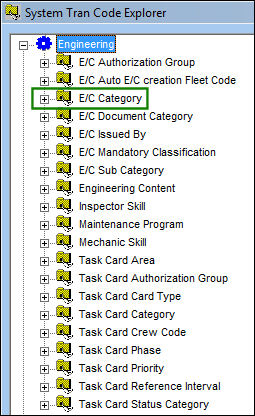
When the user selects the Expand  button to view the E/C Category Transaction Codes, nothing happens because there are no E/C Category Transaction Codes.
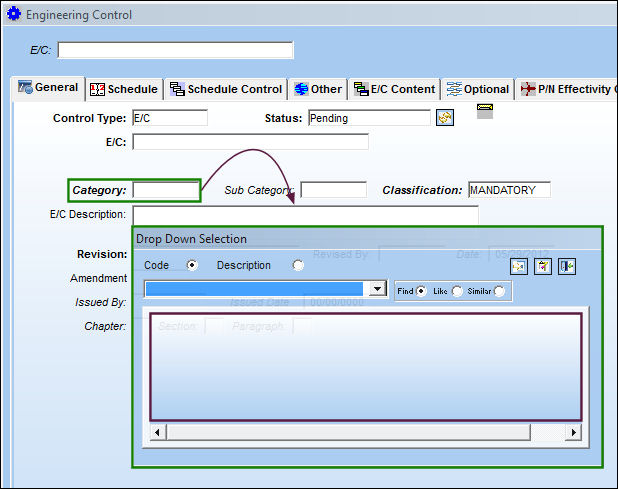
When the user attempts to select an E/C Category, there are none to select from:
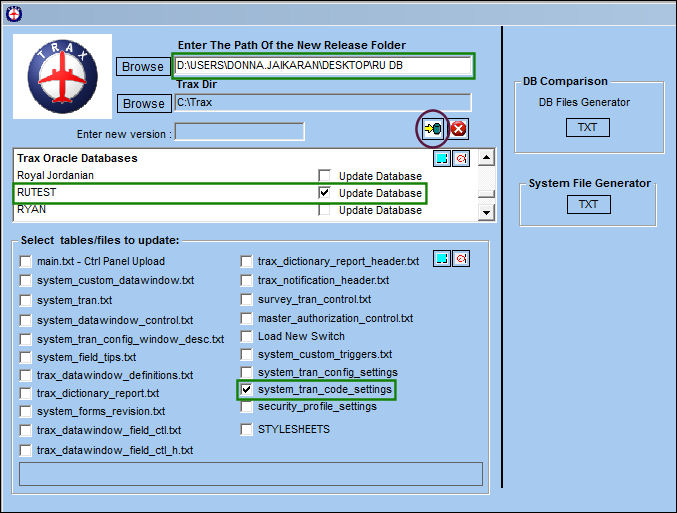
From the Trax Release System Uploads window, the user has elected to import the System Transaction Codes into the RUTEST database. Select the Update Trax Release  button.
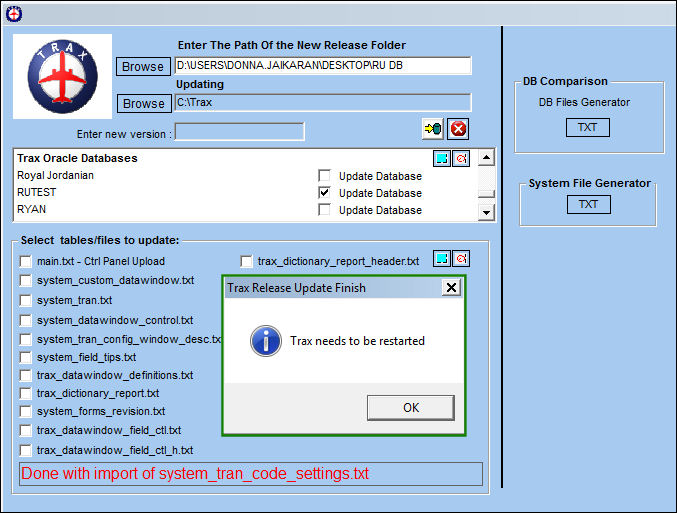
Once the import is complete, the following information box will appear. Select 'OK' and restart TRAX.
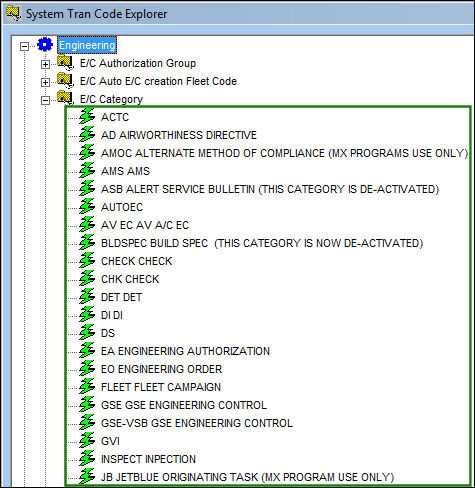
Once the user has restarted TRAX, they can see that all E/C Category Transaction codes have been imported into the RUTEST database:
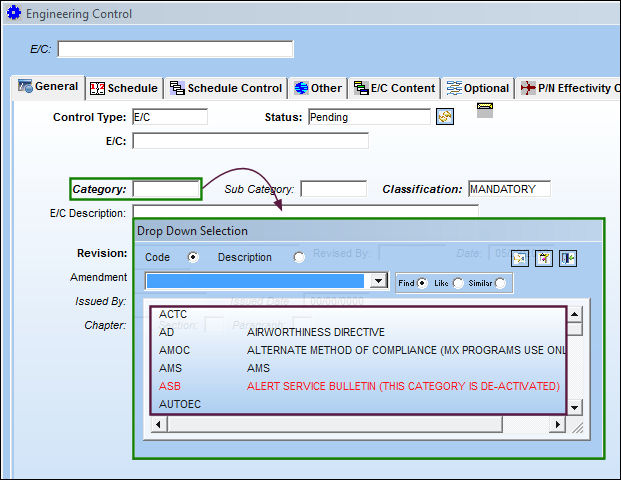
When the user attempts to select an E/C Category, all categories appear in the drop down:
Share
Print
|
©1997-2026 Trax USA Corp. All rights reserved. This manual may not be copied, photocopied, reproduced, translated, or converted to any electronic or machine-readable form, in whole or in part, without prior written approval from Trax USA Corp. |
 |