
 Share
Share
 Print
Print
|
|
|
|
|


The Import Descriptions and Alerts  button is used to quickly import the Description field for the ATA Chapter, Section and Paragraph which may not exist in your TRAX ATA DB.
First, the user must prepare the .CSV, not tab delimited, file.
Criteria for Description and Alerts Import file:
Import Chapter/ Section/ Paragraph Descriptions:
Column Name |
Data Type |
Limitation |
Path |
|---|---|---|---|
ATA Category |
Alphanumeric |
N/A |
N/A |
ATA Chapter |
Alphanumeric |
2 |
Settings/ Update/ ATA Specifications, General tab |
ATA Section |
Alphanumeric |
2 |
Settings/ Update/ ATA Chapter/ Section button |
ATA Paragraph |
Alphanumeric |
2 |
Settings/ Update/ ATA Chapter/ ATA Section/ Paragraph button |
ATA Description |
Alphanumeric |
80 |
Settings/ Update/ ATA Specifications (see Note below) |
The ATA Category defines the description to be updated. The ATA Category is predefined, therefore the user must select from either CHAPTER, SECTION or PARAGRAPH.
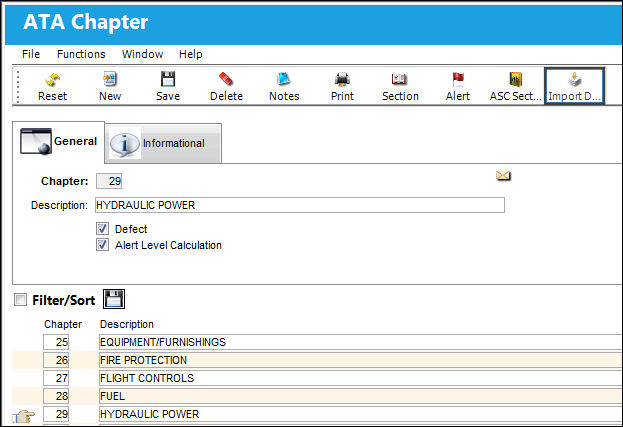
Go to Settings/ Update/ ATA Chapter. From the ATA Chapter, General tab, select the Import button:
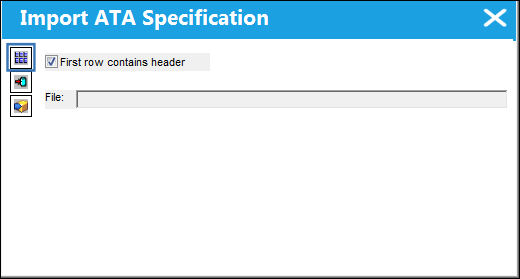
The Import ATA Specification window appears. Select the Import Descriptions  button.
Complete all of the Import steps.
For information regarding how to Import a file, refer to Importing a File via Import Button of the System Standards Training Manual.
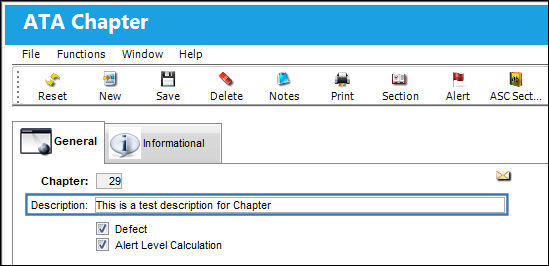
The Chapter Description is imported as shown below:
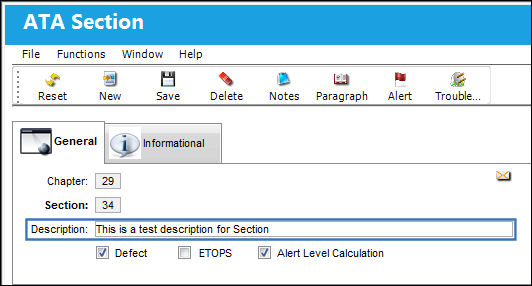
The Section Description is imported as shown below:
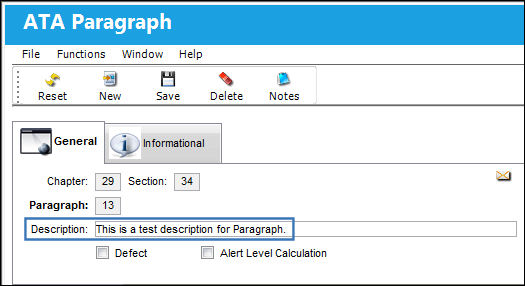
The Paragraph Description is imported as shown below:
Import Chapter Alerts:
Column Name |
Data Type |
Limitation |
Path |
|---|---|---|---|
Chapter |
Alphanumeric |
2 |
Settings/ Update/ ATA Chapter, General tab, Alert Button |
A/C Type |
Alphanumeric |
6 |
Settings/ Update/ ATA Chapter, General tab, Alert Button |
A/C Series |
Alphanumeric |
6 |
Settings/ Update/ ATA Chapter, General tab, Alert Button |
Alert Level |
Numeric |
8 |
Settings/ Update/ ATA Chapter, General tab, Alert Button |
Second Alert Level |
Numeric |
8 |
Settings/ Update/ ATA Chapter, General tab, Alert Button |
From the Import ATA Specification window, select the Import Chapter Alerts  button.
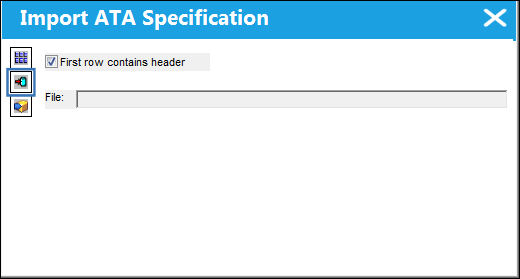
Complete all of the Import steps.
For information regarding how to Import a file, refer to Importing a File via Import Button of the System Standards Training Manual.
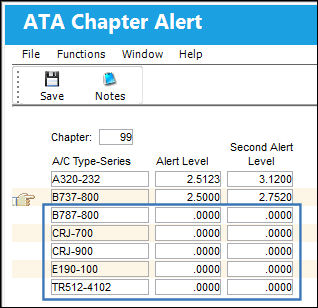
All Chapter, A/C Type-Series and Alert Level information is imported as shown below:
Import Sections Alert:
Column Name |
Data Type |
Limitation |
Path |
|---|---|---|---|
Chapter |
Alphanumeric |
2 |
Settings/ Update/ ATA Specifications/ ATA Chapter, General tab, Section Button/ Alert Button |
Section |
Alphanumeric |
2 |
Settings/ Update/ ATA Specifications/ ATA Chapter, General tab, Section Button/ Alert Button |
A/C Type |
Alphanumeric |
6 |
Settings/ Update/ ATA Specifications/ ATA Chapter, General tab, Section Button/ Alert Button |
A/C Series |
Alphanumeric |
6 |
Settings/ Update/ ATA Specifications/ ATA Chapter, General tab, Section Button/ Alert Button |
Alert Level 1 |
Numeric |
6 |
Settings/ Update/ ATA Specifications/ ATA Chapter, General tab, Section Button/ Alert Button |
Alert Level 2 |
Numeric |
6 |
Settings/ Update/ ATA Specifications/ ATA Chapter, General tab, Section Button/ Alert Button |
Maintenance Alert Level (MAREPS) |
Numeric |
6 |
Settings/ Update/ ATA Specifications/ ATA Chapter, General tab, Section Button/ Alert Button |
Number of Flights/Day 1 |
Numeric |
3 |
Settings/ Update/ ATA Specifications/ ATA Chapter, General tab, Section Button/ Alert Button |
Number of Level 1 |
Alphanumeric |
10 |
Settings/ Update/ ATA Specifications/ ATA Chapter, General tab, Section Button/ Alert Button |
Number of Defects 1 |
Numeric |
3 |
Settings/ Update/ ATA Specifications/ ATA Chapter, General tab, Section Button/ Alert Button |
Number of Flights/Days 2 |
Numeric |
3 |
Settings/ Update/ ATA Specifications/ ATA Chapter, General tab, Section Button/ Alert Button |
Number of Level 2 |
Alphanumeric |
10 |
Settings/ Update/ ATA Specifications/ ATA Chapter, General tab, Section Button/ Alert Button |
Number of Defects 2 |
Numeric |
3 |
Settings/ Update/ ATA Specifications/ ATA Chapter, General tab, Section Button/ Alert Button |
Number of Flights/Days 3 |
Numeric |
3 |
Settings/ Update/ ATA Specifications/ ATA Chapter, General tab, Section Button/ Alert Button |
Number of Level 3 |
Alphanumeric |
10 |
Settings/ Update/ ATA Specifications/ ATA Chapter, General tab, Section Button/ Alert Button |
Number of Defects 3 |
Numeric |
3 |
Settings/ Update/ ATA Specifications/ ATA Chapter, General tab, Section Button/ Alert Button |
Select |
Alphanumeric |
YES/NO (must be capitalized) |
Settings/ Update/ ATA Specifications/ ATA Chapter, General tab, Section Button/ Alert Button |
Description |
Alphanumeric |
80 |
Settings/ Update/ ATA Specifications/ ATA Chapter, General tab, Section Button/ Alert Button |
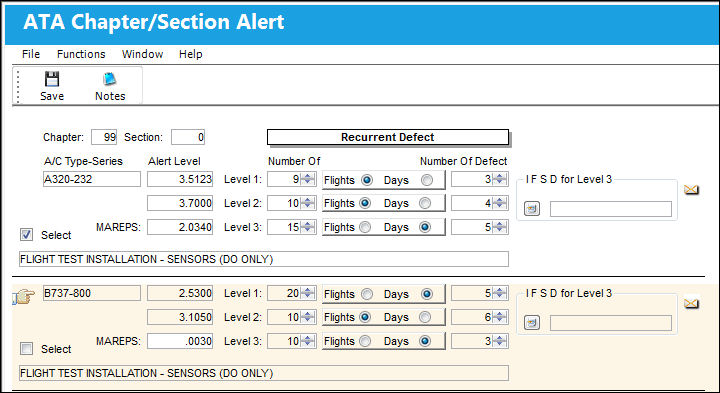
The user may add addition columns in the .CSV file for multiple levels (i.e Number of Flights/Days Level 2/3).
From the Import ATA Specification window, select the Import Sections Alert  button.
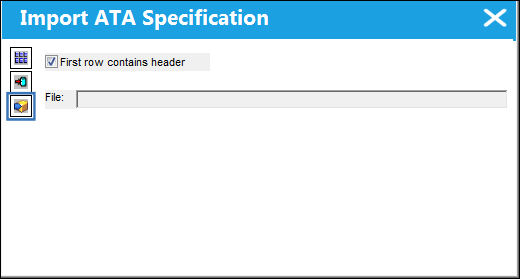
Complete all of the Import steps.
For information regarding how to Import a file, refer to Importing a File via Import Button of the System Standards Training Manual.
All information from the .CSV is imported as shown below:
Share
Print
|
©1997-2026 Trax USA Corp. All rights reserved. This manual may not be copied, photocopied, reproduced, translated, or converted to any electronic or machine-readable form, in whole or in part, without prior written approval from Trax USA Corp. |
 |