
 Share
Share
 Print
Print
|
|
|
|
|


Filter/Sort Button, via Requisition Authorization Explorer

The Filter/Sort  button allows the user to create and save a filter to quickly and efficiently query for Requisition Records.
From the Requisition Authorization Explorer, select the Filter/Sort button.
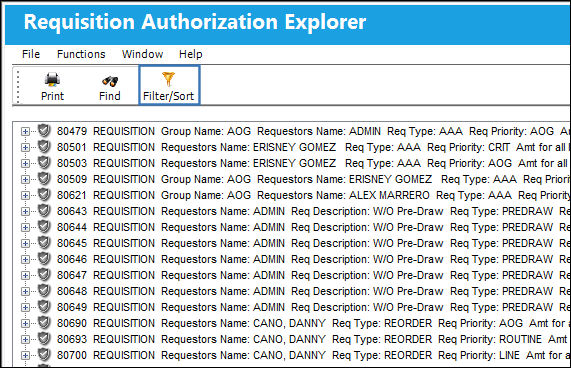
This button will only appear if Requisition Switch  REQAUTHFILTER is set to Yes.
The Requisition Authorization Filter/Sort window appears. Select the New  button to create a new Filter/Sort.
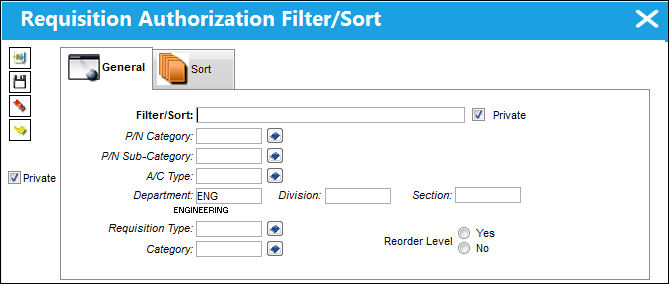
The following information/options are available in this window:
_____________________________________________________________________________________
Filter/Sort
User-created name of the Filter/Sort profile.
Private checkbox
Select this checkbox to create user Filter/Sorts that are only available for the user who created the Filter/Sort record.
P/N Category
The category of the part as defined in Settings/ Explorer/ System Transaction Code Explorer/ Settings/ P/N Category (e.g. Rotable, Consumable, Repairable) and entered for the particular part in the P/N Master.
P/N Sub Category
The Sub Category for each part.
A/C Type
The individual aircraft tail number.
Department/Division/Section
The Department/Division/Section the user belongs to. This information is defined in the Employee Master, via the Settings module and will auto populate in this window.
Requisition Type
The type of Requisition used to identify the purpose of the request.
Category
The Category of the Requisition.
Reorder Level radio button
Select the 'Yes' radio button of the Requisition has a Reorder Level set up against it. Select the 'No' radio button if the Requisition does not have a Reorder Level.
_____________________________________________________________________________________
Enter all relevant information and select the Save  button.
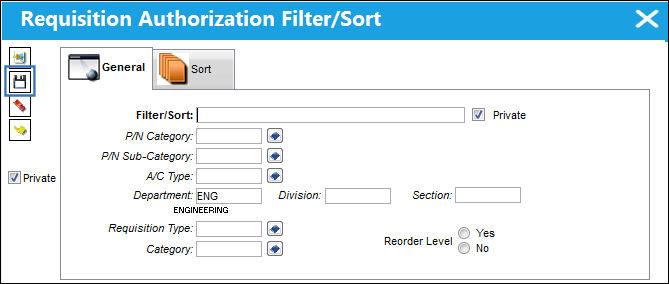
Once the filter/sort record has been saved, the filter parameters will appear in the lower half of the window.
Click on the Select  button to apply the filter/sort to the existing records.
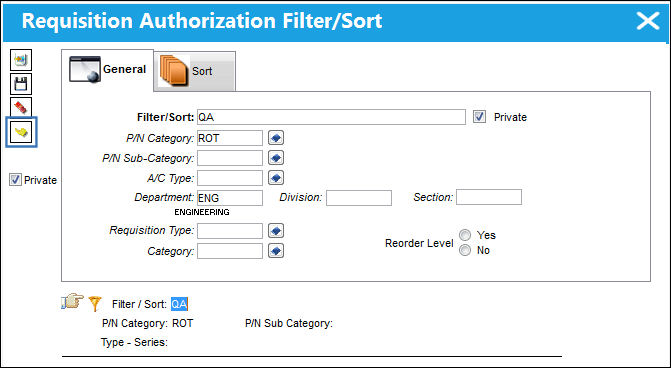
The following Requisition appears after the filter/sort is applied:
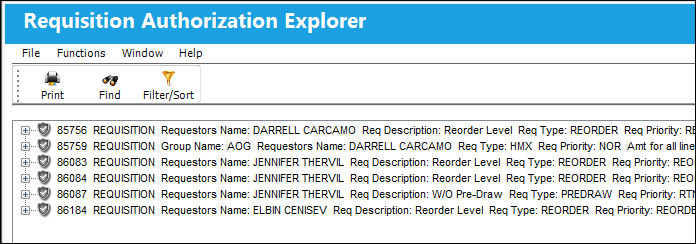
The user may select the Delete  button to delete a filter/sort.
Share
Print
|
©1997-2026 Trax USA Corp. All rights reserved. This manual may not be copied, photocopied, reproduced, translated, or converted to any electronic or machine-readable form, in whole or in part, without prior written approval from Trax USA Corp. |
 |