
 Share
Share
 Print
Print
|
|
|
|
|


The system displays the Warranty Claim Order Detail, Optional tab as follows:
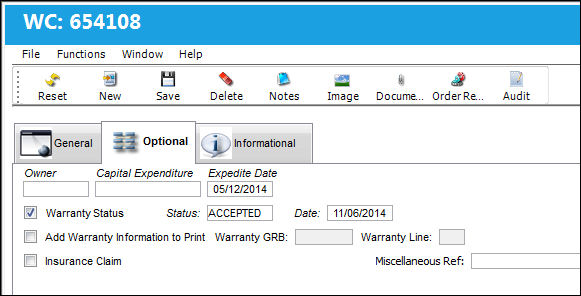
The following information/options are available in this window:
_____________________________________________________________________________________
Owner
The owner who is associated with this part on the order. The purpose of the owner code is to separate other companies' stock from your own. This is helpful if you hold consignment inventory or loan parts. When an owner is associated with the part, the part will indicate that it is consigned (with the Consigned icon), Loaned, Pool, or Managed via Inventory/Update/Inventory Transaction. The part will indicate that it is consigned with the Consigned icon. Consigned parts are those that are received by your company, but do not become officially yours unless the part is actually used on an aircraft. Consigned parts do not generate journal transactions or fixed asset records until the issue of the part to the aircraft.
Capital Expenditure
The Capital Expenditure code describes the way in which a cost is to be accounted for.
 The Cost Center associated to the Capital Expenditure transaction code entered into this field is displayed as part of the G/L Account of the ordered part. The Cost Center is displayed only after this ordered part is received. For more information on how the Cost Center is associated to the Capital Expenditure and its impact of the Journal Entries, refer to the Orders Transaction Code Manual.
 If the Requisition and Line item linked to the order in the General tab contains a Capital Expenditure, the Capital Expenditure is auto-populated in the order's optional tab.For more information, refer to the Requisition Detail, Optional Tab via the Requisition Training Manual.
Depending on the setting of Orders Switch  CAPEXGL, either the Cost Center field or the Default G/L field is available within the Capital Expenditure transaction code.
When set to Yes, the Capital Expenditure transaction code will contain the Default G/L field (instead of the Cost Center field). When this Capital Expenditure is entered into an order's Optional tab, the transaction code's G/L (if populated) will override the order's G/L field in the General tab.
When set to No, the Capital Expenditure transaction code will contain the Cost Center field (instead of the Default G/L field). When this Capital Expenditure is entered into an order's Optional tab, the transaction code's Cost Center will override the order G/L's Cost Center at order receiving. The Journal Entries for the closed order will contain the Capital Expenditure's Cost Center in the G/L. For more information refer to Switch CAPEXGL via the Orders Switches Manual and transaction code Capital Expenditure via the Orders Transaction Code Manual.
Expedite Date
The accelerated delivery date of this Order; rushed order based part requirement and order priority.
Delivery Date - Expedite Value (via Priority System Tran Code) = Expedite Date (via Order Detail, Optional tab)
Example:
Current Date = 01/01/2019
Delivery Date = 01/24/2019
Expedite Value (via Priority Tran Code) = 12 days
Delivery Date (01/24/2019) - Expedite Value (12 days) = Expedite Date (01/12/2019)
If the Expedite Date (Order Detail, Optional tab) is less than today's date, the system will default the Expedite Date to the current date.
Warranty Status checkbox
The Warranty for the part can be in the form of Hours, Cycles, Days, or A/C Days. Default Warranty information for the part is set up via Settings/ Update/ Vendor/ Warranty Information tab. The Warranty information can be overridden here as required.
Status
Status of Warranty Claim Order. This user defined code can be set up via the Warranty Status Transaction Code in the Orders Module list.
Add Warranty Information to Print checkbox
Select this checkbox to add Warranty information to the print.
Warranty GRB
Warranty Goods Received Batch (GRB) information.
Warranty Line
Warranty Line number.
Insurance Claim checkbox
Select this checkbox if an Insurance Claim applies. Then specify the applicable Insurance Claim Number; the total cost of the Order or Work Order will appear on the Insurance Claim for collection from the Insurance company. For additional information, please refer to the Insurance Claim section of the Orders Manual. If selected, the Claim Number field will be mandatory.
Claim Number - The Insurance Claim number to associate with the Order. If the Insurance Claim checkbox is selected and the Claim Number is not entered or incorrectly.
Miscellaneous Ref
Free text Miscellaneous Reference information.
_____________________________________________________________________________________
Share
Print
|
©1997-2026 Trax USA Corp. All rights reserved. This manual may not be copied, photocopied, reproduced, translated, or converted to any electronic or machine-readable form, in whole or in part, without prior written approval from Trax USA Corp. |
 |