
 Share
Share
 Print
Print
|
|
|
|
|


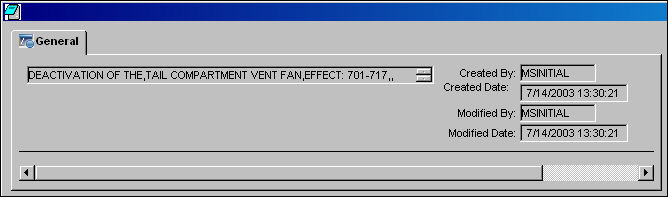
Select the Transaction Notification button to view any notes related to the planning element. The system displays a pop-up window with relevant notes. These transaction notes allow engineering, maintenance programs, and maintenance control to flag information for the planner.
When a note is associated to planning element, the envelope will appear open.

TRAX displays the following window:
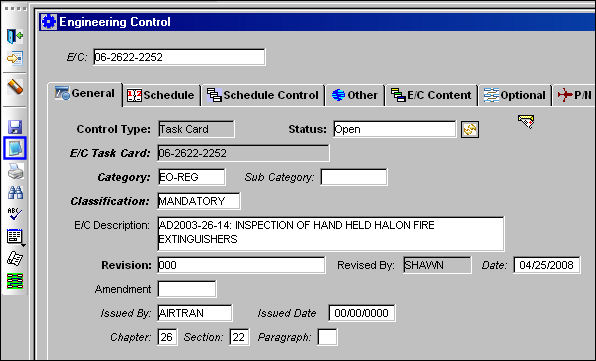
Notes are defined in the General Tab of a planning element. For example, go to Engineering/Update/Engineering Control. In the General Tab of the Engineering Control window select an E/C. Select the Notes  button.
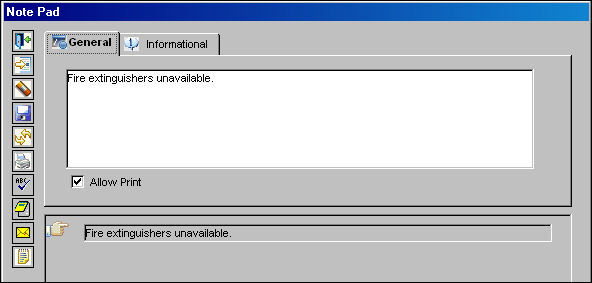
The Note Pad window opens. Create a note, and select the Save  button. Exit the Note Pad window and be sure to exit the Engineering Control window.
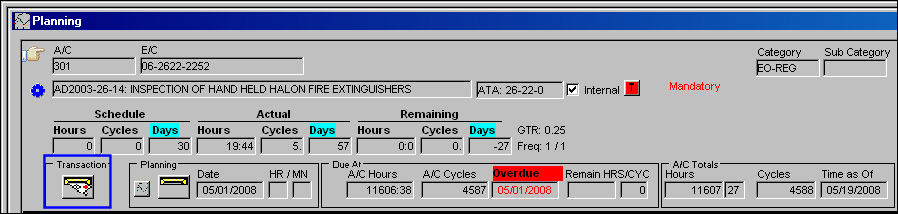
Go to Planning/Query/A/C Planning Query. Run a query for that E/C. The note appears below:
Share
Print
|
©1997-2026 Trax USA Corp. All rights reserved. This manual may not be copied, photocopied, reproduced, translated, or converted to any electronic or machine-readable form, in whole or in part, without prior written approval from Trax USA Corp. |
 |