
 Share
Share
 Print
Print
|
|
|
|
|


The Import  button appears throughout TRAX and is used to quickly import files that do not exist in the system. The same process can be applied to any import found within the system.
The Import button in the P/N Bin Location Control option is used to import bins into the system.
First, the user must prepare the file. For information regarding how to prepare the import file, refer to Preparing File For Import, via the Import Button of the System Standards Training Manual.
Criteria for the P/N Bin Location Control import:
Column Name |
Data Type |
Limitation |
Path |
P/N |
Alphanumeric |
35 |
P/N Master/ Bin Control button, General tab |
Location |
Alphanumeric |
10 |
P/N Master/ Bin Control button, General tab |
Bin |
Alphanumeric |
20 |
P/N Master/ Bin Control button, General tab |
Description |
Alphanumeric |
45 |
P/N Master/ Bin Control button, General tab |
From the P/N Bin Location Control window, select the Import button.
TRAX displays the Import From File window.
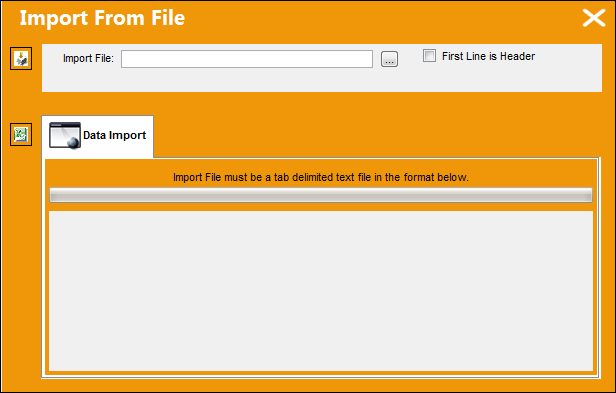
Complete all of the Import steps.
For information regarding how to Import a file, refer to Importing a File via Import Button of the System Standards Training Manual.
The user may use the Browser  button to select an existing file, or they may select the Excel
  button to locate an excel spreadsheet with the columns already populated. For additional information, refer to the Excel Button, via the Import Button of the System Standards Training Manual.
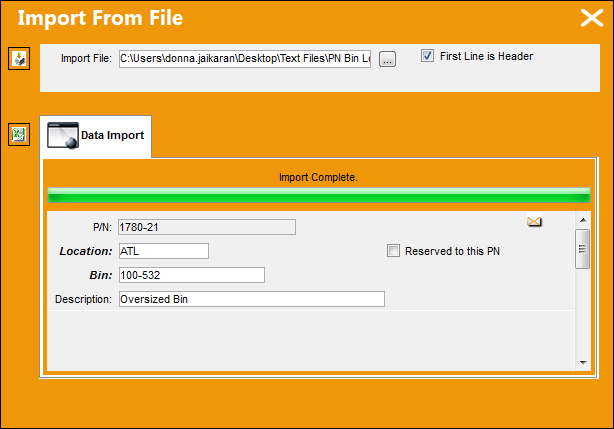
The bins have imported as shown below:
Return to the P/N Bin Location Control window.
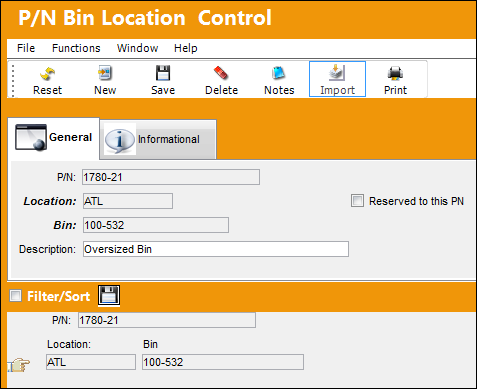
The bins have been imported into TRAX:
Share
Print
|
©1997-2026 Trax USA Corp. All rights reserved. This manual may not be copied, photocopied, reproduced, translated, or converted to any electronic or machine-readable form, in whole or in part, without prior written approval from Trax USA Corp. |
 |