
 Share
Share
 Print
Print
|
|
|
|
|


This option allows the user to create a new Work Order for the selected tail number.
Select the New  button. Select on desired Location/Date in the Display By Area of the window. Notice a black dot appears indicating a new Work Order. A new Work Order is being created.
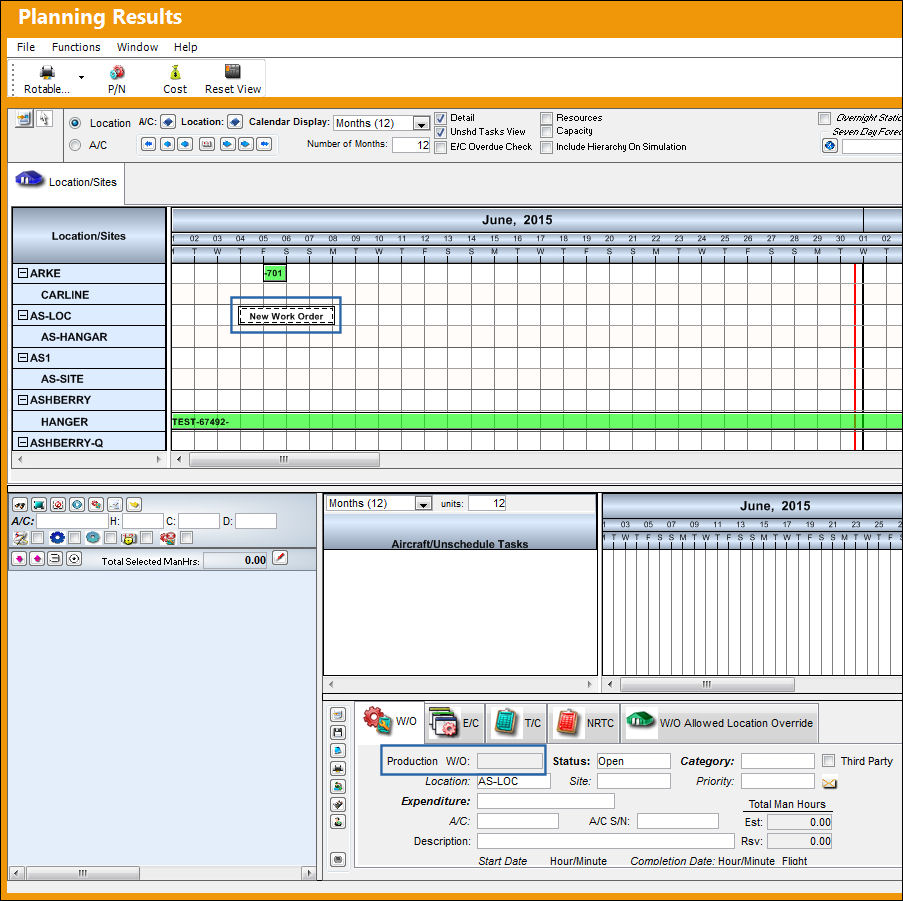
Populate all mandatory fields of the Work Order and select the Save  button. The Save prompt will appear. Select OK. The Work Order now appears in the Display By Area of the Interactive Planner View.
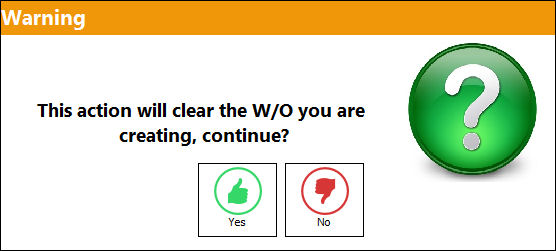
If the user does not select the Save button, a warning prompt appears to notify the user that the Work Order information will be deleted if the user continues.
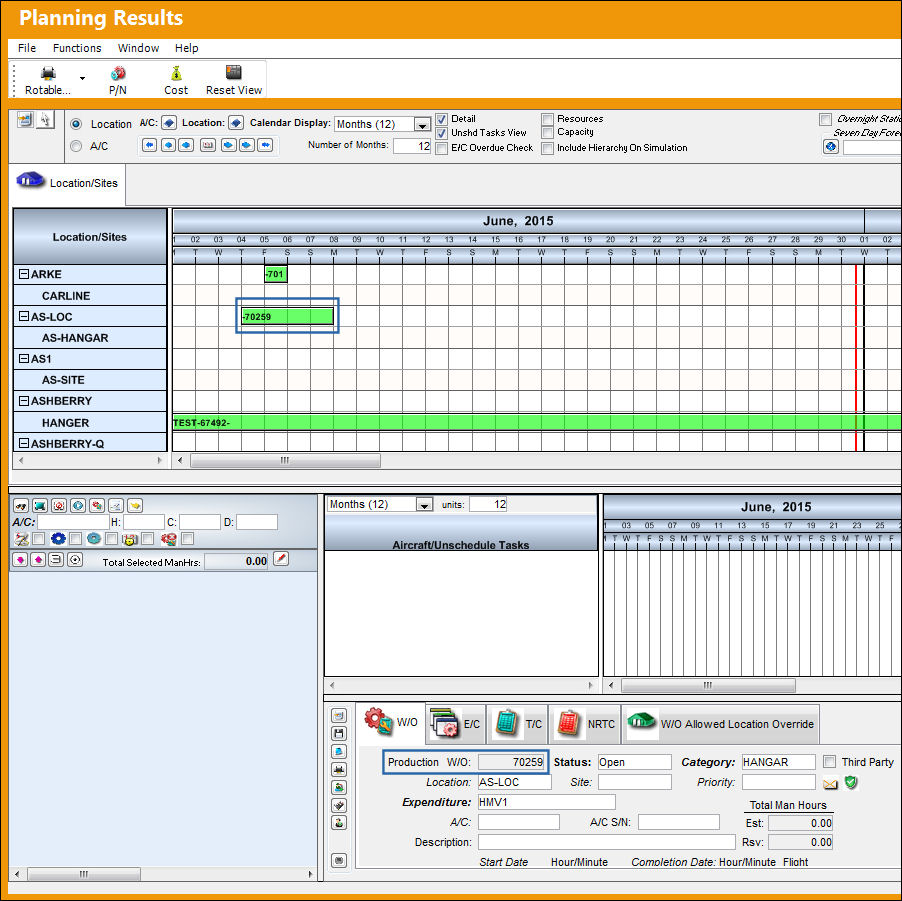
For more information regarding how to create a Work Order, please refer to Work Order Header, via Work Order of the Production Training Manual.
For warnings associated to E/Cs, refer to E/C Control Warnings via the Production Training manual.
Share
Print
|
©1997-2026 Trax USA Corp. All rights reserved. This manual may not be copied, photocopied, reproduced, translated, or converted to any electronic or machine-readable form, in whole or in part, without prior written approval from Trax USA Corp. |
 |