
 Share
 Print
|
|
|
|
|


P/N Master, Technical Engineering Tab
Select or create the Part Number then select the P/N Master, Technical Engineering tab.
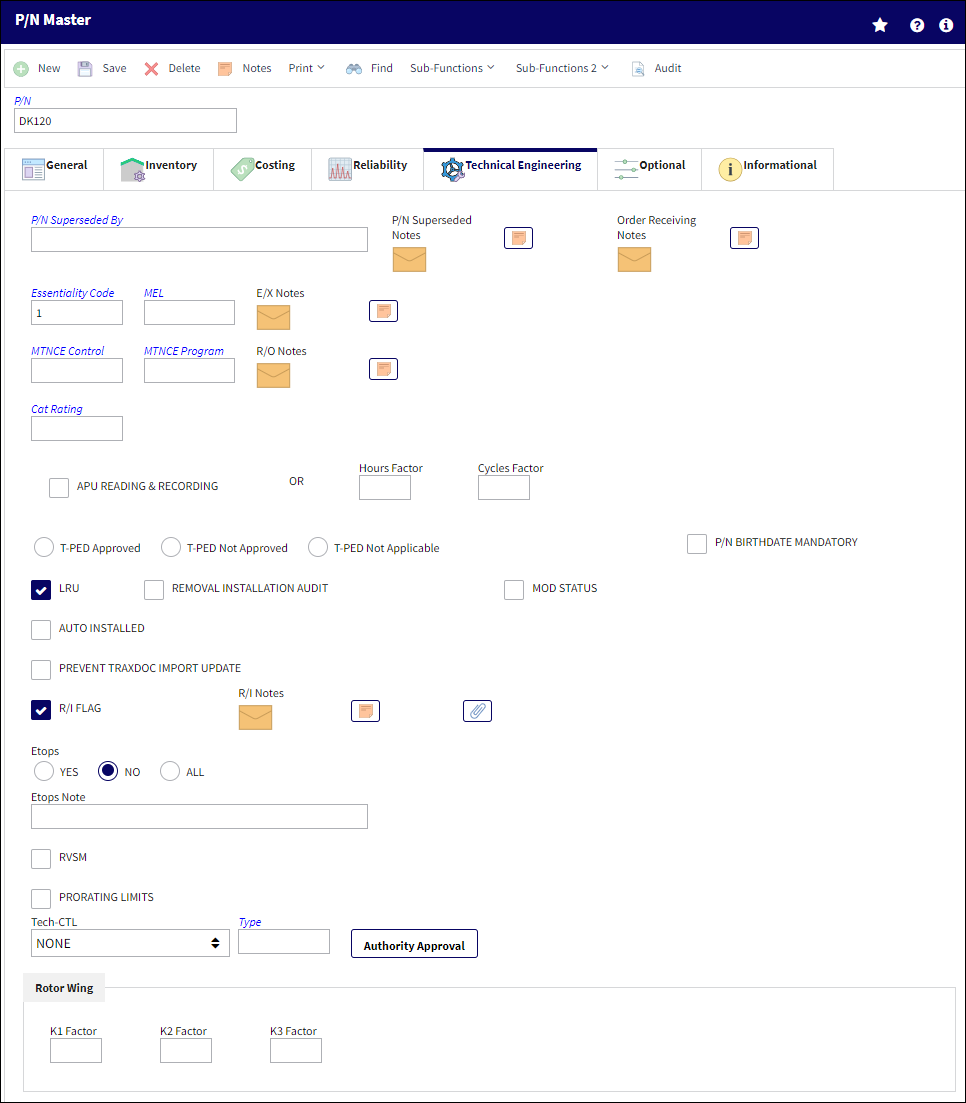
The following information/options are available in this window:
_____________________________________________________________________________________
P/N Superseded By
Specify a P/N that this part is superseded by. This is useful when a new P/N can be used in place of an old P/N within the system. Any part that supersedes another will indicate as such throughout the system via the drop down selection for parts.
Note: The Superseded  icon appears next to all parts that supersede each other.
When a Purchase Order is created for a part that has been Superseded By, the system automatically replaces the P/N that was placed on the Purchase Order with the Superseded By part. You are alerted with a pop up message:

P/N Superseded Notes  button
Select the P/N Superseded Notes button to enter notes that will appear with this part.
Order Receiving Notes button
Select the Order Receiving Notes button to enter notes to appear on the Purchase Order Receiving, P/N Information tab once the part has been placed on a Purchase Order and has been received.
Essentiality Code
The manufacturer's Essentiality code. Used in reporting this is informational only. For additional information, refer to Essentiality Code via the Settings Transaction Code Manual.
MEL
The Minimum Equipment List number. Specify either MEL, CDL, or GMM with the appropriate radio buttons.
Exchange Order Notes button
Select the Exchange Order Notes button to enter notes to appear on the Exchange Order Detail, P/N Notes tab once the part has been placed on an Exchange Order.
Maintenance Control
Specify how the part is controlled with regard to maintenance (i.e., On Condition, etc. Informational only). The Part Maintenance Control code (i.e., Hard Time, On Condition). Used in reporting and analysis.
Maintenance Program
The part's associated Maintenance Program.
R/O Notes
Click to enter notes to appear on the P/N Notes Tab when Repair Order is created for this part.
CAT Rating
The Category Rating as entered through the System Transaction Code Cat Rating via Settings. The CAT Rating is the description of the type of A/C landing system and is informational only. This field is typically for navigational parts.
Critical Level drop down
This informational only drop down allows users to designate a critical level for Software P/Ns. By default, this field is left blank indicating that it is a 'non-critical' item. This field is only available for parts that have a P/N Category that is set to Software. For more information refer the P/N Category via the Settings Transaction Code Manual.
Hours Factor
Used to calculate a percentage of component hours in relationship to total A/C hours. Enter the Aircraft Hours factor to reduce this parts hours on an aircraft (i.e., if 0.50 is entered for APU parts, then [for APUs] 1 A/C hour equals to half (.50) an A/C hour). Refer to the Technical Records manual, 'P/N APU Reading' Section for additional information regarding APU set up.
- Switch
 APUREAD (APU Reading Time Control Definition) controls how the Hours Factor and Cycles Factor fields operate.
- All APUs must be defined as such via Settings/Update/P/N/ Technical Engineering tab/ APU selection. The appropriate time control for that APU must also be defined via Settings/ Update/ P/N/ P/N Control button.
- If set to Yes, APU readings are updated via the Technical Records/Update/P/N APU Reading option. Specify the P/N Control (TSN, TSO, etc.) that store the hours and cycles for the APU in the Config Other field. Note that the P/N APU Reading option is not be available if this switch is set to No.
- If set to No, all APU hours and cycles update according to values entered in the Hours Factor and Cycles Factor fields (Settings/Update/P/N/Technical Engineering Tab) of the APU part.
Note: This field is used when effectivity is removed from a part.
Cycles Factor
Used to calculate a percentage of component cycles in relationship to total A/C cycles. Enter the Aircraft Cycles factor to reduce this part's cycles on aircraft (i.e., if 0.50 is entered for APU parts, then [for APUs 1 A/C cycle equals half (.50) an A/C cycle).
Note: This field is used when effectivity is removed from a part.
APU Reading and Recording checkbox
When this checkbox is selected, time for this part will be recorded using the P/N APU Reading option, via Technical Records/ Update/ P/N APU Reading. This checkbox allows for time to be configured for specific parts, rather than globally with the use of the switch APUREAD. When this checkbox is selected, the Hours and Cycles Factor fields are not visible.
This checkbox should be selected for all APU NLAs in the assembly to ensure all assembly P/N times are tracked accordingly.
Note: Switch APUREAD must be set to Yes for this option to work.
T-PED checkbox
Indicates the part's Transmitting Portable Electronic Devices (T-PED) status. Only certain parts may be approved T-PED wireless technology. This checkbox allows for the proper inventory management of the T-PED approved parts. This checkbox contains three status options:
T-PED Approved - The part is approved for T-PED.
T-PED Not Approved - The part is not approved for T-PED. This option is selected by default.
T-PED Not Applicable - The part is not applicable for T-PED.
LRU (Line Replacement Unit) checkbox
Select this checkbox to indicate that an NLA part can be replaced without needing to remove the entire assembly from the aircraft. Check this box if the part is maintained using 'line' style. If selected, the unit is flagged in the A/C Planning Query.
Removal Installation Audit checkbox
Select if the removal/installation records carried out by a mechanic for this P/N needs to be checked later for accuracy. The component change is automatically put on-hold until verified in the Technical Records/Update/A/C P/N Transaction Audit option.
Mod Status checkbox
If this checkbox is selected, the Mod Status field in the Receiving Inspection window is mandatory. For additional information, refer to the Receiving Inspection Detail, General Tab, via Receiving Inspection of the Receiving Training Manual.
Auto Installed checkbox
If checked, the serialized part is automatically installed when issued from inventory to the selected aircraft. It is also automatically removed when the Return to Stock transaction takes place. This bypasses using the A/C P/N Install/Remove option in Technical Records, however, an A/C P/N Transaction record is created when installed. Once in Inventory, an 'INSTALL' Inventory Transaction Records is created for the installed part. The Auto Install Position that must be specified must already have been set up via the Positions  button, which defines the configuration for the aircraft on the system.
Auto Install Position - The position associated with the Auto Install. This field will appear when the Auto Installed checkbox is selected.
R/I Flag checkbox
Select this checkbox to indicate that a part will always require a two stage receiving inspection. The R/I Flag can be set if two stage receiving inspection is required.
Note: The R/I checkbox can be defined at by P/N Category and overridden at the individual part number record level.
R/I Notes
Click to enter notes to appear on the R/I Requirement List Tab when Receiving Inspection is performed for this part.
 Note: When Receiving Inspection Notes are added, the R/I Requirement List tab is highlighted in red, and is opened by default when a Receiving Inspection Detail is opened. For more information, refer to the R/I Requirement List tab, via the Receiving Inspection Detail in the Receiving Module.
Print at P/N Transaction Documents  button
Select this button to have documents print at the time of a P/N Transaction. For additional information, refer to Print at P/N Transaction Documents Button, via P/N Master, Technical Engineering Tab, found in the Settings Training manual.
ETOPS radio buttons
Extended Twin Operation checkbox. Check this box to indicate that this part is ETOPS rated and to be used only on ETOPS rated aircraft. The system allows the installation of the ETOPS rated part on a non ETOPS rated aircraft. The system generates an alert message indicating that the P/N is ETOPS.
YES = ETOPS Authorized - The part is ETOPS authorized. (i.e. can be flown on ETOPS A/C for 180 minutes).
NO = ETOPS Not Authorized - The part is not ETOPS authorized.
Note: When a new part is created in the P/N Master, it is created as an ETOPS Not Authorized part by default.
ALL = ETOPS Not Applicable - The part is ETOPS rated, but not solely for ETOPS purposes (can be issued for other aircraft).
ETOPS Note 
The ETOPS (Extended Range Twin Engine Operational Performance Standards) Note field is used to specify limitations or caveats to an aircraft or component (e.g., if the APU Part Number is authorized for 120-Minute EASA operations in the Authorized field, but the note directs limiting routing within the FAA 60-minute rule; pending inspection).
RVSM checkbox
Select this checkbox if Reduced Vertical Separation Minimum applies.
RVSM - Select into the field to select available RVSM entries.
Prorating Limits checkbox
Check this box if prorating limits applies. For additional information, refer to the P/N Control Button and Setting Up a Prorated Part topics via the Settings Training Manual.
Note: The system has the capability of proration conversions for current installations when P/N Controls are retroactively configured for proration in the P/N Master.
Tech-CTL 
The Tech-CTL drop-down defines a part's Tech Control (e.g., APU, Engine, Landing Gear, Module, Disk, Recorder, None, etc).
Note: The Tech-CTL dropdown replaced the APU, Engine, Landing Gear, Module, Disk, Recorder and None radio buttons.
APU option
This is selected if the part is an APU. This checkbox should be selected for all APU NLAs in the assembly to ensure all assembly P/N times are tracked accordingly.
- APUREAD - (APU Reading Time Control Definition) - All APUs must be defined as such via Settings/Update/P/N/Technical Engineering Tab. The appropriate time control for that APU must also be defined via Settings/Update/P/N/Time Control button. If set to Yes, APU readings are updated via the Technical Records/ Update/ P/N APU Reading option. Specify the time control (TSN, TSO, etc.) that store the hours and cycles for the APU in the Config Other field. Note that the P/N APU Reading option is not available if this switch is set to NO. If set to No, all APU hours and cycles update according to values entered in the Hours Factor and Cycles Factor fields (Settings/ Update/ P/N / Technical Engineering Tab) of the APU part.
Engine option
Select if the part is an Engine.
Note: These selections must be defined correctly for the Technical Records/ Print/ A/C Component Print: Engine Disk Report, Engine APU Report and Engine Disk Report Cycles to function correctly, as seen below:
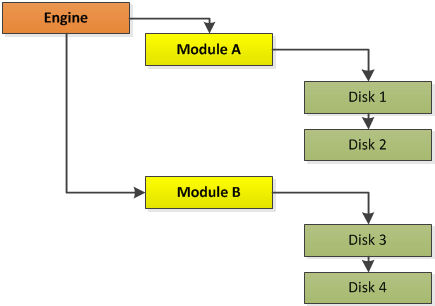
- PNCTLTDL - (P/N Control To Display Limits) - The Config Other field is used to enter the preferred Time Control in the Config Other field. Through this switch users can define which Time Control (TSN, TSO, etc.) is used for the calculation of the Engine Disk Report (Technical Records/ Print/ A/C Component Print/ Engine Disk Report) and the P/N Control Override feature. Enter the preferred Time Control in the Config Other field.
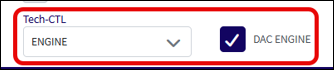
DAC Engine
The DAC Engine checkbox only appears if Engine is selected in the Tech-CTL dropdown. This checkbox must be flagged to export SDC date to QOCO for the selected Rollls Royce engine. Refer to SDC Query in the Planning Training Manual for more information.
Landing Gear option
This is selected if part of a Landing Gear assembly.
Module option
This is selected if the part is an Engine Module.
Note: These selections must be defined correctly for the Technical Records/ Print/ A/C Component Print: Engine Disk Report, Engine APU Report and Engine Disk Report Cycles to function correctly.
Disk option
This is selected if the part is an Engine Disk.
Note: These selections must be defined correctly for the Technical Records/ Print/ A/C Component Print: Engine Disk Report, Engine APU Report and Engine Disk Report Cycles to function correctly.
- PNCTLTDL - (P/N Control To Display Limits) - The Config Other field is used to enter the preferred Time Control in the Config Other field. Through this switch users can define which Time Control (TSN, TSO, etc.) is used for the calculation of the Engine Disk Report (Technical Records/ Print/ A/C Component Print/ Engine Disk Report) and the P/N Control Override feature. Enter the preferred Time Control in the Config Other field.
Recorder option
Indicates that the engine contains a Recorder information that can be tracked. Recorder parts are linked to engines as NLAs then must be installed onto the assembly. Parts with this selection can be tracked via the P/N Engine Recorder Reading window via Technical Records. This options is typically used for Rotor Wing Aircraft engines (i.e., for helicopters).
None option
This is selected if the part does not fall into any of the above categories.
Type
The PNTYPE system transaction code that is associated with a component. For more information, refer to the Settings Transaction Code manual.
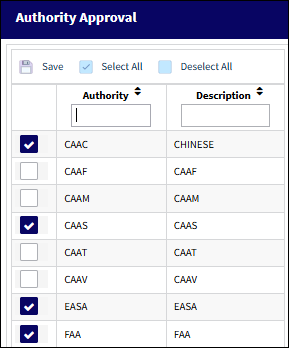
Authority Approval button
Use this button to select which Aviation Authority figures have authorized the part for maintenance use. The options available in the Authority Approval window is linked to the Authority Approval Transaction Code. For more information, refer to the Settings Transaction Code manual.
A/C Type-Series
The Aircraft Type and Series/Fleet assignment.
Hours Factor
Enter the Aircraft Hours Factor to reduce this part's hours on an aircraft. This is used if the part is effective and installed in an aircraft.
Cycles Factor
Enter the Aircraft Cycles factor to reduce this part's cycles on aircraft. This is used if the part is effective and installed in an aircraft.
Prevent TraxDoc Import Update checkbox
This checkbox prevents P/Ns from updating when a new data import is made in Traxdoc. The import does not affect any previously created parameters for that P/N.
PN Birthdate Mandatory checkbox
Select this checkbox to make the Birth Date field mandatory via Order Receiving. The Birth Date is used to calculate the Calendar Days of a part number. If the Birthdate field is not populated, then the system defaults to using the Order Receiving date to calculate the Calendar Days. The PN Birthdate Mandatory checkbox only appears in the P/N Master, Technical Engineering tab if Switch PNBIRTHDAY is set to Yes. For additional information, refer to Switch PNBIRTHDAY via the Receiving Switches Manual.
Rotor Wing section: K Factors
This section provides data to calculate P/N Control formulas for Rotor Wing Aircraft (i.e., helicopters). The K1 Factor, K2 Factor, and K3 Factor data helps drive configurable formulas that affect helicopter P/N Controls. For more information on how these formulas link to the K Factors, refer to Formulas via the Settings Training Manual. For more information on how the K Factor data and formulas influence P/N Controls, refer to Planning P/N Controls for Helicopters.
_____________________________________________________________________________________
Share
Print
|
©1997-2026 Trax USA Corp. All rights reserved. This manual may not be copied, photocopied, reproduced, translated, or converted to any electronic or machine-readable form, in whole or in part, without prior written approval from Trax USA Corp. |
 |