
 Share
 Print
|
|
|
|
|




The Requisition Vendor Analyzer  button is used to create a Purchase Order (P/O) that includes multiple Requisitions. While a P/O can contain several Requisitions, it must be associated with only one Vendor.
This window displays the Preferred Vendors shared by the required parts. If any of the selected parts have Preferred Vendors configured, those vendors will appear in the lower section of the window, along with any additional Preferred Vendors linked to those parts.
Note: The information displayed in the Requisition Vendor Analyzer window is sorted by Preferred Vendor.
From the Requisition Management window, select the Requisition Vendor Analyzer button.
The system displays the following window:
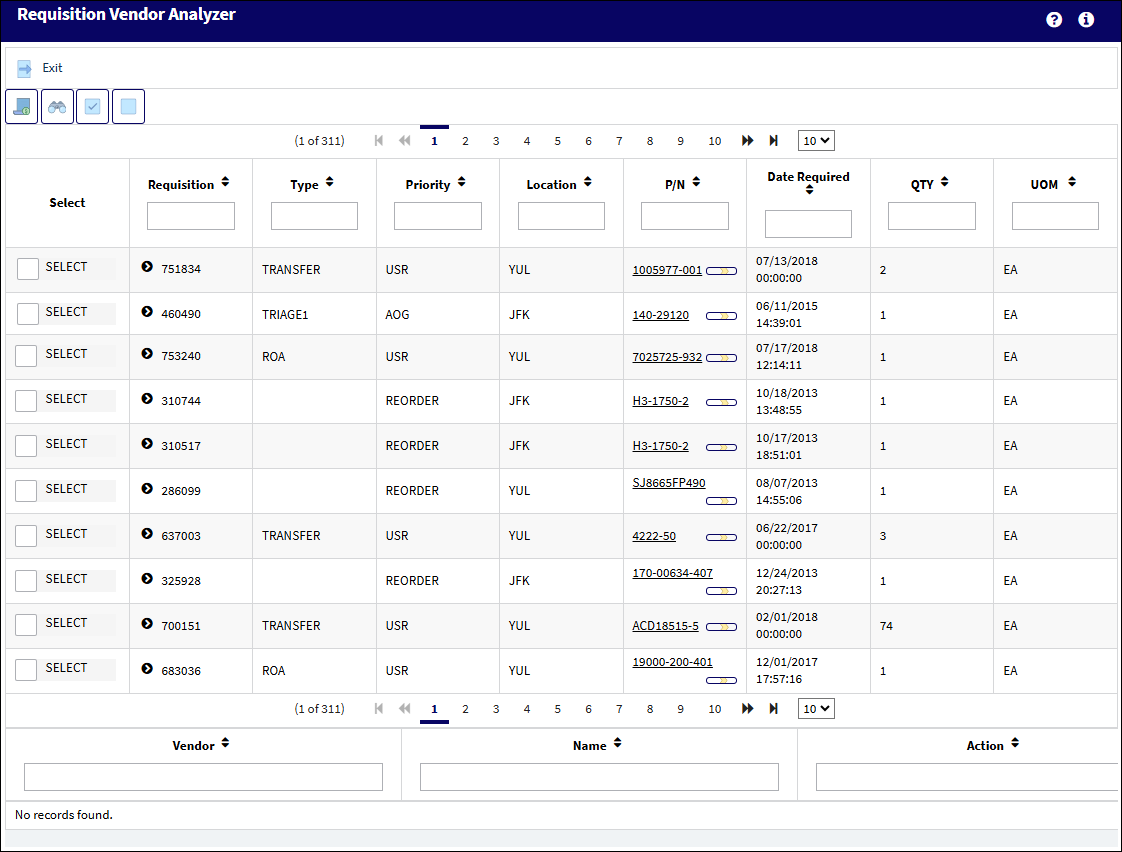
Note: The user may also use the Select All  button to select all Requisitions or the Deselect
 button to deselect all Requisitions.
The user can select individual Requisitions by simply clicking the Select checkbox. If any selected part(s) have any Preferred Vendors set up, that record will appear in the lower half of the below window along with any other Preferred Vendors for that part.
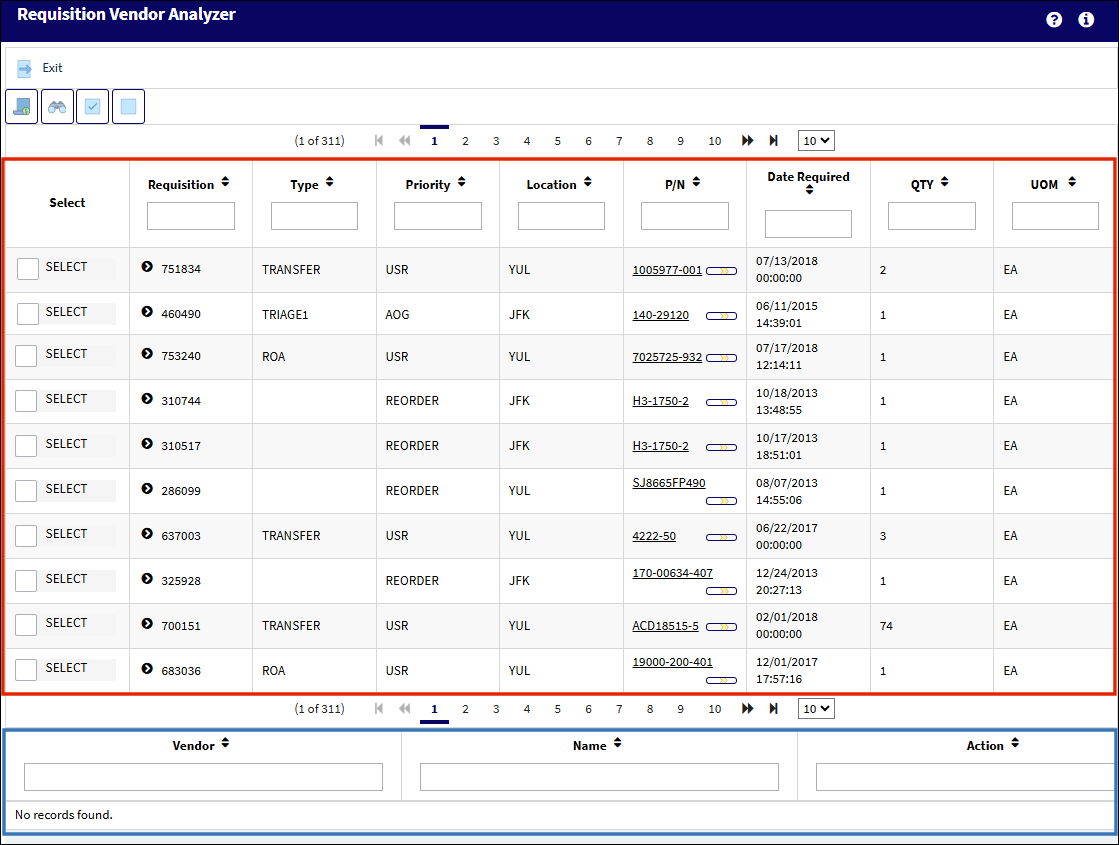
Note: Only 'Open' Requisitions appear in the top half of the window.
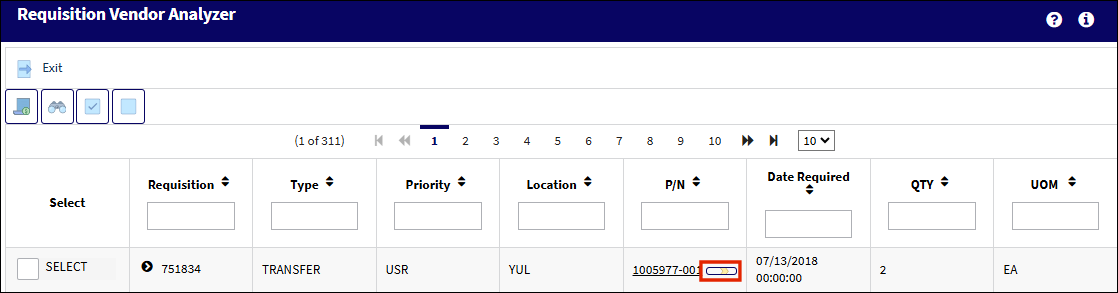
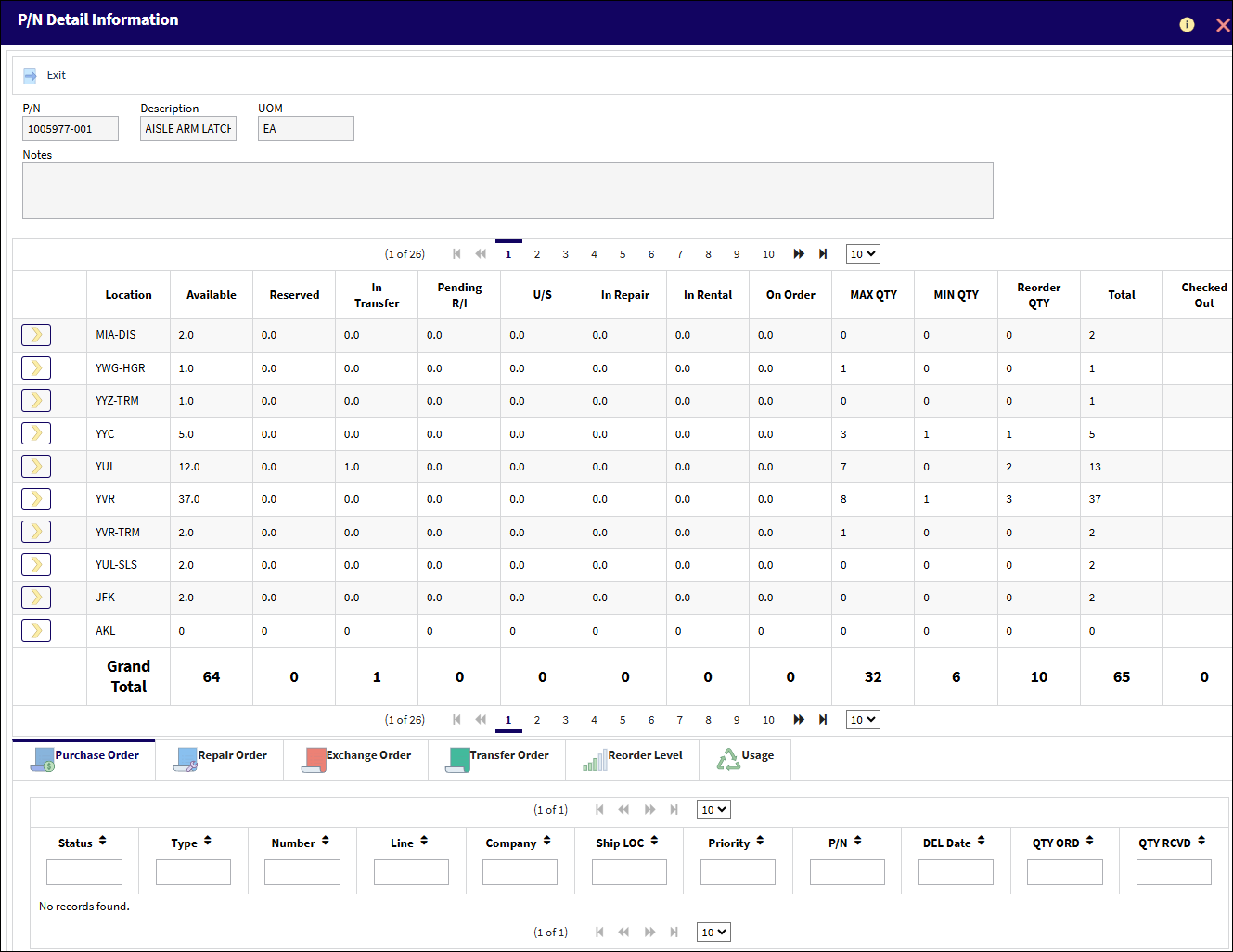
When the user clicks the Select  button next to a P/N, the system displays the P/N Detail Information window.
This window provides some of the information found in the Requisition Analyzer window. For additional information, refer to Requisition Analyzer Button via Requisition Management which can be found in the Requisition Training manual.
Select a Requisition and one Preferred Vendor. Select the Purchase Order  button to create the P/O. The Save prompt appears. Select 'OK.'
The following pop up appears. Populate all mandatory fields and select the Save  button.
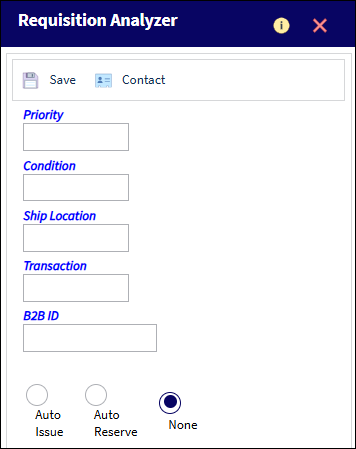
Note: The Contact  button is available to associate the appropriate person to the record.
The following information/options are available in this window:
_____________________________________________________________________________________
Priority
The level of importance placed on the need for a part. Notification based on the requisition priority may be defined by location. These codes are defined in the Priority System Transaction Code.
Note: Expedite days and priority level are defined in the Priority Transaction Code.
Condition
The condition of the part.
Ship Location
The location where the transaction will be shipped to. All locations are defined in the Location Master. All Ship Locations must be identified as an Inventory Location in the Location Master, if a physical part or item is to be received. If the Location is not identified in Inventory a warning will be received upon entry and the user will not be able to save the order header.
_____________________________________________________________________________________
The P/O is consequently auto-generated, but users can still manually modify any of the order details before selecting the Save button to finalize the P/O.
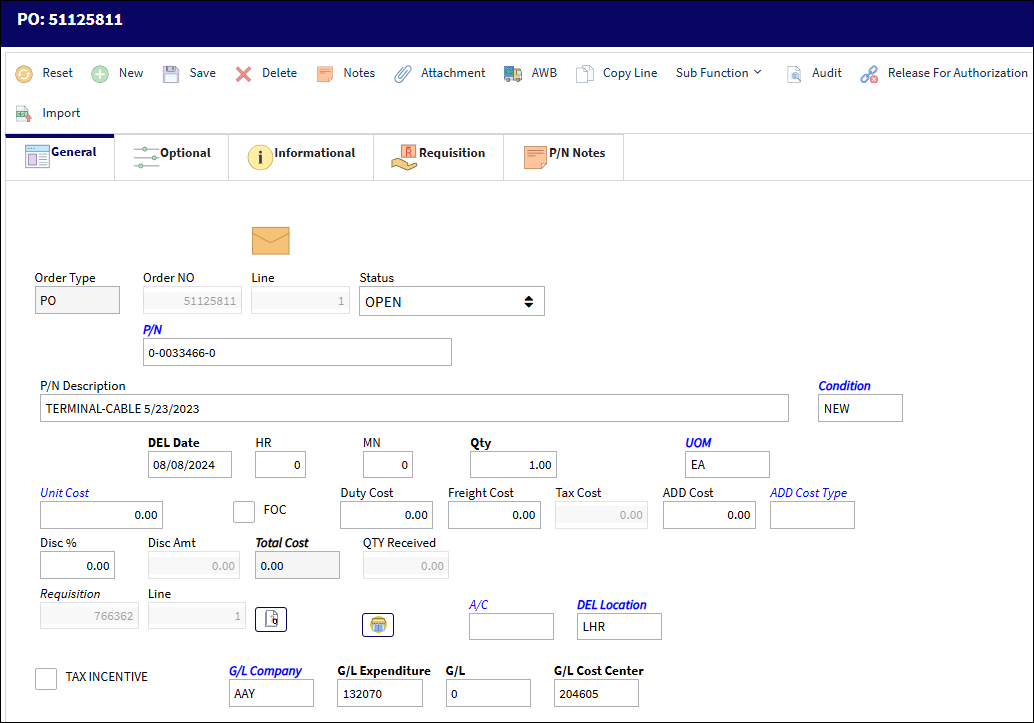
Note: Once the PO is created, the Requisition is removed from the Requisition Vendor Analyzer window.
Share
Print
|
©1997-2026 Trax USA Corp. All rights reserved. This manual may not be copied, photocopied, reproduced, translated, or converted to any electronic or machine-readable form, in whole or in part, without prior written approval from Trax USA Corp. |
 |