
 Share
 Print
|
|
|
|
|



Select the History  button to view the historical data on the selected requisition. This window includes the entire history of the requisition, including all orders that the requisition has ever been associated to.
Users may select any item appearing in the window to hyper link into a query of the ordered or quoted item by clicking on the respective item.
The History button can only be selected when a single requisition is selected.
After selecting the History button, the Part Number Order Quotes window will open. This window details all order history associated with the selected requisition such as Purchase Orders, Repair Orders, Quotes Received, and Exchange Orders.
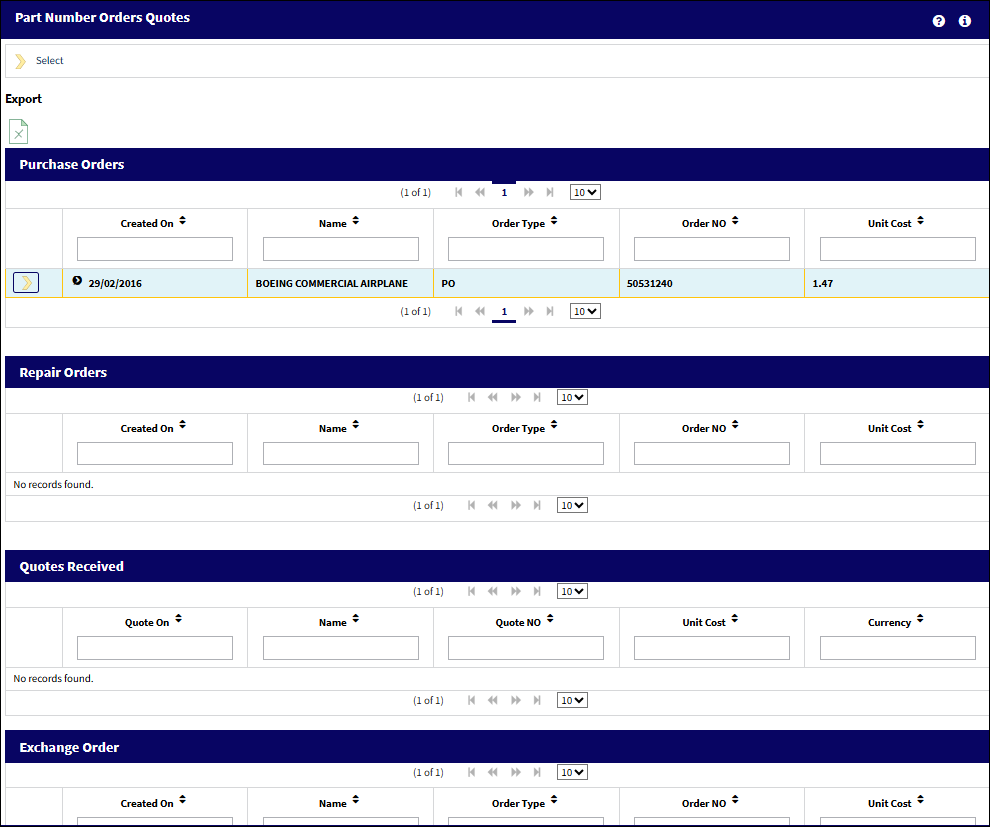
Purchase/ Repair Orders
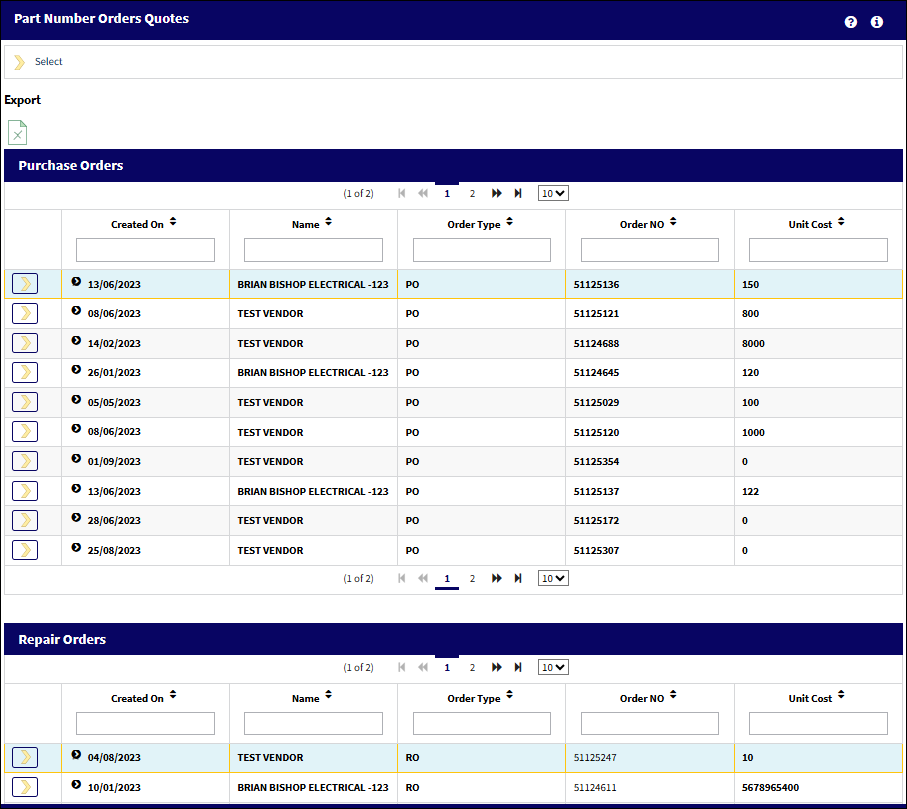
The following information/options are available in this window:
_____________________________________________________________________________________
Created On
The date the record was created.
Name
The name of the Vendor.
Order Type
Type of Order. By order type, certain receiving and financial behaviors will be assigned to the order at receiving of the various Order Types. These order types exist under the Orders or Customer Orders Modules exclusively. All Order Types are Hard Coded into the programming syntax.
Order NO
The type of order and the order number for the transaction.
Unit Cost
The cost of the item when brought into the system, if known. If no value is entered, the value of the part in the Fixed Asset Registry, when applicable, will be set to zero (not the value in the Part Number Master).
Select  button
Click on the Select button to open the Order Header.
_____________________________________________________________________________________
Quote Received
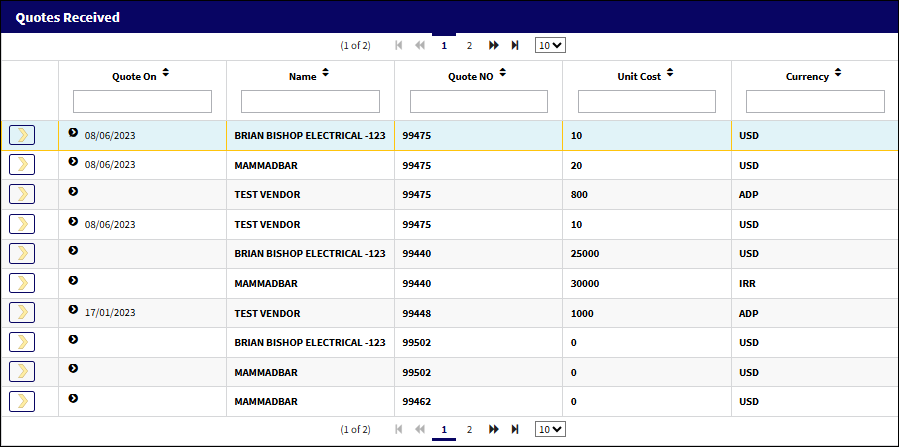
The following information/options are available in this window:
_____________________________________________________________________________________
Quote On
The date of the provided quote.
Name
The name of the Vendor.
Quote NO
The system generated quote reference number.
Unit Cost
The cost of the item when brought into the system, if known. If no value is entered, the value of the part in the Fixed Asset Registry, when applicable, will be set to zero (not the value in the Part Number Master).
Currency
The Currency type that the quote is provided in.
Select button
Click on the Select button to open the Order Header.
_____________________________________________________________________________________
Exchange Order
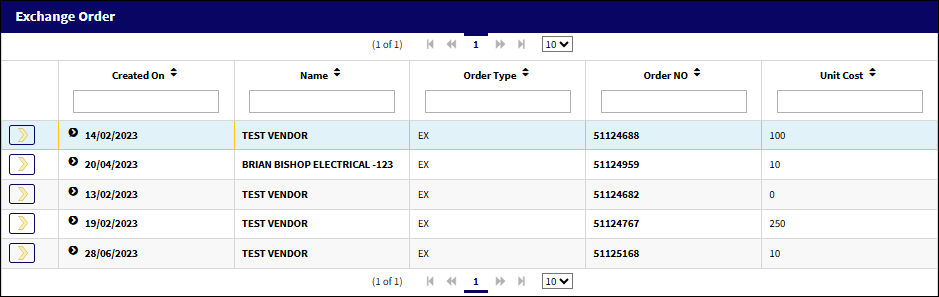
The following information/options are available in this window:
_____________________________________________________________________________________
Created On
The date the record was created.
Name
The name of the Vendor.
Order Type
Type of Order. By order type, certain receiving and financial behaviors will be assigned to the order at receiving of the various Order Types. These order types exist under the Orders or Customer Orders Modules exclusively. All Order Types are Hard Coded into the programming syntax.
Order NO
The type of order and the order number for the transaction.
Unit Cost
The cost of the item when brought into the system, if known. If no value is entered, the value of the part in the Fixed Asset Registry, when applicable, will be set to zero (not the value in the Part Number Master).
Select button
Click on the Select button to open the Order Header.
_____________________________________________________________________________________
Share
Print
|
©1997-2026 Trax USA Corp. All rights reserved. This manual may not be copied, photocopied, reproduced, translated, or converted to any electronic or machine-readable form, in whole or in part, without prior written approval from Trax USA Corp. |
 |