
 Share
 Print
|
|
|
|
|


The W/O Shop detail window is accessed by selecting a W/O from the Shop Work Order Header.
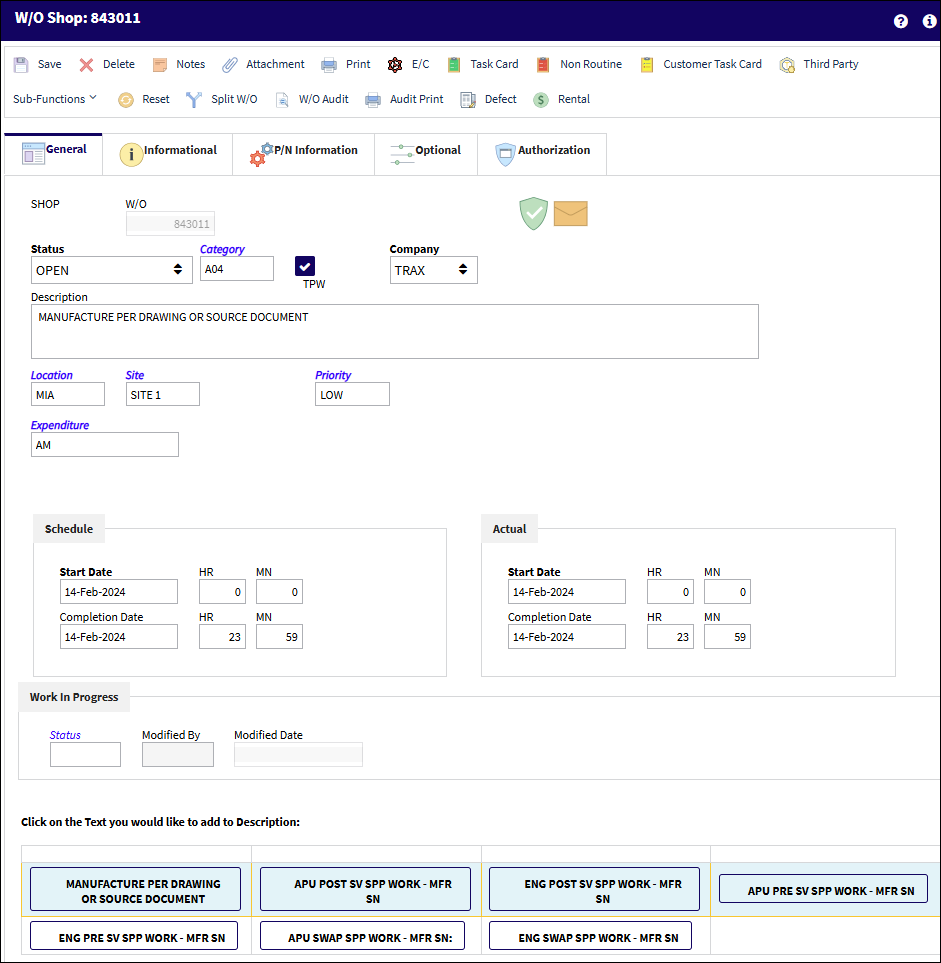
The following information/options are available in this window:
_____________________________________________________________________________________
Shop W/O
The Shop Work Order reference number.
Parent W/O
If this Shop W/O acts as a “child” to a parent Shop W/O, that parent Shop W/O should appear here. For more information on how to create parent/child W/O relationships, please refer to the Change The Parent Work Order button.
Status
The status of the Shop Work Order.
Closed - Shop W/O is closed, no updates allowed.
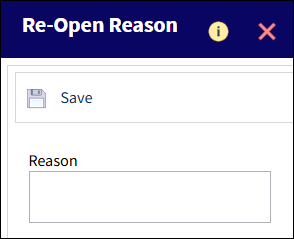
 Note: Users attempting to move a Shop W/O from Closed to Open must enter a Re-Open Reason via the Re-Open Reason pop up. Upon saving, the Shop W/O will be set to 'Open' and the Re-Open reason will be reflected in the W/O Audit window.
Open - If Shop W/O is Open, and a rotable is issued and later returned, the system will force the user to do a Work Order Credit, which may not be the correct transaction.
Completed - Shop W/O is completed but not closed, updates are allowed.
Hold - Shop W/O is on Hold, no updates allowed, but not closed.
Line - Shop W/O is for Line Maintenance Issues only (items returned will not require Credit Work Order). Because it is necessary for material to be issued to a Shop W/O on the system, some companies prefer to use specific W/O's for this purpose. A Shop W/O could be created for every aircraft turn around but this may cause an unacceptable administrative burden. For the purposes of creating Shop W/O's with material requirements, it is possible to select the Line status rather than Open status (when creating the new Work Order). The Line status will allow rotable parts to be issued to the Shop W/O and later returned U/S (if removed at a later time). For additional information, please refer to the Shop W/O closing section regarding closing Line Work Orders.
Generation - Shop W/O is in the process of being created.
Post Completed - When the Post Completed status is set, compliance records are written for E/Cs, P/N E/Cs, P/N Controls, and defects, their repeat schedules reset, and unused material can be returned to stock (RTS) to credit the W/O. This status takes place before the W/O is officially closed.
Customer Approved - The Shop W/O has been approved by the customer.
Note: This status is part of a customer specific process and may not be available for all operators.
Customer Rejected - The Shop W/O has been rejected by the customer.
Note: This status is part of a customer specific process and may not be available for all operators.
Confirmed Slot - The W/O's corresponding slot has been confirmed and is no longer in reserved status. For more information on Slot Planning, refer to the Shop Control manual.
Note: This status is part of a customer specific process and may not be available for all operators.
Reserved Slot - The W/O has a corresponding slot reserved in Shop Control's Slot Planning window. For more information on Slot Planning, refer to the Shop Control manual.
Note: This status is part of a customer specific process and may not be available for all operators.
Quoted - The expected cost of maintenance has been quoted to the customer.
Note: This status is part of a customer specific process and may not be available for all operators.
Category
The Shop Work Order Category.
TPW checkbox (Third Party Work)
If the Shop Work Order is for a Third Party, then the Third Party Flag should be selected. The system will automatically ask for customer details following Save.
Note: With the TPW checkbox selected, it is mandatory to link a Customer Contract. Not doing so will not allow for the Third Party Shop Work Order to be saved.
Description
The description of the Shop Work Order.
Location
The Location for maintenance events, inventory stores, orders, transactions, or training events.
Site
The Site where the work is to be carried out (if applicable).
Default Warehouse 
The default warehouse location/site that will primarily be used for inventory reservation. This field will auto-populate upon saving if the appropriate Location and Site fields are entered. For more information, refer to Default Warehouse Functionality Scenarios, via Switch LOCDFTWHR.
Note: This field is only available when Switch  LOCDFTWHR is set to Yes. For more information, refer to the Settings Switches handbook.
Priority
The priority of the Work Order (e.g., Urgent).
Expenditure
The Expenditure Code for the Shop W/O. This code relates to the financial side of the Shop W/O. This is a reference to the matrix of financial Account numbers that the Shop Work Order will send data to. See G/L Interface manual for additional information.
Manufacture Order checkbox
Select to indicate a Manufacture Order. The Manufacture Order serves as a way to track the fabrication of parts in the company's shops. By selecting this checkbox a Manufacture Order will be automatically created and authorized. This checkbox is only available for Third Party Work Orders (the TPW checkbox above must be selected).
G/L Company
This is the associated company code. This field is only available when the Manufacturer Order checkbox is selected.
Note: For more information, refer to the Multi Company Functionality.
A/C
The Aircraft for the Shop W/O. If work is for non-aircraft work, this field can be left blank.
A/C S/N
The Aircraft's Serial Number which is provided by the manufacturer. This serial number is like a registration number, but it is not dependent on a country code and therefore never changes.
Source Type
The source of information in which the SAP interface will interact with.
Note: This field is part of a customer specific process and may not be available for all operators.
 Note: This field is security-controlled via Shop/ Update/ Shop W/O/ Shop W/O Source Type. For more information refer to the Security Explorer.
Source Ref
The source's associated reference number that the SAP interface will interact with.
Note: This field is part of a customer specific process and may not be available for all operators.
Customer
The customer for whom the Work Order was created.
Note: This field is part of a customer specific process and may not be available for all operators.
Note: This field is security-controlled via Shop/ Update/ Shop W/O/ Shop W/O Customer. For more information refer to the Security Explorer.
ESD RFO#
An autopopulated reference number specific for ESD related operations that is generated from the SAP interface.
Note: This field is part of a customer specific process and may not be available for all operators.
Standard Condition
The condition of the part.
Note: This field is part of a customer specific process and may not be available for all operators.
Customer PO
The customer's associated Purchase Order number.
Note: This field is part of a customer specific process and may not be available for all operators.
Authority Approval radio buttons
These radio buttons are used to designate which authority figure has approved the scheduled W/O.
Note: These radio buttons are part of a customer specific process and may not be available for all operators.
Airworthiness Review Certificate (ARC) - Indicates that the W/O has been approved via an Airworthiness Review Certificate.
Certificate of Conformity (COC) - Indicates that the W/O has been approved via a Certificate of Conformity.
None - Indicates that the W/O has not been approved via an authority figure.
Authority Approval  button
This button appears when 'ARC' is selected via the Authority Approval radio buttons. Selecting this button prompts a pop up that allows users to select which Aviation Authority figure is issuing the ARC. The options available in the Authority Approval window are linked to the Authority Approval Transaction Code. For more information on the ARC functionality, refer to the ARC Issue Button, via W/O Shop Detail, P/N Information Tab.
Note: This button is part of a customer-specific process and may not be available for all operators.
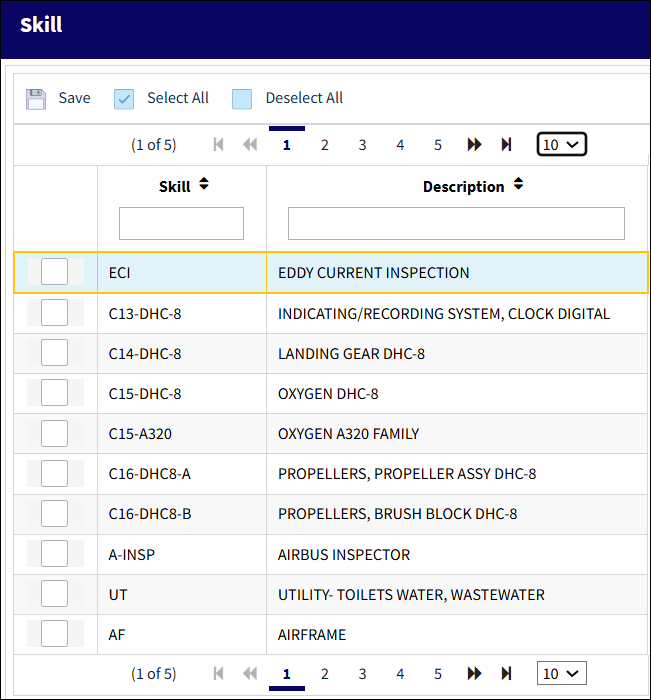
ARC Skill  button
This button appears when 'ARC' is selected via the Authority Approval radio buttons. Selecting this button prompts a pop up that allows users to select the appropriate skills associated with the ARC. For more information on the ARC functionality, refer to the ARC Issue Button, via W/O Shop Detail, P/N Information Tab.
Note: This button is part of a customer specific process and may not be available for all operators.
Schedule
The scheduled start and completion date/time for implementing the Work Order.
Schedule Start Date
The date/time that the work is scheduled to begin. The Start Date does not affect whether the Work Order may be deleted or not. However, if the work has been started, the Work Order may not be deleted.
Completion Date
The date/time that the work is scheduled to be completed.
Flight
Allows mechanics working on Shop W/O to identify which flight (gate) the A/C will be arriving at.
Actual
The actual start and completion date/time for implementing the Work Order.
Actual Start Date
The date that the W/O is actually started. This may differ from the previously scheduled date. If work has been started, this date cannot be deleted.
Completed On Tech Log
Allows entry of a defect number related to the closing of the Work Order.
Shop W/O Description Phrases
Users can select from a listing of commonly used descriptive phrases to populate the Description field. These are optional and are intended to facilitate the data entry process. Description phrases are controlled through the W/O Shop Description Pre-defined Phrases transaction code via Settings/Explorer/System Transaction Code.
This transaction code is security-controlled via Settings/Explorer/System Transaction Code/W/O Shop Description Pre-defined Phrase in the Security Explorer. For more information refer to the Security Explorer via the System Administration Training Manual.
_____________________________________________________________________________________
Share
Print
|
©1997-2026 Trax USA Corp. All rights reserved. This manual may not be copied, photocopied, reproduced, translated, or converted to any electronic or machine-readable form, in whole or in part, without prior written approval from Trax USA Corp. |
 |