
 Share
Share
 Print
Print
|
|
|
|
|



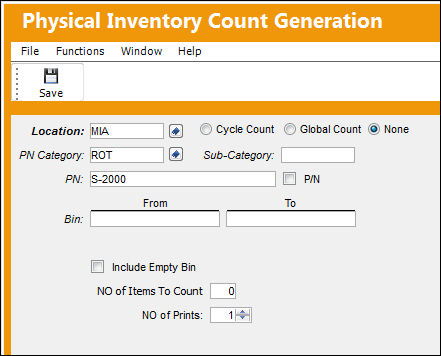
Selecting the Physical Inventory Generation  button takes the user to the Physical Inventory Count Generation window. This window will issue a list with the expected stock quantities as calculated by TRAX based on inventory transactions booked in the system (e.g. Receiving, Transfers, Scrap, etc.). This list can be generated using certain filter criteria, e.g. a list for all parts in a location, only for one part, a range of bins, a part category.
It is recommendable that the list be printed in order to assist with the physical part counting (see next step).
Once this setup has been completed, do NOT run the physical inventory adjustment without entering the Physical Inventory Counts (described in the next step). The system will automatically set all non-serialized items to zero.
This window can also be accessed via the Physical Inventory Count option via Inventory. For additional information regarding the functionality of this window, please refer to the link provided.
Only one generation can be produced per location per day. If the user runs the generation again for the same day and location, you can add to the existing count, regenerate the count again, or cancel the selection. Go to Inventory/ Update/ Physical Inventory Generation:
Share
Print
|
©1997-2026 Trax USA Corp. All rights reserved. This manual may not be copied, photocopied, reproduced, translated, or converted to any electronic or machine-readable form, in whole or in part, without prior written approval from Trax USA Corp. |
 |