
 Share
Share
 Print
Print
|
|
|
|
|


The Template  button automatically creates an A/C template by copying 'properties' (P/N Effectivity, P/N Positions, A/C E/Cs, and Task Cards) to the currently selected Aircraft record. The P/N Effectivity, P/N Positions, A/C E/Cs, and Task Cards must be previously set up and made effective to the A/C Type/Series that is defined on the currently selected Aircraft record.
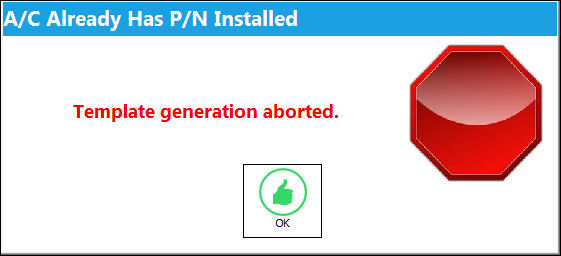
The A/C Master Template can only be performed for a particular aircraft one time. Once the template is created, its different sections can be updated, as required, through various means within the system. The product of the A/C Template is the 'Perfect Aircraft' assembly. Upon attempting to create an A/C Template that has already been loaded, the following error appears:
Once completed, verification and auditing of this information should be mandatory to ensure correct compliance information.
Select the Template button to open the Aircraft Master Template pop-up window.
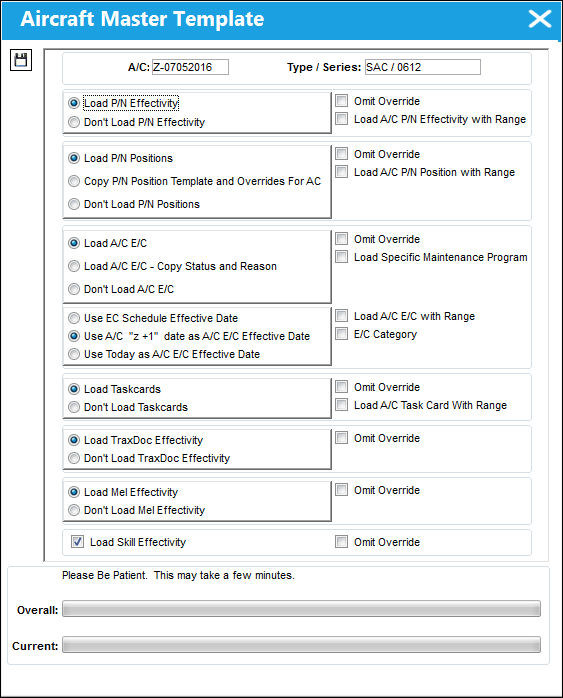
The following information/options are available in this window:
_____________________________________________________________________________________
A/C
The individual aircraft tail number.
Type/Series
The Aircraft Type and Series/Fleet assignment.
Omit Override checkboxes
Select the Omit Override checkbox to omit specific records (that have the Override checkbox checked) from being added to the template. The Omit Override checkbox appears in conjunction with the following selections: Load P/N Effectivity, Load P/N Positions, Load A/C E/C, Load Task Cards, Load TraxDoc Effectivity, Load MEL Effectivity, and Load Skill Effectivity selections. For example: If a Task Card(s) has the Override checkbox checked (via Engineering/Update/Task Card/ Effectivity  button) for the A/C Type/Series that is defined on the currently selected Aircraft record, and the Load Task Cards option is selected with its Omit Override checkbox checked (via Settings/Update/Aircraft/ Template button), the Task Card(s) that has the Override checkbox checked will not be included in the Template.
 The Omit Override checkboxes are security controlled via, Settings/Update/Aircraft/Aircraft Master Template. For additional information, refer to the Security Explorer via the System Administration Training Manual.
Load / Don't Load P/N Effectivity radio buttons
Select to add (or not add) P/N Effectivity to the template.
Load A/C P/N Effectivity with Range checkbox
Select to add A/C P/N effectivity with the range to the template.
Load / Don't Load P/N Positions radio buttons
Select to add (or not add) P/N Positions to the template.
Copy P/N Position Template and Overrides For A/C radio button
Select to copy the P/N Position Template and any Overrides from another A/C to the currently selected A/C. Users will be asked to specify the A/C to copy from.
Load A/C P/N Position with Range checkbox
Select to add A/C P/N Position with range to the template.
Load / Don't Load A/C E/C radio buttons
Select to add (or not add) A/C E/Cs to the template.
- If Load A/C E/C is selected, TRAX displays the following three ra1. Use E/C Schedule Effective Date.
- Use A/C "z+1" date as A/C E/C Effective Date.
- Use Today as A/C E/C Effective Date radio button options (one must be selected).
Load A/C E/C - Copy Status and Reason radio button
Select the add A/C E/C Copy Status and Reason to the template. When selected, the A/C field appears. Insert the A/C to copy data from.
Load Specific Maintenance Program checkbox
Check to load a specific maintenance program. Maintenance Programs are specified via Engineering/ Update/ E/C/ Other Tab.
Use EC Schedule Effective Date radio button
Select to use the EC Schedule Effective Date. This option is not available when the Don't Load A/C E/C checkbox is selected.
Use A/C “z+1” date as A/C E/C Effective Date radio button
Select to use the A/C “z+1” date as the A/C E/C's Effective Date. This option is not available when the Don't Load A/C E/C checkbox is selected.
Use Today as A/C E/C Effective Date radio button
Select to use the current day's date as the A/C E/C's Effective Date. This option is not available when the Don't Load A/C E/C checkbox is selected.
Load A/C E/C with Range checkbox
Select to load A/C E/C range to the template.
E/C Category checkbox 
Select the E/C Category checkbox to load one or multiple E/C Categories to the template. When this checkbox is selected, the following blank field and E/C Category Multi button appears. The user may select the E/C Category Multi button to select multiple E/C Categories to load to the template.
Load / Don't Load Task Cards radio buttons
Select to add (or not add) Task Cards to the template.
Load A/C Task Card With Range checkbox
Select to load A/C Task range to the template.
Load / Don't Load TraxDoc Effectivity radio buttons
Select to add (or not add) TraxDoc Effectivity to the template.
Load / Don't Load MEL Effectivity radio buttons
Select to add (or not add) MEL Effectivity to the template.
Load Skill Effectivity checkbox
Select to add the Skill Effectivity for the aircraft to the template. The Omit Override option is also available.
Status indicators
Indicate the Overall and Current status of the template progress.
_____________________________________________________________________________________
P/N E/C - P/N Engineering Controls will be assigned after the Aircraft Template Load has been completed.
 Share
Print
Share
Print
|
©1997-2026 Trax USA Corp. All rights reserved. This manual may not be copied, photocopied, reproduced, translated, or converted to any electronic or machine-readable form, in whole or in part, without prior written approval from Trax USA Corp. |
 |