 Download Online Help
 Print
|
|
|
|
|


The Effectivity  button is used to add or remove MEL effectivity to an aircraft.
From the MEL Master window, select the Effectivity button.
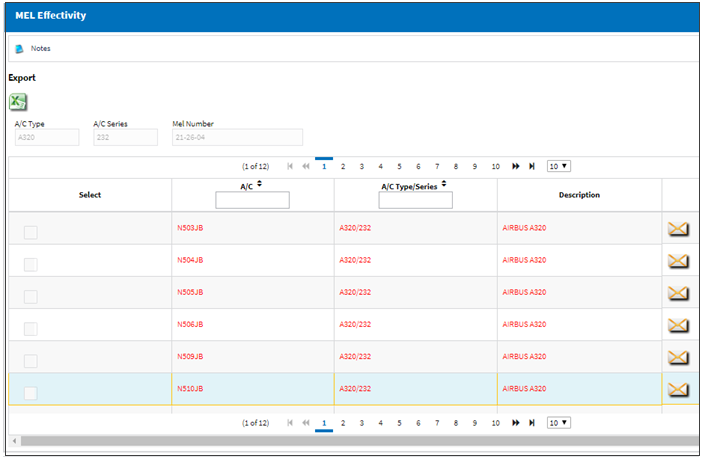
The following options/information is available in this window:
_________________________________________________________________________
Fleet Select All  / Deselect All
 buttons
Use these buttons to select all fleets (including every aircraft) or to deselect all fleets.
Select checkbox
Select this checkbox if the MEL Effectivity is to be applied to this aircraft.
Aircraft
The individual aircraft that make up the fleet.
A/C Type/Series
The entire aircraft fleet.
Description
The description of the aircraft.
_________________________________________________________________________
Select the Select All button to add effectivity to all aircraft.
Select the Deselect All button to remove effectivity to all aircraft.
Select the Save  button to save any changes regarding the effectivity of any of the above aircraft in this window.
The Notes  button can be utilized to include additional relevant information.
MEL - A/C Effectivity Validation:
When Technical Records Switch  MELVEFMN is set to Yes, if the MEL entered into a Defect Report does not have effectivity to the Defect Report's Aircraft, then that MEL cannot be entered for that Defect Report. If the MEL does not have effectivity to the Aircraft, an error message will appear.
For more information refer to Switch MELVEFMN via the Technical Records Switches Manual.
Download Online Help
Print
|
©1997-2018 Trax USA Corp. All rights reserved. This manual may not be copied, photocopied, reproduced, translated, or converted to any electronic or machine-readable form, in whole or in part, without prior written approval from Trax USA Corp. |
 |