 Download Online Help
 Print
|
|
|
|
|


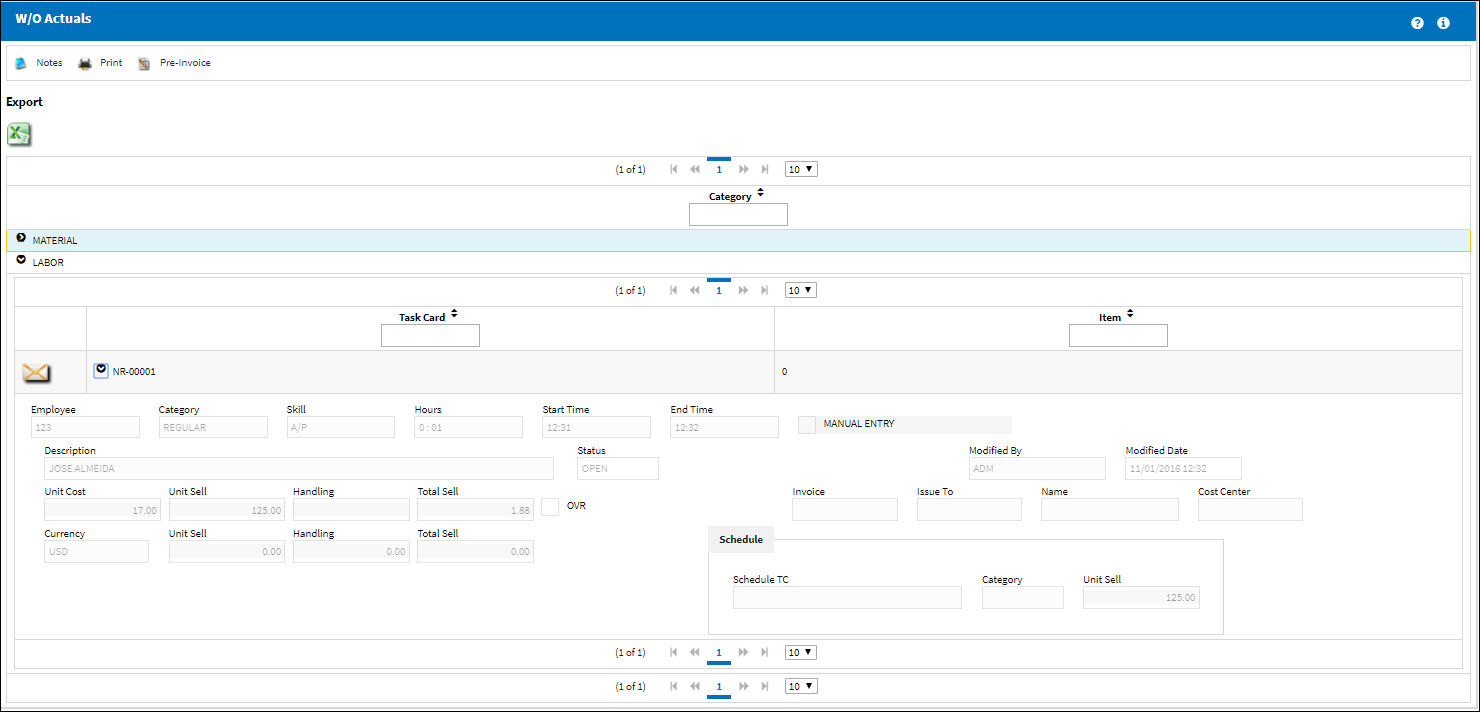
Select the Actuals  button to view Actuals (association of costs and selling prices) regarding the Work Order:
Note: Actuals appear based on information entered via the Work Order Task Card Work In Progress option or via the Labor Mnl  button (on the Work Order Selection window).
The fields in the window appear slightly different depending on the Category of the Actuals.
Labor
Materials
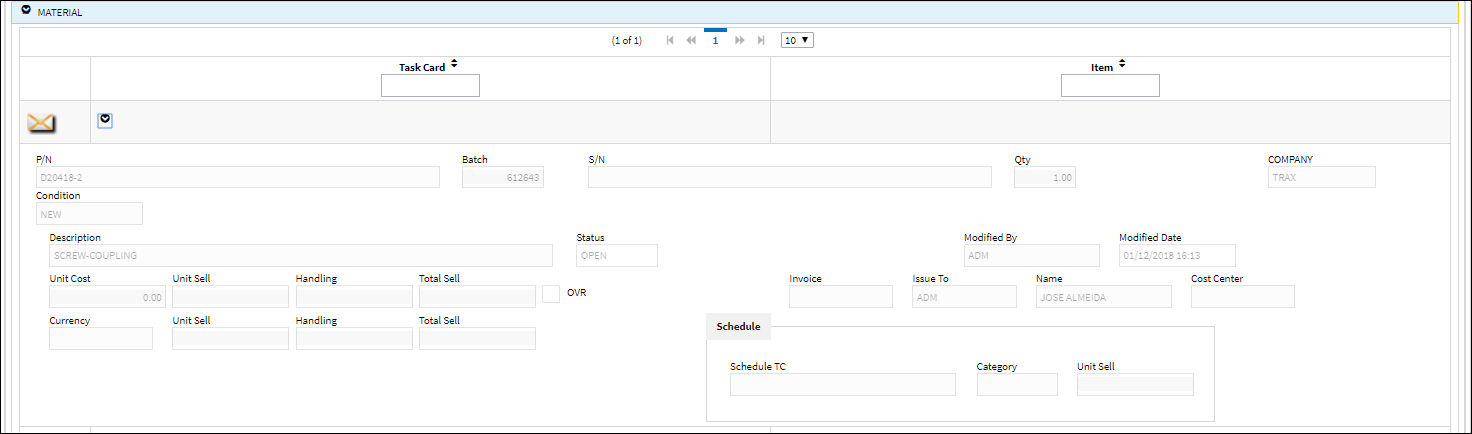
The following options/information is available in this window:
_________________________________________________________________________
W/O
The Work Order used to categorize, manage, and schedule work requirements for aircraft maintenance.
Status
The Status of the W/O Task Card Item.
A/C
The individual Aircraft tail number.
Category
The Work Order actuals category.
Task Card
The Task Card / Job Card that details the scheduled maintenance work.
Item
The item number required to accomplish a Task Card.
Employee
Individual associated to the Work Order actuals item.
Category
The Task Card's Category, as defined in Task Card Category transaction code via the Engineering Transaction Codes. Task Card Authorization Steps are defined in System Transaction Codes by Task Card Category.
Skill
The Skill of the employee required for this item. Skills are set up via the Skill Master. The Skills listed for Mechanic or Inspector are validated against the Mechanic/Technician checkboxes associated to the specific Skill via the Skill Master, General tab.
Hours
Hours worked.
Start Time
The actual time the labor began on the Task Card.
End Time
The actual time the labor ended on the Task Card.
Unit Cost
Cost of the item when purchased (if known).
Unit Sell
The Sell Price of the part for the defined Condition. This price is not necessarily the same as the cost of the part to the company. A part can have a different Unit Sell price for each different Condition. This price will default into various Customer Orders.
OVR
This checkbox will be selected if the price has been overridden.
Note: This checkbox will be selected by default if an NLK Kit has an average cost and is issued to a Third Party Work Order.
Modified By
The user who last modified the record.
Modified Date
The date the record was last modified.
EMP Cost Center
The cost center associated with the employee.
_________________________________________________________________________
For Category Material, the following fields are available:
_________________________________________________________________________
P/N
The Part Number reference for the aircraft part. This is the Part Number required in order to complete the Task Card work.
Batch
The batch number that is associated with a part when introduced/received into the system.
S/N
The Serial Number for the specific serialized part. This is the Serial Number required in order to complete the Task Card work.
Qty
The quantity of the part required to complete the task.
Condition
The condition of the part.
P/N Category
The category of the part as defined in Settings/ Explorer/ System Transaction Code Explorer/ Settings/ P/N Category (e.g. Rotable, Consumable, Repairable) and entered for the particular part in the P/N Master.
_________________________________________________________________________
The following buttons are available for additional functionality:
Download Online Help
Print
|
©1997-2018 Trax USA Corp. All rights reserved. This manual may not be copied, photocopied, reproduced, translated, or converted to any electronic or machine-readable form, in whole or in part, without prior written approval from Trax USA Corp. |
 |