 Download Online Help
 Print
|
|
|
|
|


The Auto Line W/O Generation  button allows users to manually create Line Work Orders for an aircraft where the Line Work Orders would otherwise be auto generated via Trax Database Jobs. The Auto Line W/O Generation function is useful in the event that an aircraft that does not exist in the system requires maintenance, or perhaps the maintenance cannot wait until the jobs to auto create Line Work Orders is ran at the end of the month. The system will validate if there are any Open Line Work Orders that exist for an aircraft. If there are Open Line Work Orders for an aircraft, the system will not create duplicate Line Work Orders.
This feature works in conjunction with the Auto Create Line Work Orders button. The user must first set up the parameters for the Line Work Order in the A/C Master prior to selecting the Auto Line W/O Generation button via the Production module. If the parameters have not been set up, the system will not create a Line Work Order for an aircraft. For additional information, refer to the Auto Create Line Work Orders Button, via the Aircraft Master.
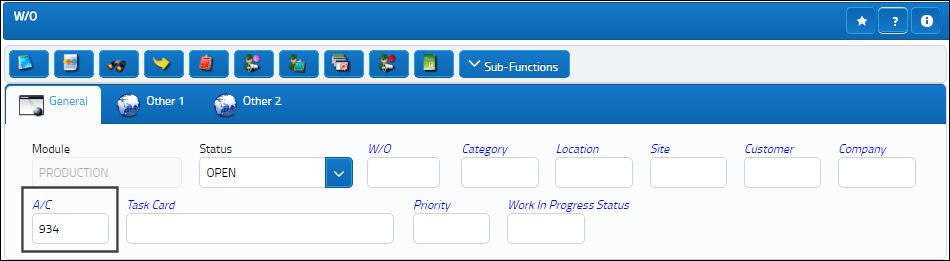
From the Work Order Header, specify an aircraft and select the Auto Line W/O Generation button.
The system displays the following prompt. Select 'Yes' to generate the Line Work Order.
Two Line Work Orders are generated based on the parameters set up via the A/C Master.
Select into the detail of one of the Line Work Orders.
The Description of the Work Order is defaulted with the following information:
Note that the generation date of the Line Work Orders is 05/02/2014, however the Schedule Start and Completion Dates are defaulted for the next month.
Download Online Help
Print
|
©1997-2018 Trax USA Corp. All rights reserved. This manual may not be copied, photocopied, reproduced, translated, or converted to any electronic or machine-readable form, in whole or in part, without prior written approval from Trax USA Corp. |
 |