 Download Online Help
 Print
|
|
|
|
|


The Balance Sell  button via the Work Order header window allows users to view Credit Limit Customer Contract information for Third Party Work Orders. This window is informational only.
To access, search for one or more Work Orders via the W/O header window then select the Balance Sell button. If any of the Work Orders are Third Party and have Customer Contract with a Credit Limit associated, the W/O TPW Balance window is displayed with a listing for each applicable Work Order.
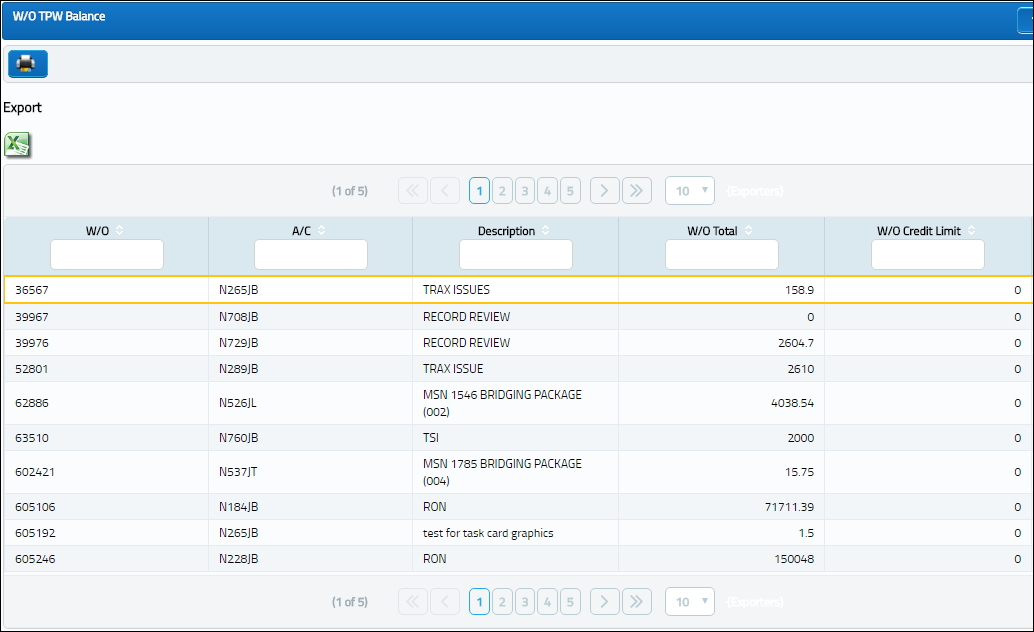
The information provided is as follows:
_________________________________________________________________________
W/O
The Work Order used to categorize, manage, and schedule work requirements for aircraft maintenance. This is the Third Party Work Order number.
A/C
The individual Aircraft tail number.
W/O Description
The description of the Work Order.
W/O Total
The total financial amount attached to the Work Order.
W/O Credit Limit
The financial Credit Limit for the Vendor added to the Third Party Work Order through the Customer Contract. The W/O Credit Limit is the Sell Amount of a Credit Limit Customer Contract.
Note: This figure is red when the W/O Total for the Vendor meets or exceeds the W/O Credit Limit. The red arrow  icon will also appear to the right of the field.
_________________________________________________________________________
Download Online Help
Print
|
©1997-2018 Trax USA Corp. All rights reserved. This manual may not be copied, photocopied, reproduced, translated, or converted to any electronic or machine-readable form, in whole or in part, without prior written approval from Trax USA Corp. |
 |