 Download Online Help
 Print
|
|
|
|
|


ROREASREM - Notes on One Step Transfer appear on Removal Tab via RO
Notes on One Step Transfer appear on Removal Tab via RO
Affected Window: w_ro_order_detail
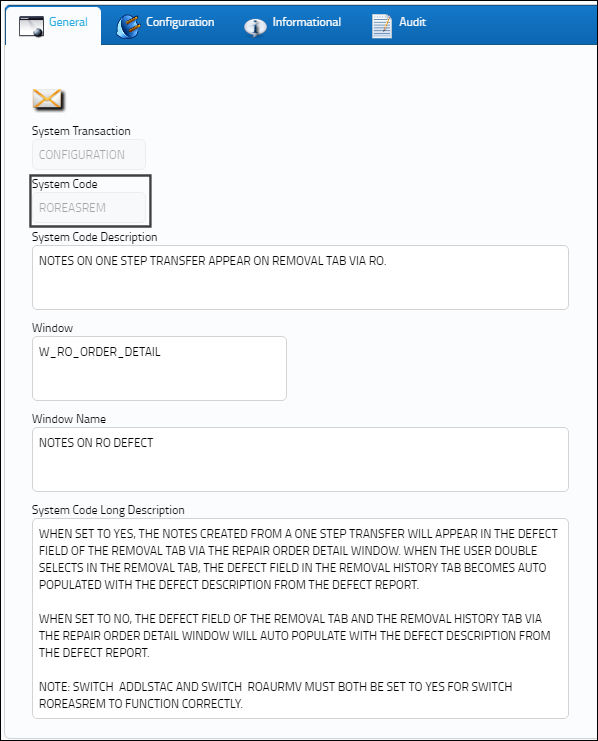
Note: Switch  ADDLSTAC must be set to Yes for switch ROREASREM to function correctly.
Setup:
The following Defect Report is created. Note the Defect Description.
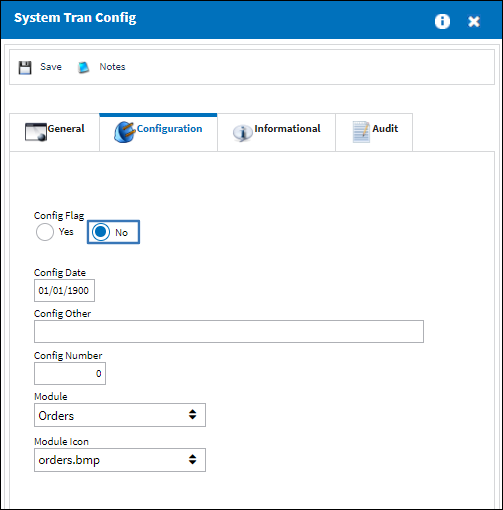
Switch Set to No:
When set to No, the Defect field of the Removal Tab and the Removal History Tab via the Repair Order Detail window will auto populate with the Defect Description from the Defect Report.
The following transaction is completed for a P/N.
Go to Inventory Transaction and select the Return to Stock  button. The system displays the Return To Stock window. Populate the necessary information.
Once the Defect information is populated, the Defect Description auto populates.
Create a R/O for the following P/N and save.
Go to the Removal tab. The Defect Description from the Defect Report auto-populates in the Defect field.
Go to the Removal History tab. The Defect Description from the Defect Report also auto-populates in the Defect field.
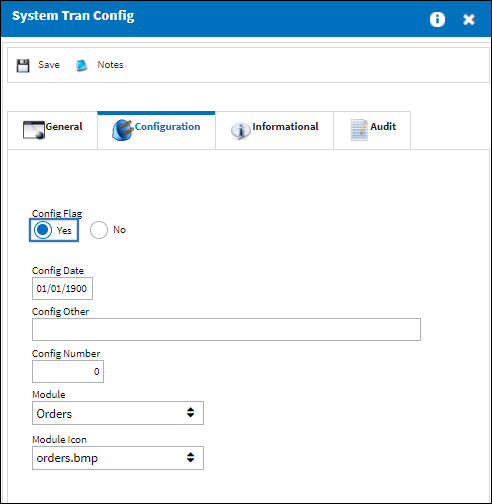
Switch Set to Yes:
When set to Yes, the Notes created from a One Step Transfer will appear in the Defect field of the Removal Tab via the Repair Order Detail window. When the user double selects in the Removal tab, the Defect field in the Removal History tab becomes auto populated with the Defect Description from the Defect Report.
The Removal tab via the Repair Order Detail appears blank, as shown below.
The Removal History tab via the Repair Order Detail appears blank, as shown below.
Perform a One Step Transfer and add a note.
Select the Save  button. The Save prompt appears. Select 'OK.' Note the Notification
 icon.
Go to the Repair Order Detail, Removal tab. The text within the note appears in the Defect field. Double select in the Repair Order Detail, Removal tab.
Select the Repair Order Detail, Removal History tab. The Defect Description from the Defect Report auto populates in the Defect field.
Download Online Help
Print
|
©1997-2018 Trax USA Corp. All rights reserved. This manual may not be copied, photocopied, reproduced, translated, or converted to any electronic or machine-readable form, in whole or in part, without prior written approval from Trax USA Corp. |
 |