
 Share
Share
 Print
Print
|
|
|
|
|


If a requisition is no longer required, it can be canceled using the Cancel  button. Wall security can be set up for requisition cancellation. Please refer to the TRAX System Administration Training Manual for additional information regarding setting up Wall Security throughout the system.
The system will ask if the requisition needs to be canceled. When the answer is YES then the requisition status will go to CANCEL. The requisition number will be cleared from the relevant order. When the Cancel button is selected, the cancel reason will be mandatory to save the transaction. A drop-down window appears for selection of an appropriate Transaction Code cancellation reason. If the cancel reason is not entered the user will receive the following pop-up message box:
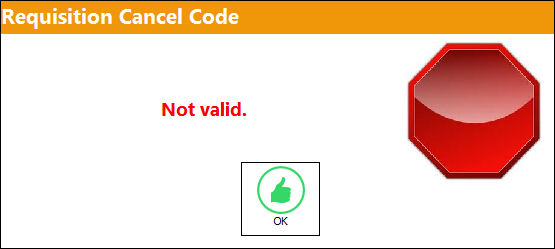
Enter the correct cancel reason and the Cancel Requisition confirmation prompt will appear, as seen below:
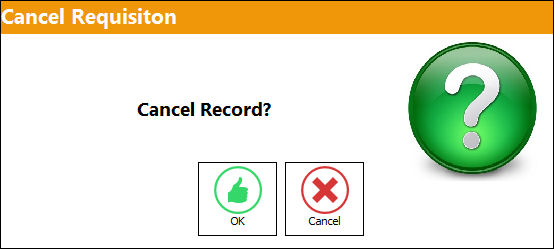
Select Cancel to end the transaction; or select OK to proceed with the transaction of canceling the requisition.
If canceled, the creator/buyer of the requisition will receive an appropriate note, as illustrated below:
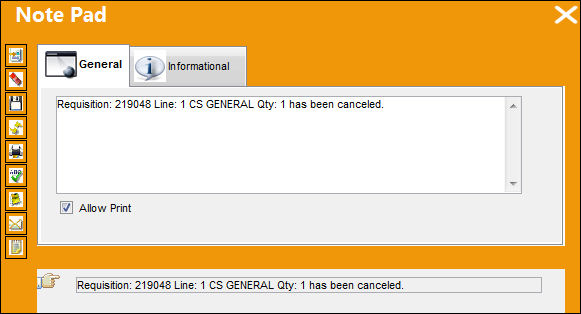
 Security is available to disable and enable usage of the Cancel button, via Requisition/Update/Requisition Management/Cancel Item. For additional information, refer to the Security Explorer section via the System Administration Training Manual.
Share
Print
|
©1997-2026 Trax USA Corp. All rights reserved. This manual may not be copied, photocopied, reproduced, translated, or converted to any electronic or machine-readable form, in whole or in part, without prior written approval from Trax USA Corp. |
 |