
 Share
Share
 Print
Print
|
|
|
|
|


The Tools  button allows the user to review the Completed, Post-Completed and Closed Work Orders (W/O) for any tools which remain unreturned to Inventory. Tools will only appear for the W/O which they were issued against once that W/O goes to Completed status. Tools will remain in this queue until those tools are Return To Stock (RTS).
 This button is security controlled via GSE/ Update/ GSE W/O/ GSE WO Sel Sub Functions. For more information refer to the Security Explorer via the System Administration Training Manual.
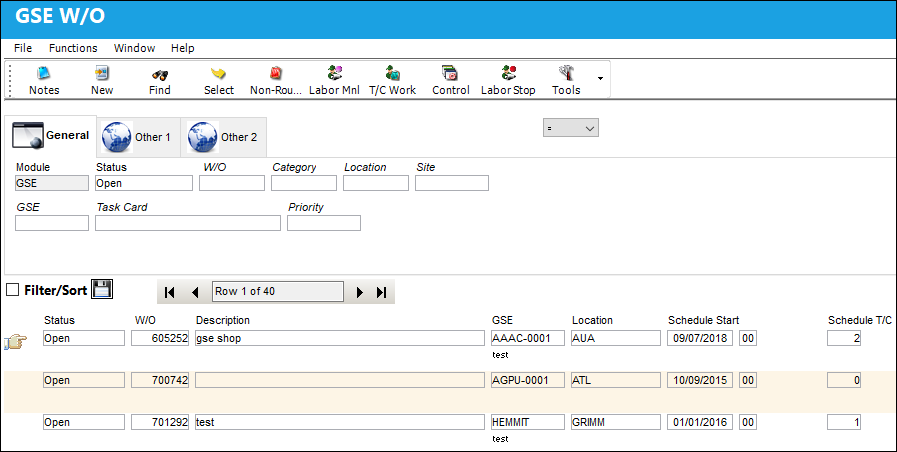
From the Work Order header window, place the Hand  pointer on the W/O then select the Tools button.
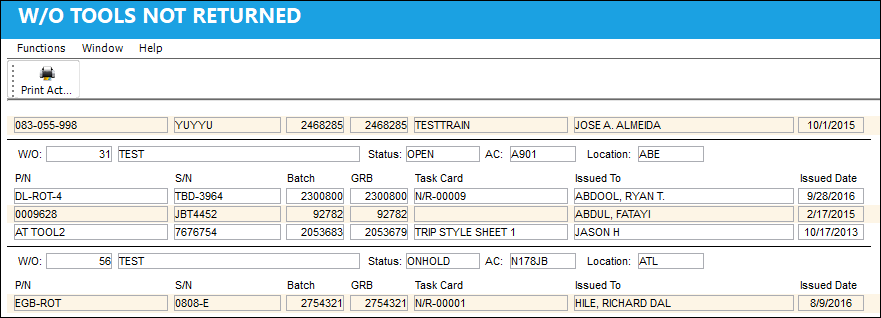
TRAX will display the tools for the specific Work Order that have yet been returned.
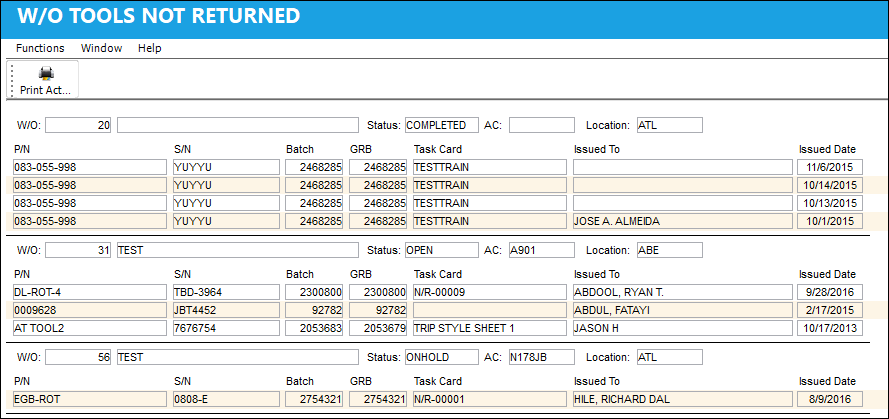
If a specific W/O is not selected in the Work Order header window, by selecting the Tool button TRAX will display all of the tools for all of the Work Orders that have not been returned.
The following steps illustrate the steps required to issue the Tool to the W/O and how those unreturned Tool(s) will appear in the queue.
Creating a Tool Requirement for a W/O Task Card:
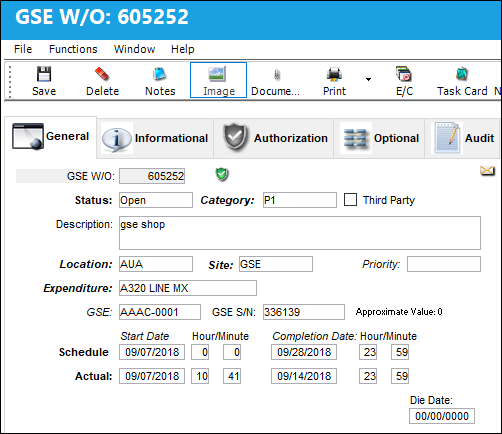
Go to Production/Update/W/O and locate the W/O utilizing the required search criteria. Using the Select  button go to W/O Header. The following window will appear:
Select the Task Card  button. Select the PN
  button (via the expandable buttons, typical Items
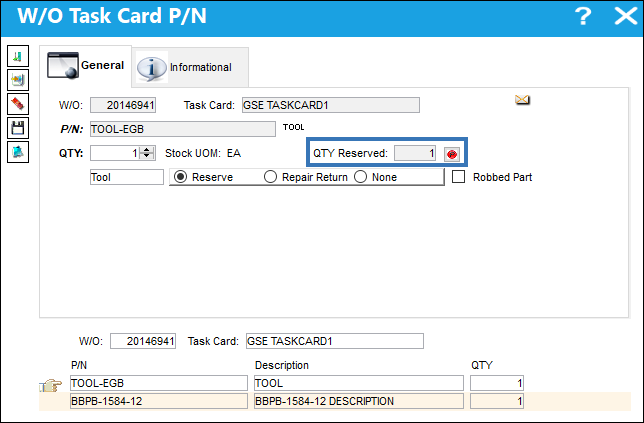
  button is visible). TRAX displays the W/O Task Card P/N Window, as shown below:
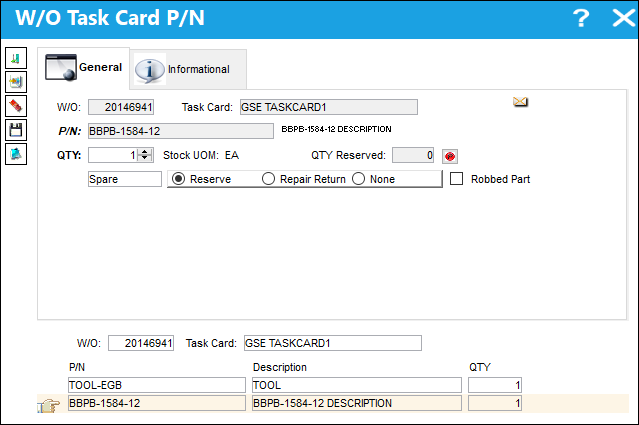
All Task Card Part and Tool Requirements will typically be defined in Task Card via Engineering/Update. If any additional parts are required, they may be added at the W/O prior to generating the Work Order's Picklist.
Create the Picklist Reservation for the Tool.
Return to the Work Order header as shown is Step a. Select the Picklist Multi drop down  button. Select the Picklist button. The Create P/N Reservation (Picklist) pop up appears. Select 'Yes.'
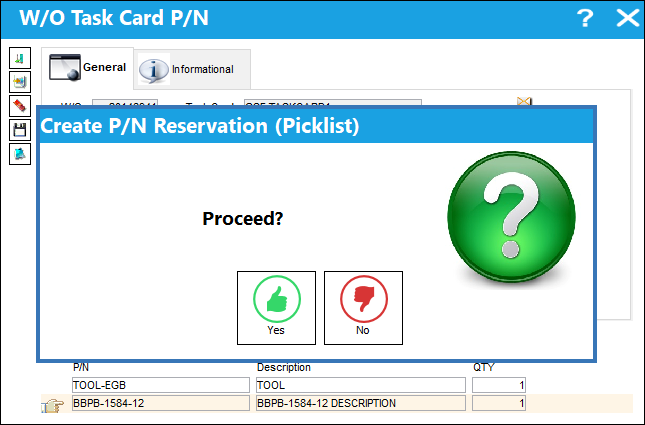
A Picklist can be created in many different ways within TRAX, for example from the Picklist, W/O, Defect Reports to name a few places. However, in the case of the The user may use the Tool Picklist  button from Inventory Transaction, or the user may create the picklist from the Work Order update window.
Be sure the correct location is selected. If the wrong location is selected, TRAX will display a warning prompt. Select the Find  button. The Picklist will be created and reserved for the Work Order.
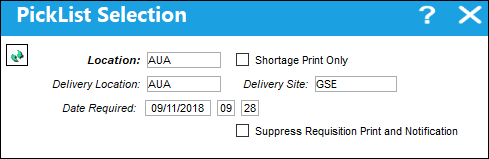
The Part Number has been reserved, as shown below:
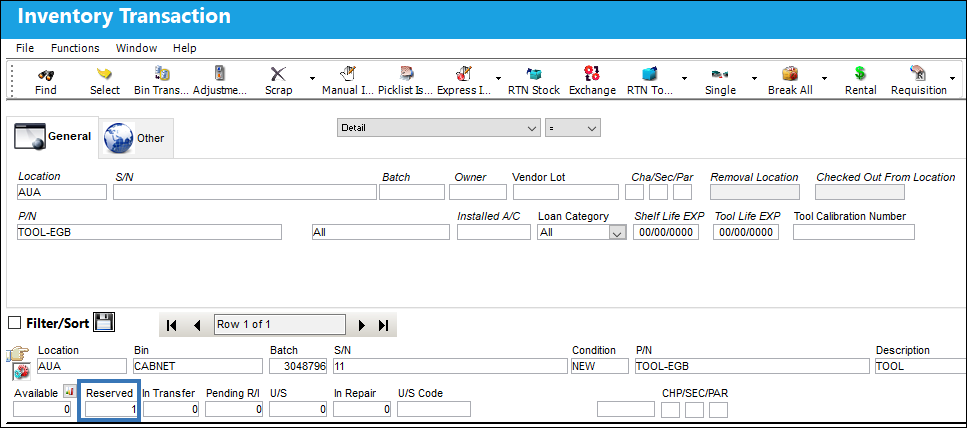
Return to the Work Order. The part will appear as reserved in the QTY Reserved field as shown below:
Issuing the Tool to the Picklist:
Go to Inventory/Update/Inventory Transaction. Select the Picklist Issue  button.
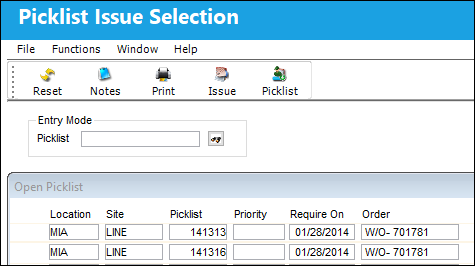
Select desired picklist. Select the Picklist Issue button. Select the Save  button.
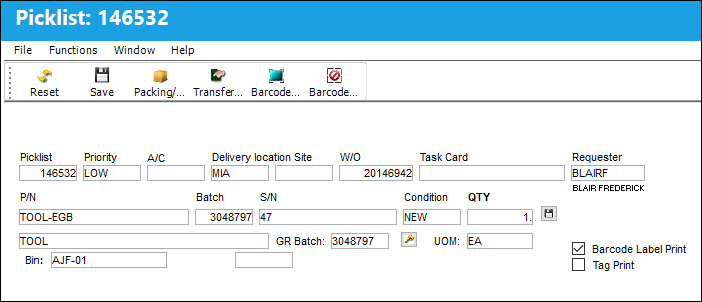
The wall password prompt will appear if the Wall Password is activated. Enter wall password. The Save prompt will appear. Click on OK.
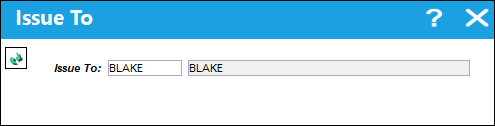
The following window will appear. Issue picklist to desired individual. Select the Continue  button.
Completing the Work Order:
Close the Work Order. The Save prompt will appear. Click on OK.
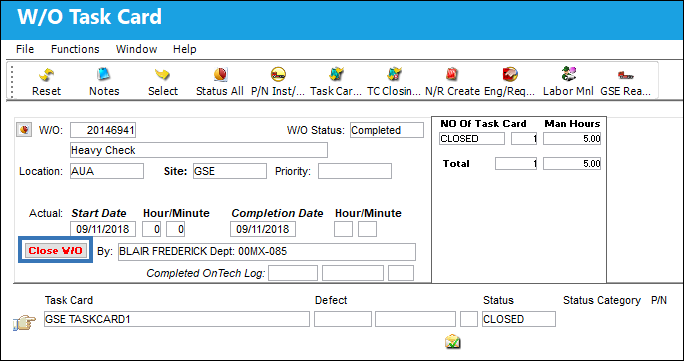
Viewing the unreturned tool.
From the Work Order query window, place the cursor next to the desired W/O and select the Tools button:
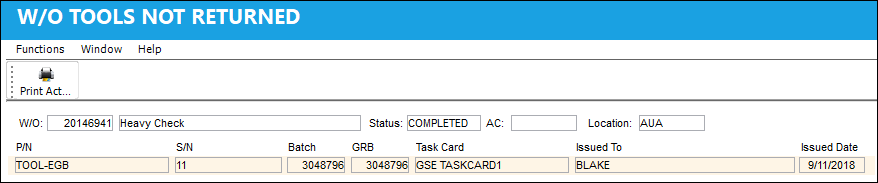
If all tools are returned to the Work Order, the Work Order will not appear in the window.
Create or Find a Work Order:
Go to Inventory/Update/Inventory Transaction. Locate a tool by selecting the Tools Locater under the Details drop down field.
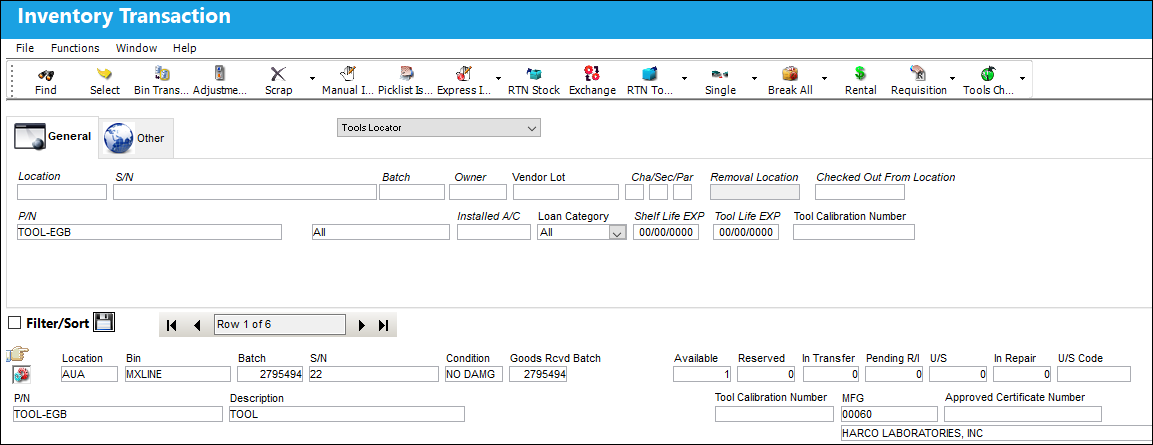
Return to the Work Order.
Share
Print
|
©1997-2026 Trax USA Corp. All rights reserved. This manual may not be copied, photocopied, reproduced, translated, or converted to any electronic or machine-readable form, in whole or in part, without prior written approval from Trax USA Corp. |
 |