
 Share
Share
 Print
Print
|
|
|
|
|


The Task Card Work  button allows the user to process (complete, defer, cancel, etc.) a Work Order's Task Cards by utilizing the buttons within this window.
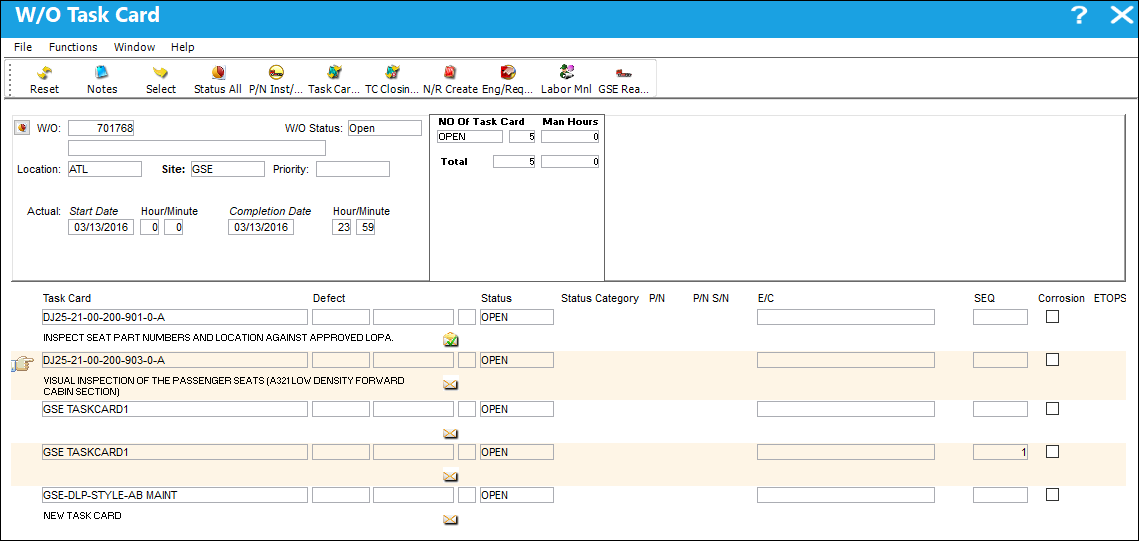
From the Work Order window, select the Task Card Work button to access the W/O Task Card window. Notice all of the Task Cards (including Non-Routines) associated with the Work Order appear here.
Choose the record with which you want to work by selecting the record.
Click on the Select  button to view/edit the related data.
When Production Switch  WOTCITEMCL is set to Yes, users can close individual Task Card Items through the T/C Work function. When a Task Card is selected in the W/O Task Card window, the W/O Task Card Item Close window appears allowing users to close individual Task Cards before proceeding. When set to No, individual Task Card Items cannot be closed through the T/C Work function. For more information refer to Switch WOTCITEMCL via the Production Switches Manual.
The purpose of the window is to assign the stage that the Task Card is at with regard to its completion. The status can be changed via the Status drop-list or other data entered as required:
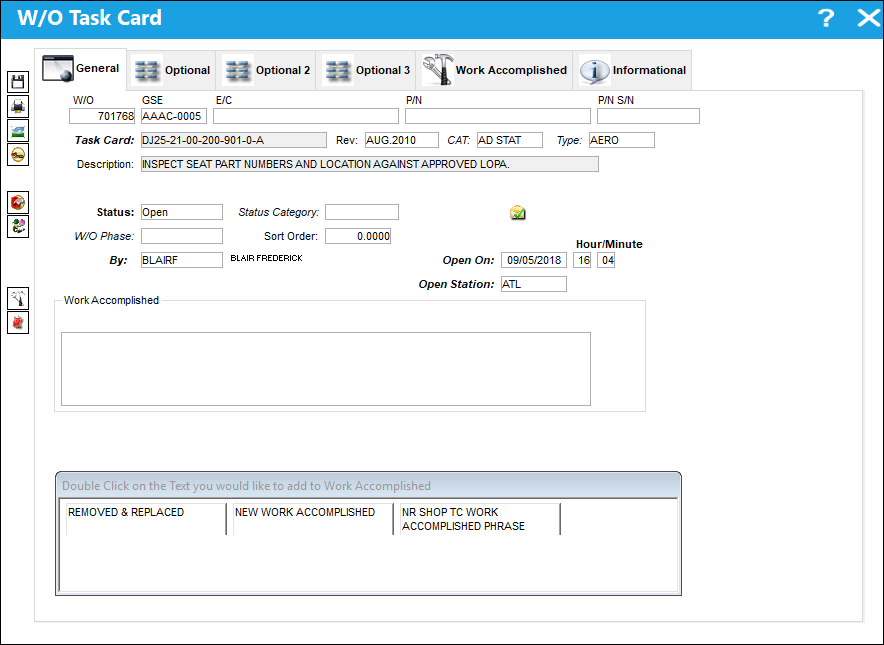
The Task Card information is primarily changed via Engineering/Update/Task Card. However, specific details can be changed via this Work Order Task Card window (Weight and Balance, and Corrosion data can be entered on the Optional Tab). The Closing of the Task Cards will result in the Completion of the Work Order.
The following information/options are available in this window:
_____________________________________________________________________________________
W/O
The Work Order used to categorize, manage, and schedule work requirements for aircraft maintenance.
GSE
Ground Support Equipment Number.
E/C
The Engineering Control that specifies aircraft or component scheduled maintenance intervals.
P/N
The Part Number reference for the Ground Support Equipment part.
P/N S/N
Ground Support Equipment Number Serial Number.
Task Card
The Task Card / Job Card that details the scheduled maintenance work.
Rev
The Task Card's most recent authorized revision number.
CAT
The Task Card's Category, as defined in Task Card Category transaction code via the Engineering Transaction Codes. Task Card Authorization Steps are defined in System Transaction Codes by Task Card Category.
Type
The Task Card Type, as defined in the Transaction Code. This code can be used to sort and locate Task Cards.
Description
The description of the Task Card.
Status drop down
The current status of the Task Card. The status of the Task Card is helpful in determining the stage the Task Card is at with regard to it's completion. Ultimately, the completion of the Task Cards will result in the closing of the Work Order.
When a W/O Task Card with an associated Engineering Control is reset, its W/O Task Card Status cannot be changed.
Cancel - The Cancel status is used if the Task Card must remain in the system but is not to be used. The system will not automatically Cancel Task Cards under any circumstances. If the user would like the Task Card to be completely removed from the system, the Task Card must be deleted using the Delete  button (Engineering/Update/Task Card). The Cancel status will not prevent the Work Order from being closed, but the Work Order will have to be closed manually if any associated Task Cards hold the Cancel status.
If a Task Card is canceled that is linked to a child E/C, the child E/C will be overridden to its own schedule for one time only tracking. Compliance will be written to the Parent E/C. A message that explain this functionality will pop up before being able to cancel a Task Card linked to a Child E/C.
Closed - The Task Card has been completed. Once all associated Task Cards are closed, the Work Order will automatically change to Complete. To change the status of the Task Card to Open after the Work Order has been closed, you must change the Completion date of the Work Order to the date the Task Card is being re-opened or change the Scheduled Start date (on this window) to the completion date of the Work Order.
Defer - The Task Card has been deferred. The user will be asked to re-schedule and provide a reason for deferral. Any P/N lists associated with the Task Card will also be carried over to the Deferral.
: When a Task Card Status that is 'Cancel' or 'Defer' is changed to 'Open' or 'Closed,' a prompt will appear indicating that the associated E/C Function(s) will be set to 'Reset' and asking the user whether or not to continue with the action. This change can be seen through the Engineering Control  button of the Work Order detail window.
If a Task Card Status is changed to 'Defer,' a prompt will appear asking whether or not the work should be rescheduled. If the user selects No, the system will simply change the status. If the user would like to re-schedule the Task Card for another time, select Yes. If Yes is selected, the Defect window will be displayed. The text and Defer Reason will be copied from the Task Card into the Defect window. The Defer tab can be selected to enter the parameters required as to when the Task Card is deferred until. Select the Requisition  button (after saving the defect), to create a requisition for the deferral. Here, the user can either associate an existing Requisition or create a new one.
Delayed - This field indicates that completion of the Task Card has been delayed. It is an informational status.
Hold - The Task Card is on hold if it is postponed from being closed. The status must be changed out of Hold in order for the Work Order to be closed.
On Condition - The Task Card status cannot be changed to the On Condition status via the Task Card Work button. This status is defined via Engineering/ Update/Task Card. Please refer to the Engineering Manual for additional information if required. When printing from the Work Order Pack Print, the On Condition Task Cards will not be printed. Work Orders can be closed even if On Condition Task Cards are not completed. When the Task Card is placed on a Work Order, and the Work Order is closed, the On Condition Task Cards will be automatically deleted.
Open - The Task Card is in 'Open' status. This is the most common status of a Task Card.
Status Category
Provides more information as to why a W/O Task Card is set to a particular Status.
W/O Phase
The particular phase of the work flow that this particular card pertains to.
Sort Order
The sort order (printing sequence) of this Task Card / Non-Routine.
By
The employee performing the Task Card.
Closed On Hour/Minute
Date and Time the Task Card was closed.
Closed Station
The station at which the work of the Task Card was done. The type of Station to be populated will match that of the Status (i.e. a Closed Status will require a Closed Station to be populated).
Work Accomplished
The actual work that was accomplished against the W/O Task Card / Non-Routine Task Card.
_____________________________________________________________________________________
Share
Print
|
©1997-2026 Trax USA Corp. All rights reserved. This manual may not be copied, photocopied, reproduced, translated, or converted to any electronic or machine-readable form, in whole or in part, without prior written approval from Trax USA Corp. |
 |