
 Share
Share
 Print
Print
|
|
|
|
|


In the GSE W/O Task Card Work window, select the GSE Reading  button. The GSE Reading window will display.
The GSE field auto populates with the GSE Master number entered in the GSE field of the GSE W/O detail.
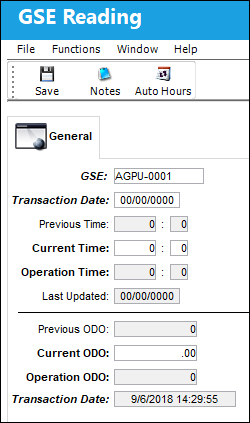
The following information/options are available in this window:
_____________________________________________________________________________________
GSE
Ground Support Equipment Number.
Transaction Date
The date of the transaction.
Previous Time
Time of last reading.
Current Time
Current reading which you are entering. This will be the actual reading for the Ground Support Equipment. Alternatively, the Auto Hours button can be used to enter a date range instead of a single day.
Operation Time
This is the actual operation time since the previous reading. Subtracting the previous time with the current time does this.
Last Update
The date of the last GSE reading.
Previous ODO
The Previous Odometer reading.
Current ODO
The Current Odometer reading.
Operation ODO
The Operational Odometer reading.
Transaction Date
This is the time stamp, which this transaction occurred.
_____________________________________________________________________________________
Share
Print
|
©1997-2026 Trax USA Corp. All rights reserved. This manual may not be copied, photocopied, reproduced, translated, or converted to any electronic or machine-readable form, in whole or in part, without prior written approval from Trax USA Corp. |
 |