
 Share
Share
 Print
Print
|
|
|
|
|


Manual Revision Category
The System Transaction Codes are displayed with both the Code Names and Descriptions. The Code Descriptions directly illustrate their functionality and role in the system, as fields are populated and tasks are performed.
Module: |
Library |
Transaction Code: |
Manual Revision Category |
General Description: |
Categories of Manual Revisions. |
Are Authorization Steps Available? |
Y |
Is System Notification Available? |
Y |
Trax Control Panel Path(s): |
Library/Update/Manual Revision Recording/New Button |
Windows(s): |
w_manual_revision_eu |
Related Switch(s): |
REVCTL |
Functions: |
Categorizes the manual revision. |
Reports: |
Not Applicable |
Available Functionality:
In addition, categorizing the type of Manual Revision Category code helps TRAX determine how the revision should be handled. The Manual Revision Category Type code may be entered via Setting/Explorer/System Transaction Codes. Set-up is identical to the creation of any other System Transaction Code and has added functional radio buttons, as shown below:
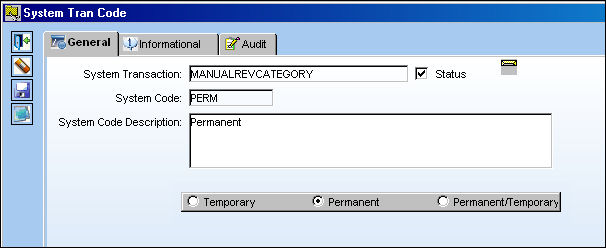
Within the Manual Revision Category users may select the radio button which best captures the type of manual revision category. These radio buttons allows for TRAX Customers to change the revision terminology to something more familiar to their organization, for example; Revision Category NORMAL in place of PERMANENT. Each radio button functionality is explained in detail below:
The following information/options are available in this window:
_____________________________________________________________________________________
Temporary radio button
The Temporary radio button is selected for the Temporary System Transaction Code. When the Temporary check Button is selected, the system will allow you to choose which open Temporary Revisions should be automatically closed upon the recording (via Library/Update/Manual Revision Recording) of any new Temporary Revision.
Permanent radio button
The Permanent radio button is selected for the Permanent System Transaction Code. If the Permanent Button is selected, the system will automatically close all open Temporary Revisions upon the recording (via Library/Update/Manual Revision Recording) of any new Permanent Revision.
Permanent/Temporary radio button
The Permanent /Temporary radio button is selected for the Permanent/Temporary (Perm.Tmp) System Transaction Code. If the Permanent/Temporary Button is selected, the system will allow you to choose which open Temporary Revisions to close upon the recording (via Library/Update/Manual Revision Recording) of any new Permanent Revision.
_____________________________________________________________________________________
Recording Temporary Revision:
Users may record new revision via Library/Update/Manual Revision Recording/New  button, as shown below:
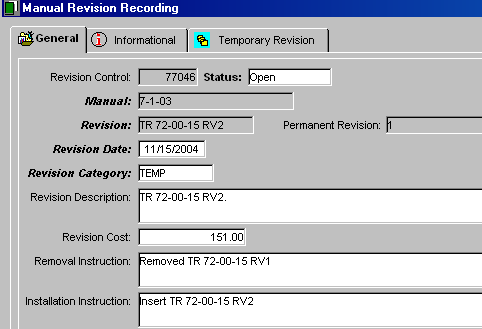
In the above example a Temporary Revision was created; the last permanent revision to the manual will appear in a Permanent Revision field once the Revision Category is set to ‘Temporary’. Also, once the ‘Temporary’ (TEMP) category is selected an additional tab will appear, Temporary Revision Tab, as seen below:
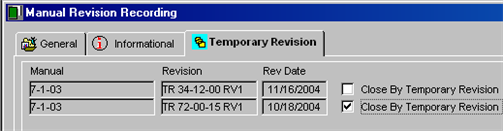
This allows the user the opportunity to select which existing Temporary Revisions may closed as a result of the incorporation of this newly created ‘Temporary’ Revision; to do so the user must select the Close By Temporary Revision checkbox to be closed.
If selected upon receiving of the authorized revision the user will get a Message Box via the Library/Update/Manual Revision Receiving or Manual Revision Receiving Individual windows, as shown below:
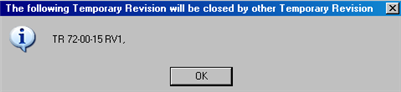
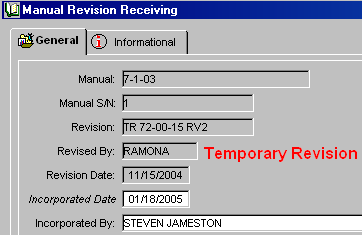
This message box will display the temporary revision(s) which are to be closed as a result of the receipt of the new temporary revision for each serialized manual. In addition, if a TEMPORARY Manual is being received, the user will receive a TEMPORARY REVISION flag via the Library/Update Manual Revision Receiving or Manual Revision Receiving Individual windows, as shown below:
Recording Permanent/Temporary Revision
Users may record new revision via Library/Update/Manual Revision Recording/New button, as shown below:
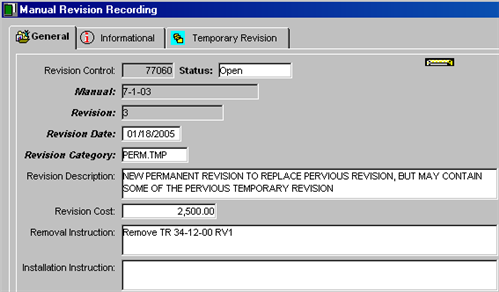
In the above example a Permanent/ Temporary Revision was created. Notice that once the ‘Permanent/Temporary’ (PERM.TMP) category is selected an additional tab will appear, Temporary Revision Tab, as seen below:
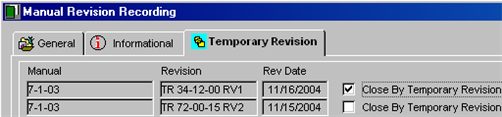
This allows the user the opportunity to select which existing Temporary Revisions may closed as a result of the incorporation of this newly created ‘Permanent/Temporary’ Revision; to do so the user must select the Close By Temporary Revision checkbox to be closed. If selected upon receiving of the authorized revision the user will get a Message Box via the Library/Update/Manual Revision Receiving or Manual Revision Receiving Individual windows, as shown below:
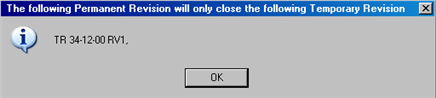
This message box will display the temporary revision(s) which are to be closed as a result of the receipt of the new Permanent/Temporary revision for each serialized manual. There are no additional flags via the Library/Update/Manual Revision Receiving or Manual Revision Receiving Individual for this Revision Category. If any Temporary Revision were not closed as a result of receiving the new permanent/temporary revision, they will now be associated to the new Permanent revision number and are viewable via the Library/Update/Manual Registration Detail, as seen below:
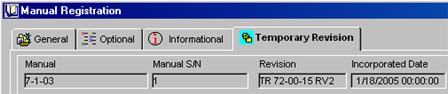
Recording Permanent Revision:
Users may record new revision via Library/Update/Manual Revision Recording/New button, as shown below:
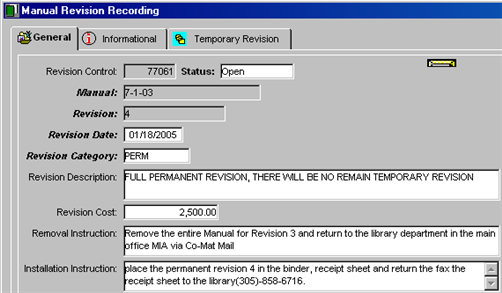
In the above example a Permanent Revision was create. Notice that once the ‘Permanent’ (PERM) category is selected an additional tab will appear, Temporary Revision Tab, as seen below:
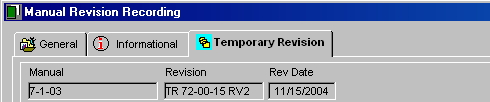
In the case of a Permanent Revision, the Temporary Revision Tab does not allow the user to select the which Temporary Revision(s) may closed as a result of the incorporation of this newly created ‘Permanent’ Revision; as noted by the lack of the Close By Temporary Revision checkbox. This is because by default any temporary revision remaining open against the previous permanent revision will automatically be closed upon receipt of the new permanent revision. When receiving of the authorized revision the user will get a Message Box via the Library/Update/Manual Revision Receiving or Manual Revision Receiving Individual windows, as seen below:
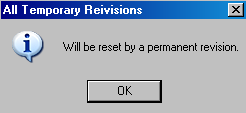
This message box will state that all temporary revision(s) will be reset as a result of the receipt of the new Permanent revision for each serialized manual. There are no additional flags via the Library/Update/Manual Revision Receiving or Manual Revision Receiving Individual for this Revision Category.
For the Temporary Revision Tab to appear via Library/Update/Manual Revision Recording, the manual being revised must have authorized temporary revision opened against its current Permanent Revision.
Share
Print
|
©1997-2026 Trax USA Corp. All rights reserved. This manual may not be copied, photocopied, reproduced, translated, or converted to any electronic or machine-readable form, in whole or in part, without prior written approval from Trax USA Corp. |
 |