
 Share
Share
 Print
Print
|
|
|
|
|


Task Card Shop, General Tab
This Select into the Task Card field to select an existing Task Card or select the New  button to create a new Shop Task Card.
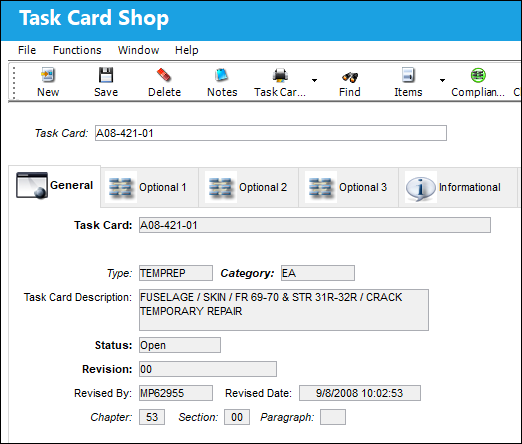
The following information/options are available in this window:
_____________________________________________________________________________________
Task Card
The Task Card / Job Card that details the scheduled maintenance work.
Type
The Task Card Type, as defined in the Transaction Code. This code can be used to sort and locate Task Cards.
Category
The Task Card's Category, as defined in Task Card Category transaction code via the Engineering Transaction Codes. Task Card Authorization Steps are defined in System Transaction Codes by Task Card Category.
Task Card Description
The description of the Task Card.
Status
The current status of the Task Card. The status of the Task Card is helpful in determining the stage the Task Card is at with regard to it's completion. Ultimately, the completion of the Task Cards will result in the closing of the Work Order.
Open - The Task Card is in 'Open' status. This is the most common status of a Task Card.
Cancel- The Cancel status is used if the Task Card must remain in the system but is not to be used. The system will not automatically Cancel Task Cards under any circumstances. If the user would like the Task Card to be completely removed from the system, the Task Card must be deleted using the Delete  button (Engineering/Update/Task Card). The Cancel status will not prevent the Work Order from being closed, but the Work Order will have to be closed manually if any associated Task Cards hold the Cancel status.
Hold - The Task Card is on hold if it is postponed from being closed. The status must be changed out of Hold in order for the Work Order to be closed.
Rejected - The Task Card has been Rejected.
Pending- The Task Card is in Pending status. This is the initial status of a Task Card upon creation. Once the initial revision has been authorized, the status changes from 'Pending' to 'Open.'
Revision
The Task Card's most recent authorized revision number.
Revised By
The user that revised the Task Card.
Revised Date
The Date that the card was revised.
Chapter / Section / Paragraph
The ATA chapter/section/paragraph, as applicable.
_____________________________________________________________________________________
Enter the basic Task Card information, as required. If your company has multiple fleet types, it may be necessary to prefix the Task Card number with the fleet type.
Additional functionality is available at the bottom of the screen through the Task Card Quick Reference Section.
Share
Print
|
©1997-2026 Trax USA Corp. All rights reserved. This manual may not be copied, photocopied, reproduced, translated, or converted to any electronic or machine-readable form, in whole or in part, without prior written approval from Trax USA Corp. |
 |