
 Share
Share
 Print
Print
|
|
|
|
|



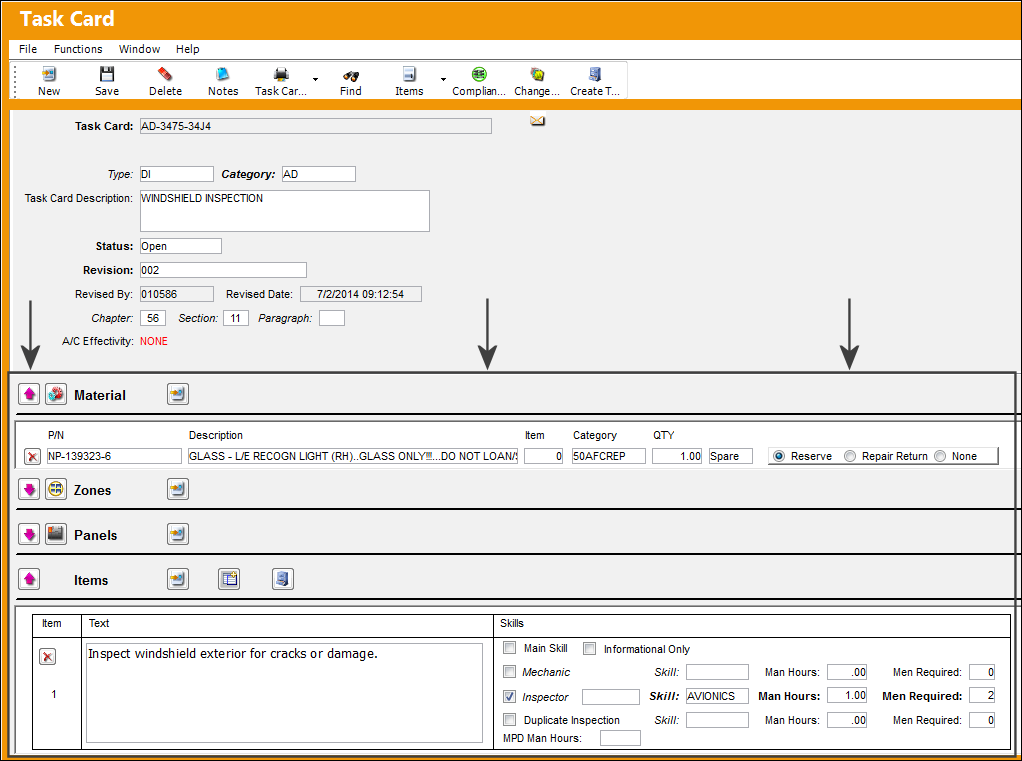
At the bottom of the Task Card, W/O Task Card, and W/O Non-Routine Task Card windows, the T/C Quick Reference Section allows users to conveniently view and update any Parts, Panels, Zones, and Items that are linked to the Task Card. These reference guides are available from each tab in the Task Card window; they are also available when the Task Card is associated to a Work Order from the W/O Task Card window.
For detailed information on Task Cards and how/why they are linked to Work Orders, refer to the Task Card Button.
The Material, Zones, and Panels options are available for all Task Card Editor types; the Items section is only available when T/C Editor NONE or TASKCARD are selected in the Optional 1 tab.
T/C Materials:
Users can add or remove the parts required for the Task Card from the Materials section.

The following information/options are available in this window:
_____________________________________________________________________________________
Expand  / Collapse
  buttons
The Expand  button displays all of the information for the section. The Collapse
  button hides the same information.
Add/Delete Record  button
Select this button to add or remove parts that are associated to the Task Card. When selected, the Task Card P/N window pops up. The same fields in that window are also available in the Materials Section. From this window, however, users are able to set up System Notifications for the specific Task Card P/N by selecting the Notification  button.
New Record  button
Select this button to add a new line item to the section.
Delete Record  button
Delete the selected line item entry.
P/N
The Part Number reference for the aircraft part. This is the Part Number required for the T/C. A part number may be specified only one time per Item Number. However, the same part number may be specified on each unique item number if needed. Users can select into this field or select the Add/Delete Record button to add a P/N.
Description
The description of the part.
Item
The specific item number on the Task Card that this record is to be associated with. Leave default '0' to have this record associated with all item numbers on the Task Card.
Category
The category of the part as defined in Settings/ Explorer/ System Transaction Code Explorer/ Settings/ P/N Category (e.g. Rotable, Consumable, Repairable) and entered for the particular part in the P/N Master.
QTY
The quantity of items/parts required.
Spare/Tool drop down
Select Spare if the item required is a spare; this can be either an Expendable or a Rotable part. Select Tool if the item required is a tool; the P/N must be configured as a Tool in P/N Master via Settings/Update/P/N Master.
Reserve radio button
Select this option to reserve the spare or tool when W/O P/N reservation is applied. When a Picklist Reservation is made via a Work Order, only parts that have the Reserve radio button checked will be reserved. For more information regarding picklist creation, please go to Production/ Update/ Work Order/ Picklist button.
Repair Return radio button
Select this option to repair/return the spare when W/O P/N reservation is applied. This option is used if the currently installed part will be removed and repaired (via Shop or Repair Order) then reinstalled on the same aircraft to satisfy the Task Card's requirement. This is informational. When a Picklist Repair/Return is made via a Work Order, only parts that have the Repair/Return radio button checked will be repaired or returned.
None radio button
Select this option if no spare or tool will be reserved (picklisted) or repaired.
_____________________________________________________________________________________
For more information on the options available in this section, refer to the P/N Button from the Engineering - T/C Training Manual.
T/C Zones:
Users can add or remove the specific work zones for the Task Card in the Zones section of the window.

The following information/options are available in this window:
_____________________________________________________________________________________
Expand / Collapse buttons
The Expand button displays all of the information for the section. The Collapse button hides the same information.
Add/Delete Record  button
Select this button to add or remove the Zones that are associated to the Task Card. When selected, the Task Card Zone window pops up. The same fields in that window are also available in the Zones Section.
New Record button
Select this button to add a new line item to the section.
Delete Record button
Delete the selected line item entry.
Zone
The Zone area for the Task Card (selected from Task Card Control Master).
Description
The Zone description for the Task Card.
Item
The specific item number on the Task Card that this record is to be associated with. Leave default '0' to have this record associated with all item numbers on the Task Card.
A/C Type/Series
The Aircraft Type and Series/Fleet assignment.
_____________________________________________________________________________________
For more information on the options available in this section, refer to the Zone Button via the Engineering - T/C Training Manual.
T/C Panels:
Users can add or remove the specific panels that are required to be removed in order to carry out the T/C work in the Panels section of the window.

The following information/options are available in this window:
_____________________________________________________________________________________
Expand / Collapse buttons
The Expand button displays all of the information for the section. The Collapse button hides the same information.
Add/Delete Record  button
Select this button to add or remove the Panels that are associated to the Task Card. When selected, the Task Card Zone window pops up. The same fields in that window are also available in the Zones Section.
New Record button
Select this button to add a new line item to the section.
Delete Record button
Delete the selected line item entry.
Panel
The Panel reference to be removed for access.
Description
The Panel description information.
Item
The specific item number on the Task Card that this record is to be associated with. Leave default '0' to have this record associated with all item numbers on the Task Card.
A/C Type/Series
The Aircraft Type and Series/Fleet assignment.
_____________________________________________________________________________________
For more information on the options available in this section, refer to the Panel Button via the Engineering - T/C Training Manual.
T/C Items:
From the Items section, users can view, add, delete, and edit the itemized procedures that must be performed in order to complete the work for the Task Card. The information in this section is otherwise accessed through the Item  button. Through that window, additional buttons are available.
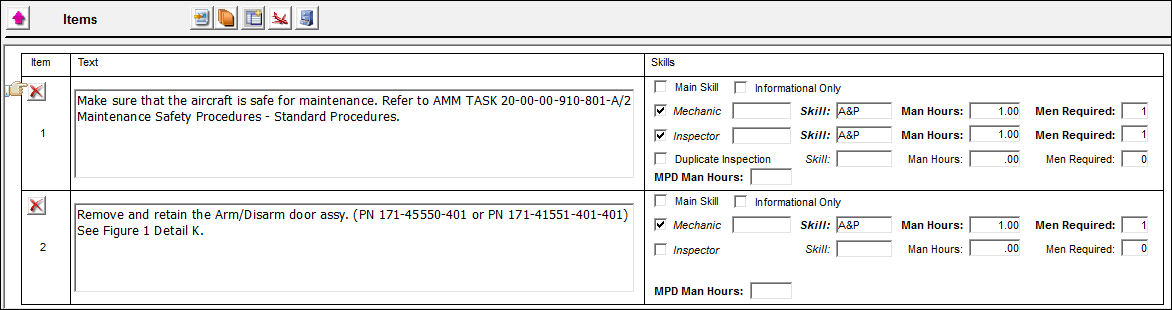
The Items section is only available when the T/C Editor in the Task Card, Optional 1 tab is set to 'TASKCARD' or 'NONE.'
The following information/options are available in this window:
_____________________________________________________________________________________
Expand / Collapse buttons
The Expand button displays all of the information for the section. The Collapse button hides the same information.
New Item button
Select this button to add a new line item to the section.
Delete Item button
Delete the selected line item entry.
Resequence  button
If the Item's Order number is changed, selecting this button will then change the sequence of the Items to reflect their updated Order number sequence.
Create Item From TraxDoc Reference  button
This button allows users to create/add TraxDoc Items to the Items window of a Task Card. For more information refer to the Create Item From TraxDoc Reference Button.
Item Effectivity  button
Select this button to set Effectivity for this specfic Task Card Item by A/C Type/Series. For more information refer to the Effectivity Button.
TraxDoc Item References  button
This button allows users to reference the selected Item to a TraxDoc SGML. For more information refer to the TraxDoc Item Reference Button.
Item Number
The item number of the step required to accomplish the task.
Text
The details of the work that must be performed for the step.
Skills
This subsection is used to enter the required Inspector and Mechanic Skills, as well as the man hours and men required information for each skill. The following options are available.
Main Skill checkbox - Select this checkbox if this is the primary skill of the Task Card. The user can then organize the Task Cards by primary skill (using filter and sort functionality via the related modules such as Production Work Orders.)
Informational Only checkbox - Select if this item is for an informational step only (no labor required). When selected, the Main Skill checkbox will be removed from this window.
Mechanic checkbox - Select this option to enter any code number related to the mechanic (i.e. skill level). The code field only appears when the checkbox is checked.
Inspector checkbox - Select this option to enter any code number related to the inspector (i.e. skill level). The code field only appears when the checkbox is checked.
Skill - The Skill required for this item. Skills are set up via the Skill Master. For more information, refer to the Skill Master, General Tab via the Settings Manual. The Skills listed for Mechanic or Inspector (above) are validated against the Mechanic/Technician checkboxes associated to the specific Skill via the Skill Master, General tab.
Man Hours - The labor hours (per person) required for this Item.
Men Required - The number of personnel required for this Item.
Duplicate Inspection checkbox - Select this option if the Task Card requires a duplicate inspection.
MPD Man Hours - The MPD Man Hours X Task Mh Factor = Man Hours. For additional information, refer to Importing the MPD File, General Tab, via Manufacture Data Import of the Engineering - E/C Training Manual.
_____________________________________________________________________________________
For more information on this section, refer to the Task Card Item, General Tab and the Task Card Item, Skills Tab via the Engineering - T/C Training Manual.
Share
Print
|
©1997-2026 Trax USA Corp. All rights reserved. This manual may not be copied, photocopied, reproduced, translated, or converted to any electronic or machine-readable form, in whole or in part, without prior written approval from Trax USA Corp. |
 |