
 Share
Share
 Print
Print
|
|
|
|
|


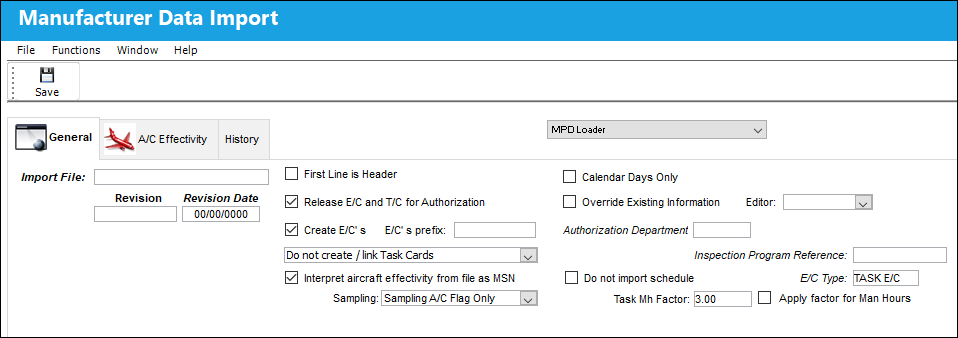
Fill in the fields and select the checkboxes as necessary on the General Tab.
Applicability for P/N E/Cs must be set up manually after the initial MPD is loaded. This can be done via Override Button, Engineering Effectivity Override (P/N E/C), via Engineering Control Buttons of the Engineering - E/C Training Manual.
The following information/options are available in this window:
_____________________________________________________________________________________
Import File
Select into the field to select the location of the MPD text file to be loaded.
The text file must be a tab delimited file that meets the specifications for loading into the system.
Revision
Enter the revision of the MPD document.
Revision Date
Enter the revision date of the MPD document.
For the initial revision of the E/C, the E/C's Effective Date will default to the Aircraft's In Service Date. The Service Date is specified in the A/C Master, General tab.
Company
The specific Company associated to the MPD.
This field only appears when G/L Interface Switch  COMPANYMULTI is set to Yes. For more information refer to the G/L Interface Switches Manual.
Control
Users can choose between the two Control types: A/C or P/N. When A/C is chosen, users can specify the Aircraft by selecting into the field.
This field only appears when G/L Interface Switch COMPANYMULTI is set to Yes. For more information refer to the G/L Interface Switches Manual.
First Line is Header checkbox
Select this checkbox if the first line of the Import File is a header and should not be imported.
Release E/C and Task Card for Authorization checkbox
Select this checkbox to allow the newly created E/Cs and Task Cards to go directly to the Authorization Queue. If this checkbox is unselected the newly created E/Cs and Task Cards will go to Engineering Authorization Management and Task Card Authorization Management where they will have to be released to authorization.
Create E/Cs
Select this checkbox to create E/Cs from the Airbus MPD Loader records.
E/C's Prefix
Enter a prefix in front of the E/C. For example, the user may enter 'Lease' or 'B737' in front of the E/C. This is to locate the load with ease or pre-define the load.
Drop Down Selection
Do not create / link Task Cards - Select this option to load E/Cs and not T/Cs. Only E/Cs will be loaded.
Create a shell / header task card record per E/C - This option will create and link T/Cs to the E/Cs with the option of assigning a specific prefix.

Link E/C to AMM task cards - Select this option to link the E/Cs being loaded to AMM Task Cards.
Interpret aircraft effectivity from file as MSN checkbox
This is a customized checkbox and is completely dependent on the file being imported. If the file does not have a S/N(s), the selected load will take the A/C information as the S/N information and will lose effectivity.
This checkbox is selected by default.
Sampling drop down 
This drop down lists the option of whether or not to apply a sampling schedule of the Engineering Controls being imported to a fleet. This functionality can be utilized through selecting the 'Sampling A/C Flag Only' option, or the import can be conducted without utilizing the functionality through the blank option. This drop down is contingent with the Sampling aircraft registered via A/C Master, Optional 1 tab. The options are as follows:
Sampling A/C Flag Only - Only Sampling Aircraft, as indicated in the A/C Master, Optional 1 tab, will be made effective and have the Sampling Override Schedule applied.
blank/null - Does not apply the sampling schedule of the Engineering Control being imported to the fleet.
For more information, refer to the Override Sampling Schedule button, via Engineering Control Schedule tab.
Calendar Days Only checkbox
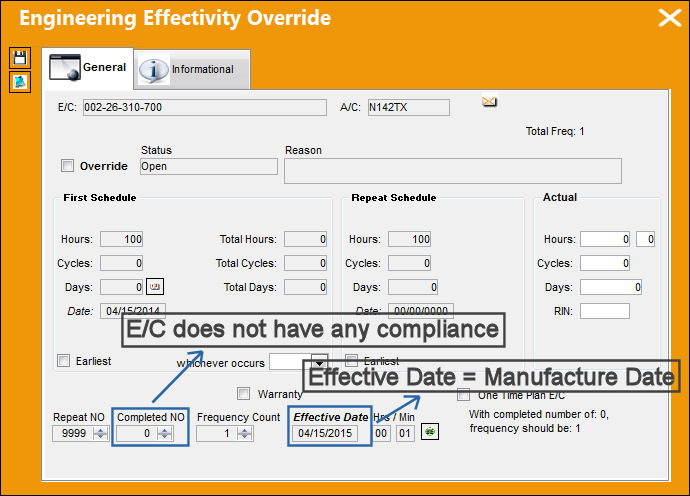
Select this checkbox to ensure that A/C E/Cs that have Calendar Days Schedules only (no hours or cycles schedules) will use the Aircraft Manufacture Date instead of the In-Service Date in the Engineering Effectivity Override when the E/C does not have any compliance (i.e Complete No. = 0).
Override Existing Information checkbox
Select this checkbox to replace any existing Task Cards or E/Cs. Specifically, the information that will be overridden is as follows:
- E/C Category (via Engineering Control, General Tab)
- E/C Description (via Engineering Control, General Tab)
- E/C Schedule (Threshold and Interval) (via Engineering Control Authorization, Schedule Tab)
- A/C Effectivity (via Engineering Effectivity Override)
- Task Card Category (via Task Card, General Tab)
- Task Card Description (via Task Card, General Tab)
- Skill (Task Card Item, Skills Tab)
- Man Hours (Task Card Item, Skills Tab)
- Men Required (Task Card Item, Skills Tab)
- Item Text Description (Task Card Item, Skills Tab)
- A/C Effectivity (via Task Card Effectivity)
If this the Override Existing Information checkbox is selected, and Switch MPDLNROE is set to Yes, aircraft effectivity will not be removed if the aircraft is no longer in the new revision. Instead, the E/C will be set to N/A. For more information refer to Switch MPDLNROE.
 If the Override Existing Information checkbox is selected, and Switch MPDLNROE is set to No, then the engineering effectivity for Aircraft tail numbers that have the Override checkbox selected will not be overridden by the MPD Load. (In this scenario, the Override checkbox for these Aircraft will not be deselected; their overridden schedules and effective dates will not be affected by the MPD Load.) For more information refer to Switch MPDLNROE.
Editor drop down
The application that will be used to edit the information. The application will also be used to edit the information throughout the system. Selectable formats include: Word ®, Framemaker ®, TASKCARD, or the default Powerbuilder ® RTF (i.e. NONE).
This Editor functionality is only supported when using Oracle ® version 8i and up. Also, this functionality is compatible with Microsoft ® Word 2000 and later versions.
Authorization Department
Select a department that will authorize the newly created E/Cs and Task Cards. If a department is not selected the authorization can be done by all departments.
Inspection Program Reference
This field allows users to set a reference for all MPD tasks during the import process.
Do not import schedule checkbox
When this checkbox is selected, the E/Cs First and Repeat Schedule will not be imported to the Engineering Control, Schedule Tab.
E/C Type
The Engineering Control Type associated to the MPD. By default, this field is populated by 'Task E/C.'
Task Mh Factor
This number multiplied by the Task Mh number (in the MPD file) equals the number of Man Hours in the Task Card Item window.
(i.e. Task Mh Factor x Task Mh = Man Hours)
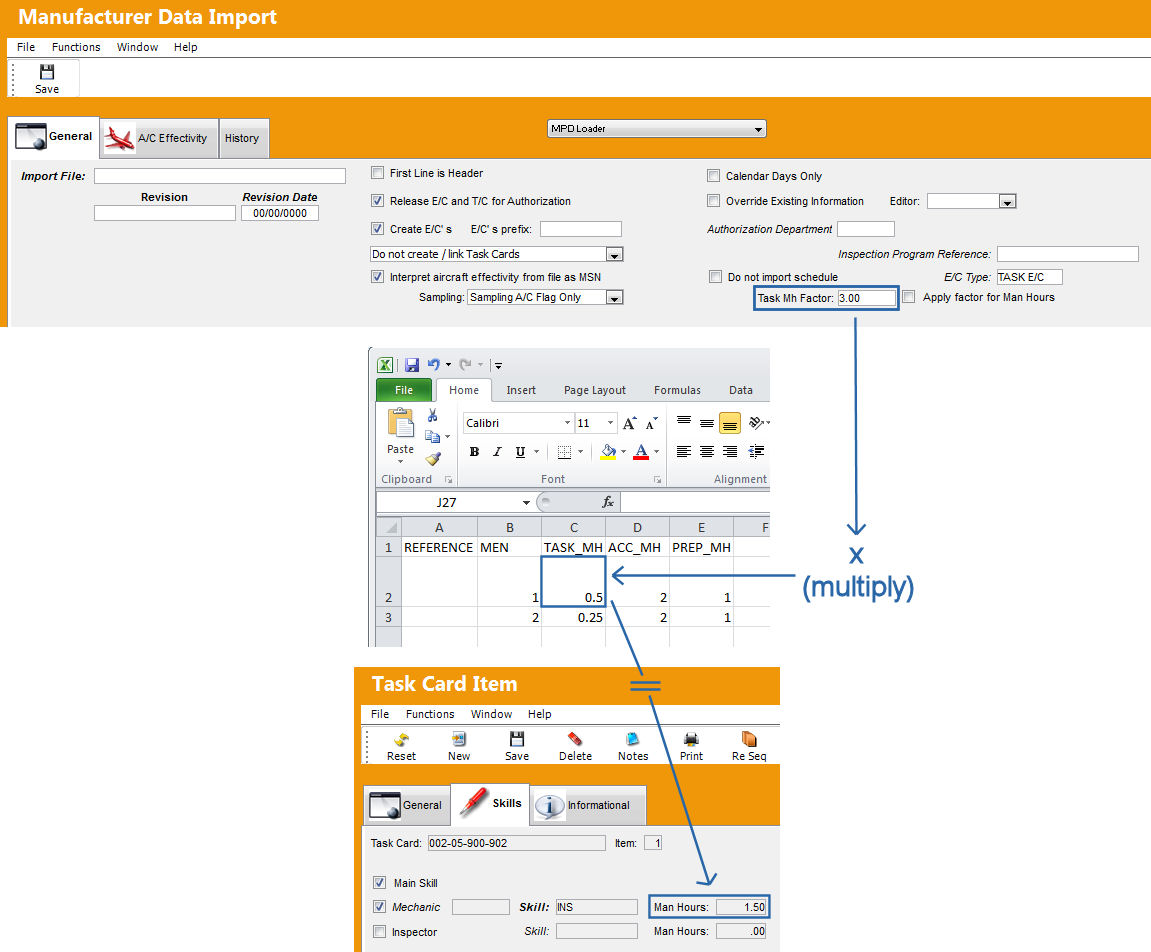
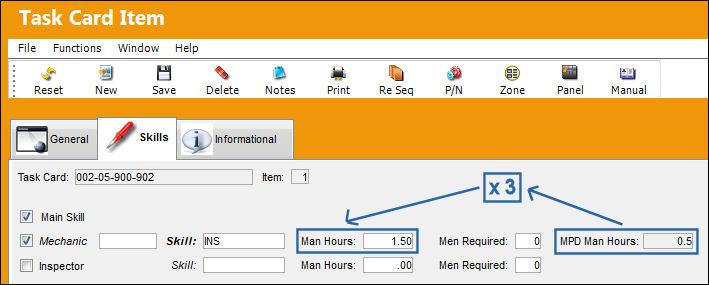
The Task_MH (0.5 in this case) is the MPD Man Hours field. The Task Mh Factor x MPD Man Hours = Man Hours.
Apply factor for Man Hours checkbox
Select this checkbox to override the Man Hours in the Task Card Item window.
_____________________________________________________________________________________
 Note: In TRAX Version 12.5 and all later releases, all applicable TraxDoc imports support five digit aircraft Manufacturer Serial Numbers (MSN), so long as TraxDoc switch AMMDESIGNATORTYPE is set to Yes.
Select the Save  button.
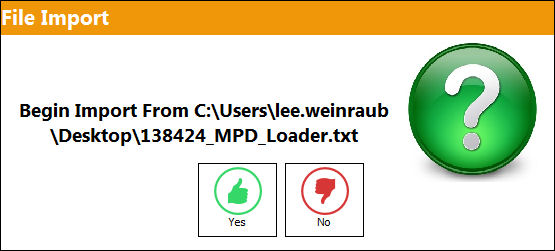
The File Import prompt appears. Select 'Yes' to begin the import process, or 'No' to cancel it.
Select 'Yes'.
When the import is complete, all information will appear in the Data Import tab of the window and the Complete information box will appear. Any exception(s) will be described in the Exceptions tab.
For more information refer to the Exception Report (Airbus MPD Loader) via the Engineering Training Manual.
Share
Print
|
©1997-2026 Trax USA Corp. All rights reserved. This manual may not be copied, photocopied, reproduced, translated, or converted to any electronic or machine-readable form, in whole or in part, without prior written approval from Trax USA Corp. |
 |