
 Share
Share
 Print
Print
|
|
|
|
|


Skill Master, General Tab
The Skill Master, General tab allows users to create or edit a Skill. Skills are used in the system to identify the type of skilled labor that an employee can perform. To create a new Skill, select the New  button.
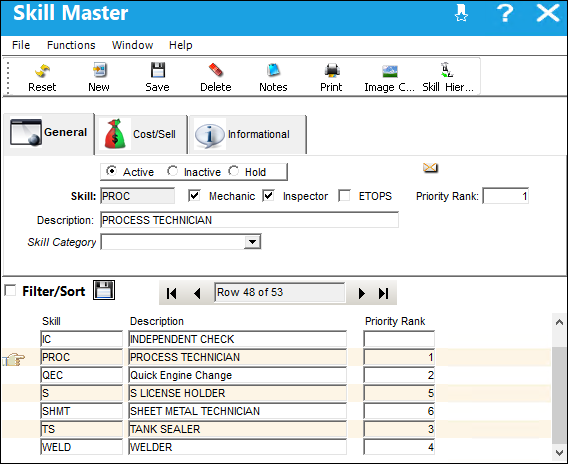
The following information/options are available in this window:
_____________________________________________________________________________________
Active radio button
Select this radio button if the employee's skill is currently active.
Inactive radio button
Select this radio button if the employee's skill is currently inactive.
Hold radio button
Select this radio button if the employee's skill is currently on hold.
Skill
The name of the Skill being set up.
Mechanic checkbox
Select the checkbox if the skill must be that of a mechanic.
This checkbox is selected by default.
Inspector checkbox
Select the checkbox if the skill must be that of a inspector.
This checkbox is selected by default.
ETOPS checkbox
Select this checkbox to associate the Skill of an Employee to allow work on ETOPS rated aircraft and ETOPS Authorized parts.
This checkbox works in conjunction with Production Switch  WOUSERETOPS. When set to Yes, employees with ETOPS skills cannot complete ETOPS Task Card work on multiple parts such as engines (with same P/N, different S/N) of the same aircraft. For more information refer to the Production Switches Manual.
Priority Rank 
Allows the user to determine which skills appear in the W/O Task Priority window and in what order. The system will calculate Man Hours for Task Cards with a Priority Rank and display the accumulated totals for each skill.
Note: The Priority Rank numbers must be continuous. If a ranked skill that falls in a range of skills is deleted, the system automatically re-numbers the later skill. For example, if skill A = priority 1, skill B = priority 2, skill C = priority 3, if the Priority Rank for skill B is removed (null) then skill C automatically updates to Priority Rank 2.
Note: Switch MAXSKILLRANK Config Number field determines the maximum number of skills that can be ranked in the Skill Master window.
Defect checkbox
Select this checkbox if the skill applies to a Defect. From the Skill field of the Defect Report, Defer tab, only those Skills with the Defect checkbox selected will be available.
For this checkbox to be available, Settings Switch SKILLDEFECT must be set to Yes. For more information refer to the Settings Switches Manual.
Description
A more detailed description of the skill.
Skill Category drop down 
Each Skill can be linked to a larger Skill Category that helps group certain Skills in different windows and applications in the system. This selection is informational. These categories are hard-coded in the system. Each Skill Category can be linked to W/O Task Cards and Non-Routine Task Cards through the Skill field of the W/O Task Card, Optional 2 Tab. The following options are available: Mechanical, Avionics, Structures, Propulsion, Interiors, Composites, NDT, and Material Treatment/Coatings.
_____________________________________________________________________________________
 Skills that are Inactive will appear in red text in the Skill Master.
Share
Print
|
©1997-2026 Trax USA Corp. All rights reserved. This manual may not be copied, photocopied, reproduced, translated, or converted to any electronic or machine-readable form, in whole or in part, without prior written approval from Trax USA Corp. |
 |