
 Share
Share
 Print
Print
|
|
|
|
|


From the Task Card Item window users can view, add, delete, and edit the itemized procedures that must be performed in order to complete the work for the Task Card. Create a new Task Card or select one from the drop down menu.
Select the Items  button from the Task Card window. TRAX displays the Task Card Item, General tab:
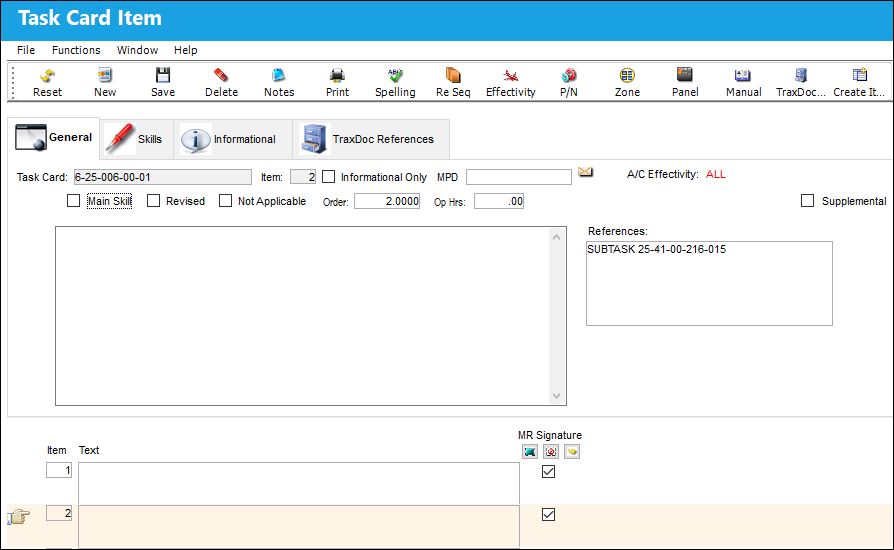
The following information/options are available in this window:
_____________________________________________________________________________________
Task Card
The Task Card / Job Card that details the scheduled maintenance work.
Item
The item number required to accomplish a Task Card.
Informational Only checkbox
Select if this item is for an informational step only (no labor required). When selected, the Main Skill checkbox will be removed from this window.
MPD
The Maintenance Planning Document reference for this Task Card.
This field is no longer available in the GSE Task Card Item window via the GSE Task Card section of the GSE Training Manual.
Main Skill checkbox
Select this checkbox if this is the primary skill of the Task Card. The user can then organize the Task Cards by primary skill (using filter and sort functionality via the related modules such as Production Work Orders.)
Revised checkbox
If the item has been revised selecting this checkbox would flag the Task Card item with a revision bar on the left of the item on the Task Card print when printed out. For additional information refer to Switch  RMVRVBAR via the Engineering Switches Manual.
Not Applicable checkbox
When selected, the Informational Only checkbox also becomes selected and the skills in the Skills tab no longer become available. Also the Items in the Task Card print become grayed out when the Not Applicable checkbox is selected.
This checkbox only appears in this window if the Editor selected for the Task Card is TraxDoc in the Task Card, Optional 1 tab.
Order
When the sequential order is changed for the Item number, via the Re-Sequence button, the Items are re-ordered on the list at the bottom of the window. While the Item number will reflect the change, the Order number will reflect the original sequential order. For additional information, refer to the Re-sequence button.
Op Hours
Operation Hours.
A/C Effectivity
The record will display an alert message that indicates how Effectivity has been set up. If all aircraft are effective, "ALL" will be displayed on the General Tab of the Task Card and on the Task Card Item window. If some aircraft are effective, "PARTIALLY" will be displayed. If no aircraft are effective, "NONE" will be displayed. If A/C Effectivity is set to 'All' and the currently logged in user only has security access to specific aircraft, Effectivity will display as 'Partial'.
None - Indicates that no aircraft from the entire fleet is effective. The setting for Switch TCEFFECT indicates that the dynamic Task Card effectivity is not being used or that the Task Card is not effective to any tail numbers. For more information refer to Switch TCEFFECT via Engineering Switches Manual.
Partially - Indicates that some but not all aircraft for the selected type/series are effective. If multiple type/series are selected, but one of the selected type/series has aircraft within that are not selected, the effectivity is classified as ‘Partially.’
ALL - Indicates that all aircraft for the selected type/series are effective. If only one available Type/series is selected, but all of the aircraft within that type/series are selected, the effectivity is classified as ‘ALL.’
Supplemental checkbox
This checkbox indicates if the Task Card Item contains Supplemental Work instructions (SUPP WI). This checkbox is selected automatically through the Task Card Import process if the imported Task Card contains Supplemental Work. For more information refer to Import from OEM Manual Button, via the TraxDoc Training Manual.
References
The manual reference of the TraxDoc.
Text
The instructional text for this item.
MR Signature checkbox 
The MR Signature checkbox allows the user to select Task Card Items that are considered elementary work to have a filled maintenance release signature box on the resulting Task Card Print. This checkbox is checked by default.
Note: This is a customized request and may not be available to all customers.
Note: This functionality requires both Switch TCVIAREV and Switch REVAUTH to be configured to 'No'. For more information refer to Switch TCVIAREV and Switch REVAUTH via Engineering Switches Manual.
 Note: This checkbox is security controlled via Engineering/Update/Task Card/Task Card Item MR Selection. For more information refer to the Security Explorer via the System Administration Training Manual.
_____________________________________________________________________________________
The Editor drop down field defaults to NONE when the Config Other field is set to NONE for the Switch TCEDITOR.
Share
Print
|
©1997-2026 Trax USA Corp. All rights reserved. This manual may not be copied, photocopied, reproduced, translated, or converted to any electronic or machine-readable form, in whole or in part, without prior written approval from Trax USA Corp. |
 |