
 Share
Share
 Print
Print
|
|
|
|
|


Select the Panel  button to enter the specific Panels that are required to be removed in order to carry out the task. These will later be used to produce an access Panel removal sheet on a Work Order. Panels can be validated against data in the Task Card Control Master option in the Engineering module.
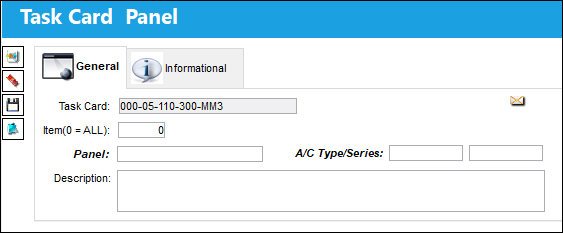
The following information/options are available in this window:
_____________________________________________________________________________________
Task Card
The Task Card / Job Card that details the scheduled maintenance work.
Item (0 = ALL)
The specific item number on the Task Card that this record is to be associated with. Leave default '0' to have this record associated with all item numbers on the Task Card.
Panel
The Panel reference to be removed for access.
Description
The Panel description information.
_____________________________________________________________________________________
Additional information relevant to the record can be viewed or added through the Task Card Panel, Informational Tab and the Notes  button.
Share
Print
|
©1997-2026 Trax USA Corp. All rights reserved. This manual may not be copied, photocopied, reproduced, translated, or converted to any electronic or machine-readable form, in whole or in part, without prior written approval from Trax USA Corp. |
 |