
 Share
Share
 Print
Print
|
|
|
|
|


Select the Effectivity  button to apply Aircraft Effectivity to the selected Task Card. Applying effectivity to Task Cards is important because, for example, the work to be performed through the T/C is only applicable to specific Type/Series or even to specific Aircraft.
The following options are also available for additional functionality:
- Notes button
- Override button
- Select All button
- Deselect All button
When the button is selected, the P/N Effectivity appears as follows.
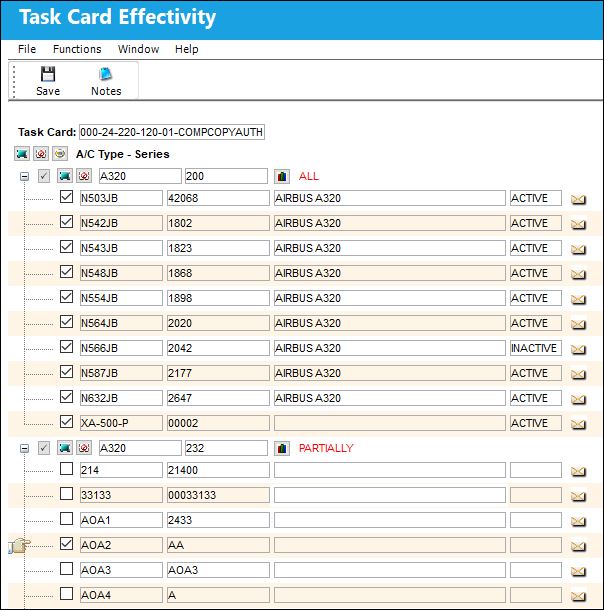
The layout and functionality of this window has been modified in TRAX Version 11 and all later releases. Notice that effectivity can be applied to entire fleets and/or individual aircraft all from the same window. The Override button is no longer required to apply individual aircraft effectivity in V11. For information on the previous layout, refer to the Effectivity Button, via Task Card Buttons.
The following information/options are available in this window:
_____________________________________________________________________________________
Task Card
The Task Card / Job Card that details the scheduled maintenance work. The Task Card that is having its aircraft effectivity updated.
Fleet Select All  / Deselect All
  buttons
Use these buttons to select all fleets (including every aircraft) or to deselect all fleets.
A/C Type/Series
The Aircraft Type and Series/Fleet assignment.
A/C Serial Number 
The aircraft serial number.
A/C Type/Series  button
Select this checkbox to add effectivity to the entire fleet.
Expand  / Collapse
  buttons
Use these buttons to view all of a fleet's aircraft or to hide all of a fleet's aircraft. Once expanded, individual aircraft can be selected or deselected for effectivity.
Aircraft Select All / Deselect All buttons
Use these buttons to select all of a fleet's aircraft or to deselect all of a fleet's aircraft. The part will be effective to only those selected aircraft.
Task Card Range  button
Select this button to access the Task Card Range window. This option allows the user to apply effectivity to an aircraft by using the serial number, line number, variable number, or SGML Designator of the aircraft. For additional information, refer to the Task Card Range Button, via Task Buttons of the Engineering - T/C Training Manual.
ALL
Indicates that all aircraft for the selected type/series are effective. If only one available Type/series is selected, but all of the aircraft within that type/series are selected, the effectivity is classified as ‘ALL.’
PARTIALLY
Indicates that some but not all aircraft for the selected type/series are effective. If multiple type/series are selected, but one of the selected type/series has aircraft within that are not selected, the effectivity is classified as ‘Partially.’
Select checkbox
Select this checkbox if the Task Card is to be effective to this aircraft. Only those aircraft with this checkbox selected will have effectivity.
Aircraft
The individual aircraft that make up the fleet.
_____________________________________________________________________________________
The Override checkboxes are no longer used in TRAX Version V11. Instead, all of a fleet's aircraft are listed in the same window.
Select the fleet type/series applicable.
To select only specific Tail Numbers within a fleet Type/Series, select the fleet's Expand button and then select the applicable Tail Numbers. If a part is not effective to an aircraft, it cannot be issued to a Work Order for that aircraft. However, if the Work Order is for a third party, there are no effectivity checks on the part issues.
If the Task Card is copied to another T/C through the Rename/Copy  button, the aircraft for the new Task Card Company will appear for A/C Effectivity, not the aircraft belonging to the old T/C Company. For more information refer to the Rename/Copy Button via the Engineering - T/C Training Manual.
The Task Card will display an alert message that indicates how Effectivity has been set up. If all aircraft are effective, "ALL" will be displayed on the General Tab of the Task Card. If only some aircraft are effective, "PARTIALLY" will be displayed and if none are effective, "NONE" will be displayed.
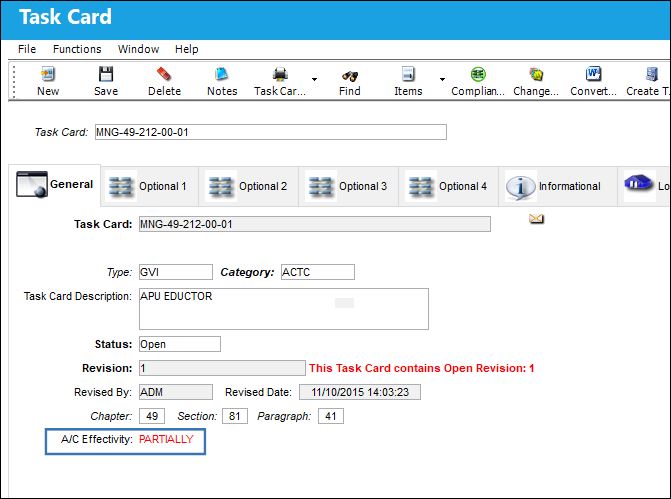
If A/C Effectivity is set to Yes and the currently logged in user only has security access to specific aircraft, if that user applies effectivity then Effectivity will display as 'Partial'; as the user cannot edit/create Task Cards for the entire fleet.
Multi Company Effectivity
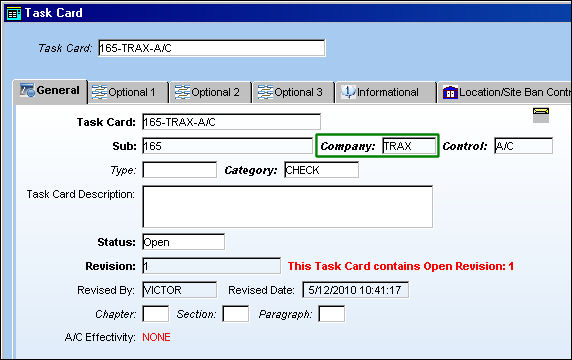
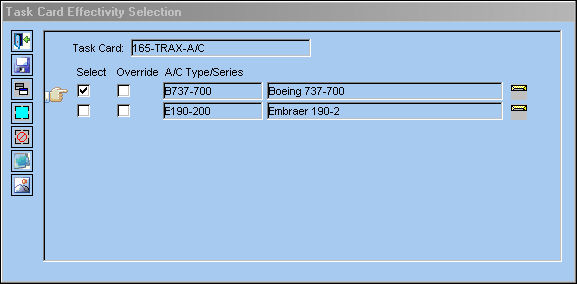
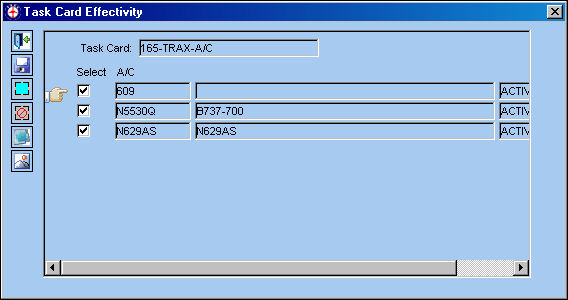
Depending on the Company entered in the Task Card Company field, only those aircraft with the same G/L Company (via the A/C Master, Other 1 tab) will appear in the Task Card Effectivity Selection window.
This is part of the Multi-Company functionality. The Company field of the E/C window only appears when G/L Interface Switch  COMPANYMULTI is set to 'Yes'.
For example, notice the following T/C has Company 'TRAX' populated.
When the Effectivity button is selected, only those A/C Type/Series that share the same G/L Company, in this case 'TRAX', will appear.
The G/L Company is added to each individual aircraft though the A/C Master, Other 1 tab.
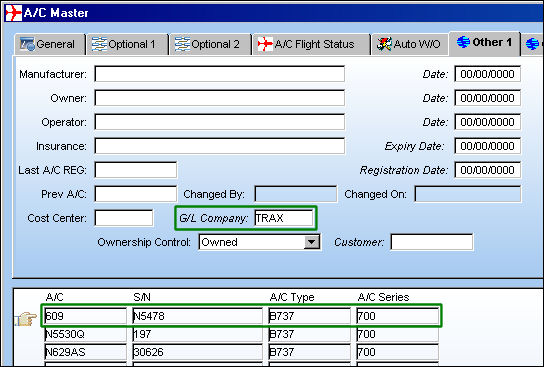
For more information refer to the A/C Master, Other 1 Tab via the Settings Training Manual.
When the Override  button is selected for the A/C Type/Series, all aircraft with the same G/L Company will appear.
If the Task Card is copied to another T/C through the Rename/Copy button, the aircraft for the new Task Card Company will appear for A/C Effectivity, not the aircraft belonging to the old T/C Company. For more information refer to the Rename/Copy Button via the Engineering - T/C Training Manual.
Additionally, with Switch TCITMEFF set to Yes, the Apply Effectivity To All button is available.
Share
Print
|
©1997-2026 Trax USA Corp. All rights reserved. This manual may not be copied, photocopied, reproduced, translated, or converted to any electronic or machine-readable form, in whole or in part, without prior written approval from Trax USA Corp. |
 |