
 Share
Share
 Print
Print
|
|
|
|
|


The Document Control feature allows the user to attach different kinds of files to the selected Task Card, and print them with the Task Card once the work pack is printed.
TRAX will create a shortcut to the attached file. Please note that the file needs to remain in the location (path directory) specified in order for the link to work. If the file is removed or renamed, an error message will appear (File not found).
Select the Document Control  button to associate pre-existing documents to the Task Cards.
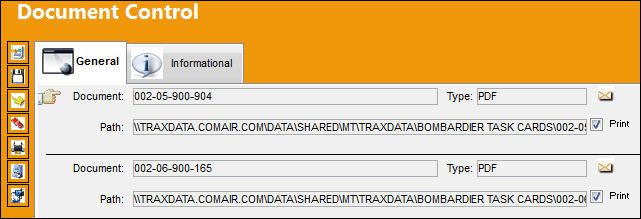
Files of the following types can be attached:
- Adobe® Portable File Document (.PDF) format
- Microsoft® Word (.DOC)
- Microsoft® Excel (.XLS)
- HTML (HTML, HTM)
- Audio (Wave, MP3, WMA)
- Video (MPEG, MPG), Cmg (CMG)
- Image files (JPEG, TIF, JPG).
After selecting the Document Control button, select the New  button to open a browser window. Navigate to the file to be attached:
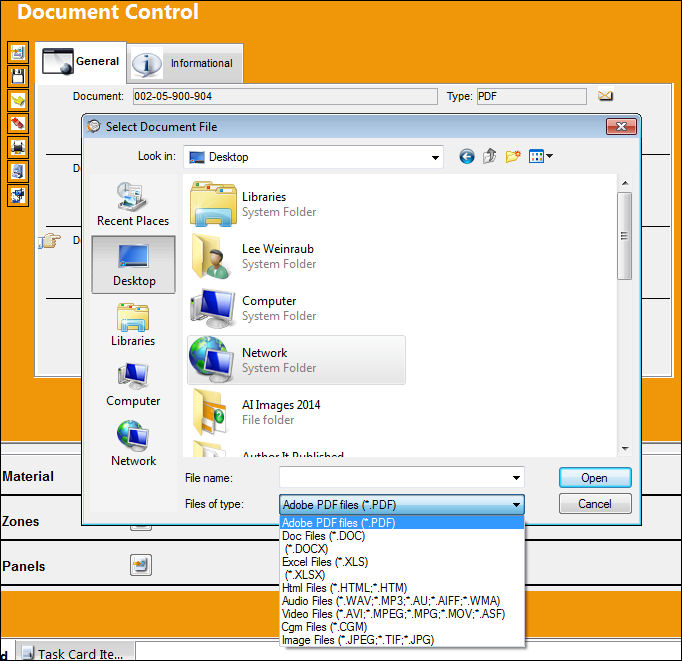
Select the document and select the  button to attach the file to the selected Task Card. There is no limitation as to the number of files that can be attached.
In order to attach a new file, select the New button and follow the above process. If the file that you want to attach to the document is already stored in the TraxDoc System, the process is even easier. Select the TraxDoc button and select the TraxDoc file you want to attach to the Task Card.
For additional information regarding TraxDoc and a detailed description of the handling of documents in TraxDoc, refer to the TraxDoc Training Manual.
The following buttons offer additional functionality:
Share
Print
|
©1997-2026 Trax USA Corp. All rights reserved. This manual may not be copied, photocopied, reproduced, translated, or converted to any electronic or machine-readable form, in whole or in part, without prior written approval from Trax USA Corp. |
 |