
 Share
Share
 Print
Print
|
|
|
|
|


Select the Rename/Copy  button to copy this Task Card information to another Task Card. Task Cards can be copied or renamed as required (i.e. one Task Card can be created for Engine #1 and can then be copied to Engine #2 with small edits made after copying, to save time re-writing all of the Task Card information).
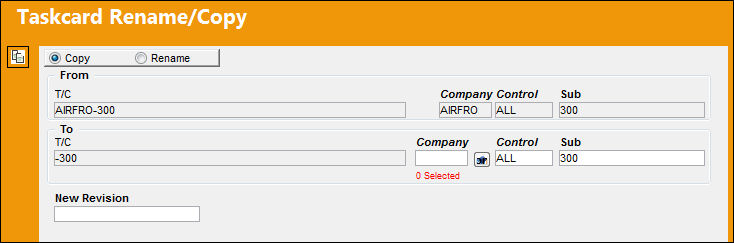
The following information/options are available in this window:
_____________________________________________________________________________________
Copy radio button
Select this radio button to copy the 'From T/C' to a new T/C in the system. When Copy is chosen, if T/C authorization is “On” (via System Administration/Explorer/System Transaction Configuration), the Authorization Status of the copy will be set to 'Pending'. The user will be required to enter new revision information in the New Revision field.
Rename radio button
If selected, the record will be renamed, not copied. This option deletes the 'From' record and replaces it with the new 'To' record.
From Task Card
The original Task Card being renamed or copied from.
To Task Card
The Task Card being copied or renamed.
Company
The Company used to auto generate the Task Card reference. This field only appears when G/L Interface Switch  COMPANYMULTI is set to Yes. When this field is populated, only those aircraft with the same G/L Company via the A/C Master, Other 1 tab can be made effective to the T/C. As part of the Multi-Company functionality, the Aircraft effective to the original Task Card are not copied over to the new Task Card if the new Task Card has a different Company. Only the aircraft associated to the Company of the new Task Card will be effective to that Task Card. For more information refer to the Effectivity Button via the Engineering - T/C Training Manual.
This field appears only when G/L Interface Switch COMPANYMULTI is set to 'Yes.' This feature is part of the Multi-Company functionality. Parent company's airlines are entered into this field. Then, when the P/N is entered into the detail window, the G/L field will be auto-populated with this airline's previously created G/L Account. When the switch is set to 'No' the field is titled Category and functions as defined above. For more information see the G/L Interface Switch COMPANYMULTI via the G/L Interface Switches Manual.
Control
Select from the drop down if the Task Card is to be utilized for P/Ns or A/C. If selecting the A/C Control, select the A/C Type/Series to auto generate the Task Card reference for naming purposes only.
This field appears only when G/L Interface Switch COMPANYMULTI is set to 'Yes.' This feature is part of the Multi-Company functionality. Parent company's airlines are entered into this field. Then, when the P/N is entered into the detail window, the G/L field will be auto-populated with this airline's previously created G/L Account. When the switch is set to 'No' the field is titled Category and functions as defined above. For more information see the G/L Interface Switch COMPANYMULTI via the G/L Interface Switches Manual.
Sub
The Sub is used to auto generate the Task Card reference. This is a free text field used for naming purposes only.
This field appears only when G/L Interface Switch COMPANYMULTI is set to 'Yes.' This feature is part of the Multi-Company functionality. Parent company's airlines are entered into this field. Then, when the P/N is entered into the detail window, the G/L field will be auto-populated with this airline's previously created G/L Account. When the switch is set to 'No' the field is titled Category and functions as defined above. For more information see the G/L Interface Switch COMPANYMULTI via the G/L Interface Switches Manual.
_____________________________________________________________________________________
All information (effectivity, attached documents) associated to the Task Card being copied (i.e. Task Card 001) will be copied to Task Card 002. The only information that will not be copied are compliance records and authorization history.
Rename/Copy Button
When renaming a Task Card that has been placed on a Work Order, the system will display the following prompt indicating the Task Card is assigned to the specified Work Order(s).
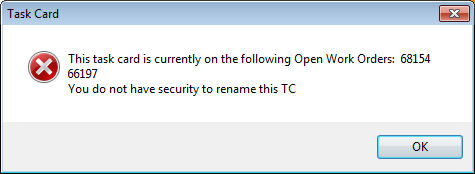
 This button is security-controlled via Engineering/ Update/ Task Card/ Task Card Rename in W/O. For detailed information refer to the Security Explorer via the System Administration Manual.
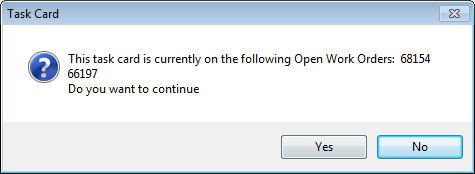
The user must have security in order to rename a Task Card on a Work Order. The system will display the following hard warning if the user does not have the security to rename the Task Card on the indicated Work Order(s)
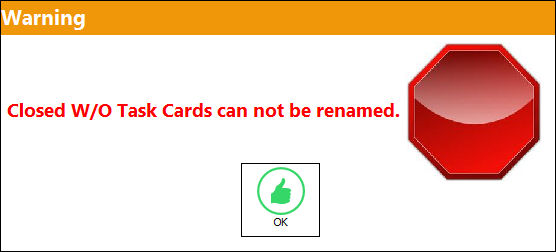
 Renaming Closed W/O T/Cs
Task Cards that have been closed on a Work Order cannot be renamed. Attempting to do so will produce the following warning:
Share
Print
|
©1997-2026 Trax USA Corp. All rights reserved. This manual may not be copied, photocopied, reproduced, translated, or converted to any electronic or machine-readable form, in whole or in part, without prior written approval from Trax USA Corp. |
 |