 Download Online Help
 Print
|
|
|
|
|


Due List, via Dashboard Tab
From the Due List, planners can assign an aircraft's due tasks (maintenance events) to new or existing Work Orders. (Refer to the Fleet Due List tab to plan for future tasks that are not yet due.)
1. Choose an Aircraft
Each aircraft that has due items are listed. The number of due items are listed in the Due Today column.
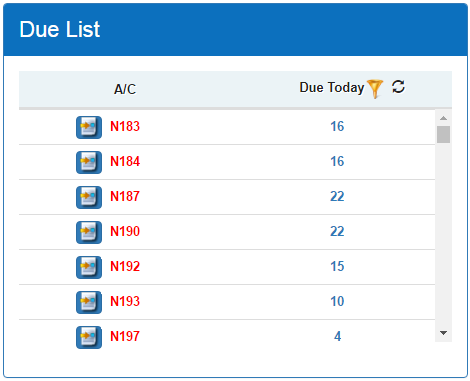
The following options/information is available in this window:
_________________________________________________________________________
Add Task  button
Select this button to open the 'LIST TASK BY A/C' window. From that window uses can assign individual maintenance events to new or existing W/Os. See below.
A/C
The individual Aircraft tail number. This is the aircraft with due (or overdue) maintenance events.
Due Today
This column lists the total number of due (or overdue) maintenance events for the aircraft.
Filter  button
Click on this button to utilize filters for the columns in this table.
Refresh  button
Select the refresh the data displayed in the Due List section.
_________________________________________________________________________
2. Review Due Items
Click on the Add Task button next to the required aircraft to access the 'LIST TASK BY A/C' pop up for that aircraft. From there, planners can assign each task to a new or existing Work Order.
Select the Filter  button.
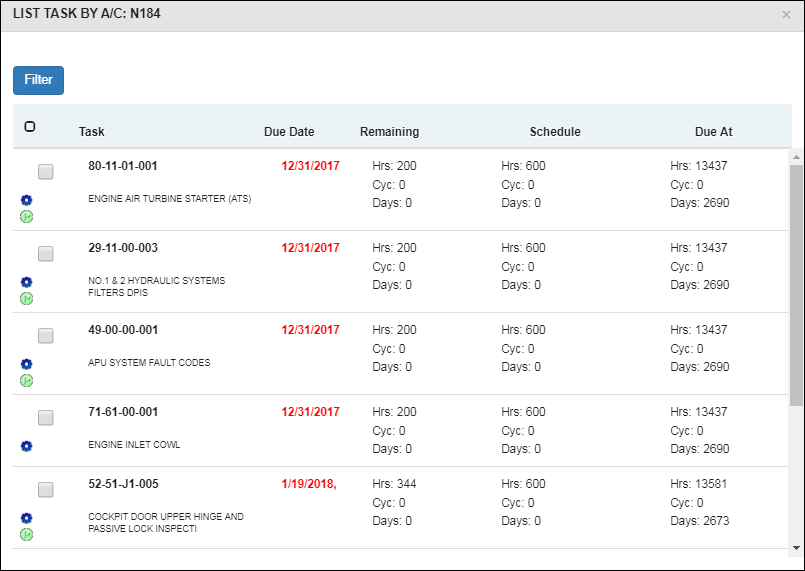
From this window, users can filter for Defects, E/Cs, P/N E/Cs, and/or P/N Controls. The Planning Element's Due Date can also be input as a filter.
Once a maintenance event is selected, click the New W/O button to assign the item to a new W/O, or click the 'Add to Existing W/O' button to assign the item to an existing open W/O for that Aircraft.
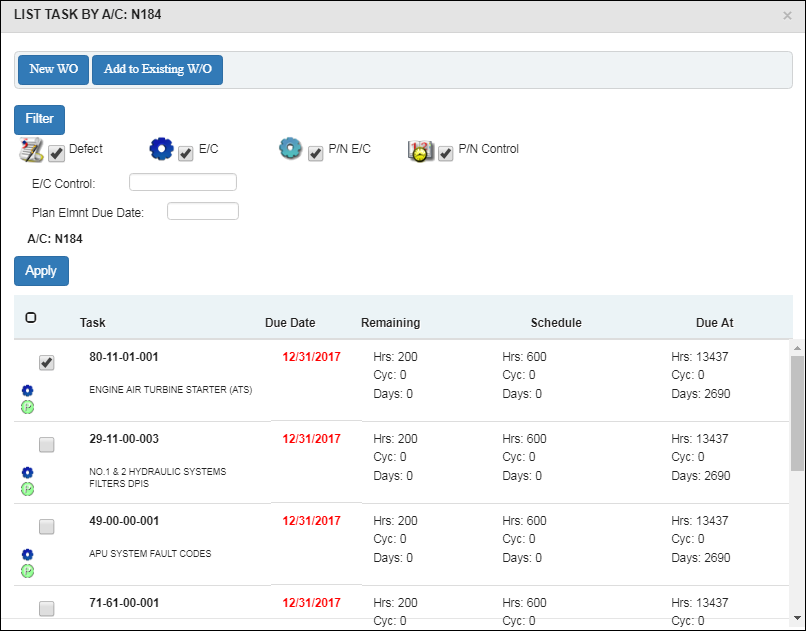
The following options/information is available in this window:
_________________________________________________________________________
Select the New W/O button to create a new Work Order. When selected, the new W/O window pops up. Enter all necessary information then click the Save  button. Once created, the selected maintenance event(s) will be assigned to the new W/O. This button is only available when a maintenance event is selected in the window.
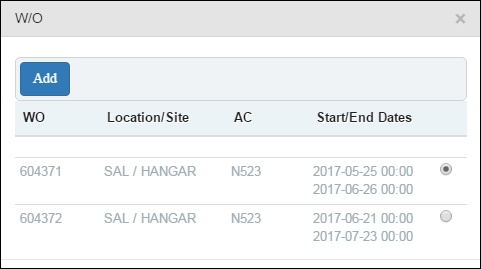
Add to Existing W/O button
Select the Add to Existing W/O button to add the selected maintenance event(s) to an existing Work Order. When selected, a window pops up with the applicable existing W/Os for that aircraft and schedule. Select from the W/Os listed, then click the Add button. This button is only available when a maintenance event is selected in the window.
Filter button
Defect checkbox - Select to view the A/C's due Defect Reports.
E/C checkbox - Select to view the A/C's due Engineering Control.
P/N E/C checkbox - Select to view the A/C's due Part Number Engineering Control.
P/N Control checkbox - Select to view the A/C's due P/N Controls.
E/C Control - The specific record being queried.
Plan Elmnt Due Date - Specify the date that items are due. The table will show dates from the entered date and older.
A/C - The Aircraft selected in the Due List window.
Apply button - Select to apply the filter settings to the table.
Select All  button
Click this to select all maintenance events listed.
Select Item  button
Click this to select an individual maintenance event.
Task
The maintenance event that is due and must be scheduled on a W/O. These include Defects, E/Cs, P/N E/Cs, and P/N Controls. The task's description is listed when applicable.
Due Date
The date that the maintenance item was due.
Remaining
The time remaining on the item's schedule before it is due. The figures include flight hours/cycles and days. Maintenance events that are overdue will be negative (example: '-2').
Schedule
The schedule Hours, Cycles, and/or Days of the maintenance item.
Due At
The schedule of Hours, Cycles, and/or Days intervals where the maintenance item is due.
_________________________________________________________________________
3. Assign Items to a W/O
There are two options to assign a maintenance item to a W/O:
- Add the item to a new W/O by clicking the New W/O button.
- Add the item to an existing W/O by clicking the Add to Existing W/O button.
Download Online Help
Print
|
©1997-2018 Trax USA Corp. All rights reserved. This manual may not be copied, photocopied, reproduced, translated, or converted to any electronic or machine-readable form, in whole or in part, without prior written approval from Trax USA Corp. |
 |