 Download Online Help
 Print
|
|
|
|
|


Fleet Due List Tab
The Fleet Due List tab lists all maintenance events that are coming due (as opposed to tasks that are already due/overdue in the Dashboard's Due List). Users can specify which aircraft, specific due date, and the maintenance events they want to see (Defects, E/Cs, P/N E/Cs, P/N Controls, and/or scheduled Work Orders). Maintenance events can be added to new or existing Work Orders.
1. Filter for Maintenance Events
2. Review Due Items for selected Aircraft
3. Assign Items to a Work Order
1. Filter for Maintenance Events
At the top of the window, add the desired filters by clicking the Filters  button. Then click the Find
 button.
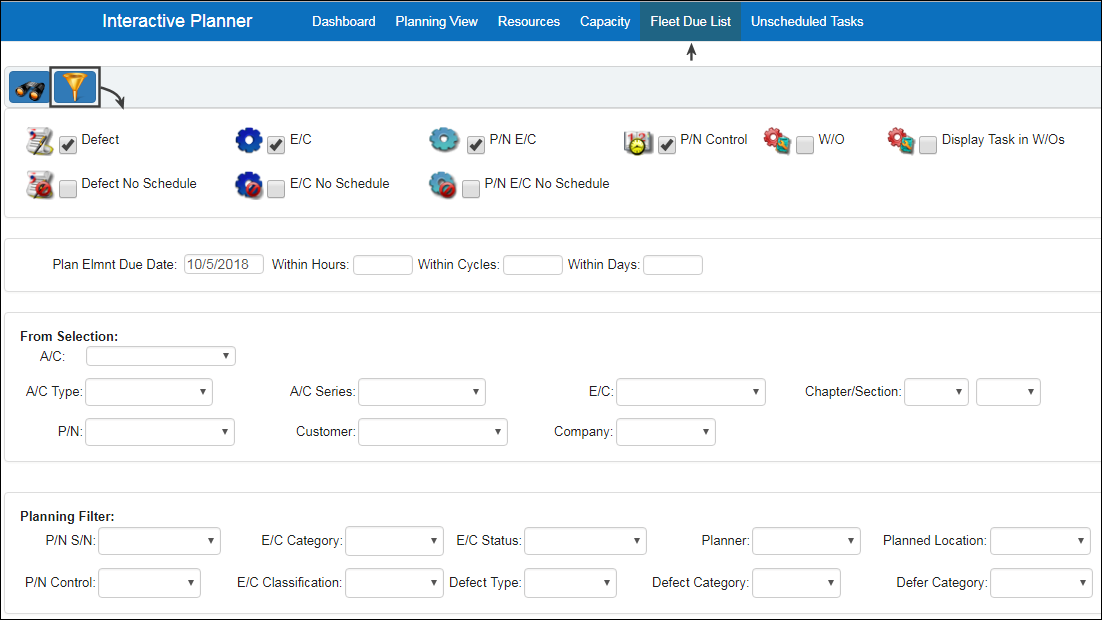
The following filters are available:
_________________________________________________________________________
Defect checkbox
Select this checkbox to filter by Defect Reports.
E/C checkbox
Select this checkbox to filter by E/C.
P/N E/C checkbox
Select this checkbox to filter by P/N E/C.
P/N Control checkbox
Select this checkbox to filter by P/N Control (i.e. TSO, REP, HYDRO).
W/O checkbox
Select this checkbox to filter by Work Order.
Display Task in W/Os checkbox
Select to display maintenance items that are already scheduled on a Work Order.
Defect No Schedule checkbox
Select this checkbox to filter by Defects with No Schedule.
E/C No Schedule checkbox
Select this checkbox to filter by E/C No Schedule. Examples of No-Schedule E/Cs are: company convenience, do at next shop visit, etc.
P/N E/C No Schedule checkbox
Select this checkbox to filter by P/N E/Cs without a schedule. Examples of No-Schedule E/Cs are: company convenience, do at next shop visit, etc.
Plan Elmnt Due Date
The Planning query will only return planning element items that are due before the date entered in this field.
Within Hours / Cycles / Days
The Planning Query will only return maintenance events that have a Remaining Schedule that is less than or equal to the specified number of Hours, Cycles, and Days.
From Selection section
A/C drop down - Select the Aircraft associated to the records being queried. One or more record can be selected. There's also the Select All  option, Deselect All
 option, and Filter option to type in a specific record.
A/C Type drop down - Select the aircraft Type associated to the records being queried.
A/C Series drop down - Select the aircraft Type and Series associated to the records being queried.
E/C drop down - Select the Engineering Control associated to the records being queried. One or more record can be selected. There's also the Select All option, Deselect All option, and Filter option to type in a specific record.
Chapter/Section drop down - Select the Chapter and Section associated to the records being queried.
P/N drop down - The Part Number reference for the aircraft part. Select the Part Number associated to the records being queried. Only one record can be selected. There's also the Filter option to type in a specific record.
Customer drop down - Select the Customer associated to the records being queried. One or more record can be selected. There's also the Select All option, Deselect All option, and Filter option to type in a specific record.
Company drop down - Select the Company associated to the records being queried.
Note: For more information, refer to the Multi Company Functionality.
Planning Filters section
P/N S/N drop down - The Serial Number for the specific serialized part. Enter the Part Number/Serial Number for the forecast request. Only one record can be selected. There's also the Filter option to type in a specific record.
E/C Category drop down - Enter the Engineering Control Category for the forecast request.
E/C Status drop down - Enter the Engineering Control Status for the forecast request.
Planner drop down - Select the Planner's name from the Employee Master. The Planner's name must be entered into the Planner field of the A/C Master, Optional 2 Tab. Only one record can be selected. There's also the Filter option to type in a specific record.
Planned Location drop down - The Location associated to the maintenance item, such as the Work Order or Defect Location.
P/N Control drop down - Enter the Part Number Control for the forecast request.
E/C Classification drop down - Enter the Engineering Control Classification for the forecast request.
Defect Type drop down - The type of defect found on the aircraft (for example, Pilot Report, MX Report).
Defect Category drop down - The Defect Report's Category Code.
Defer Category drop down - Enter the Defer Category for the forecast request.
_________________________________________________________________________
Then click the Find button to view results.
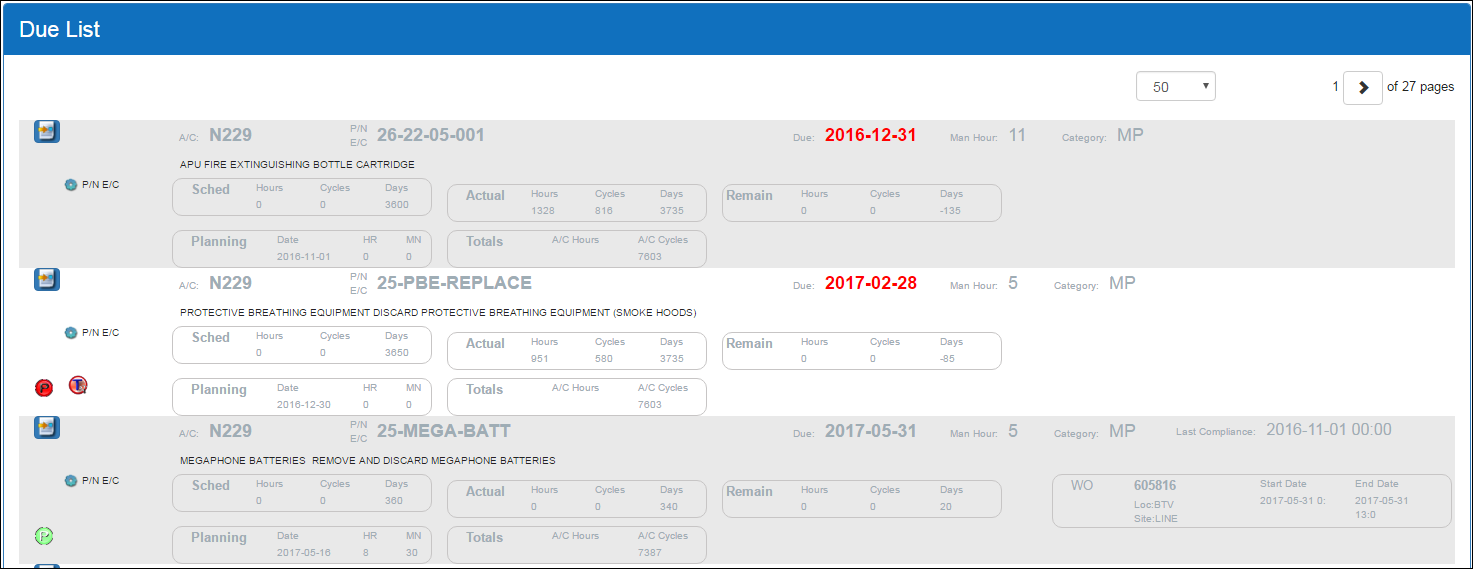
2. Review Due Items for selected Aircraft
Click on the Add Task  button next to the desired maintenance event to access the aircraft's due items. From there, planners can assign each task to a new or existing Work Order.
From this window, users can filter for Defects, E/Cs, P/N E/Cs, and/or P/N Controls. The Planning Element's Due Date can also be input as a filter.
Select the required maintenance event(s), then click the New W/O button to assign the item to a new W/O, or click the 'Add to Existing W/O' button to assign the item to an existing open W/O for that Aircraft.
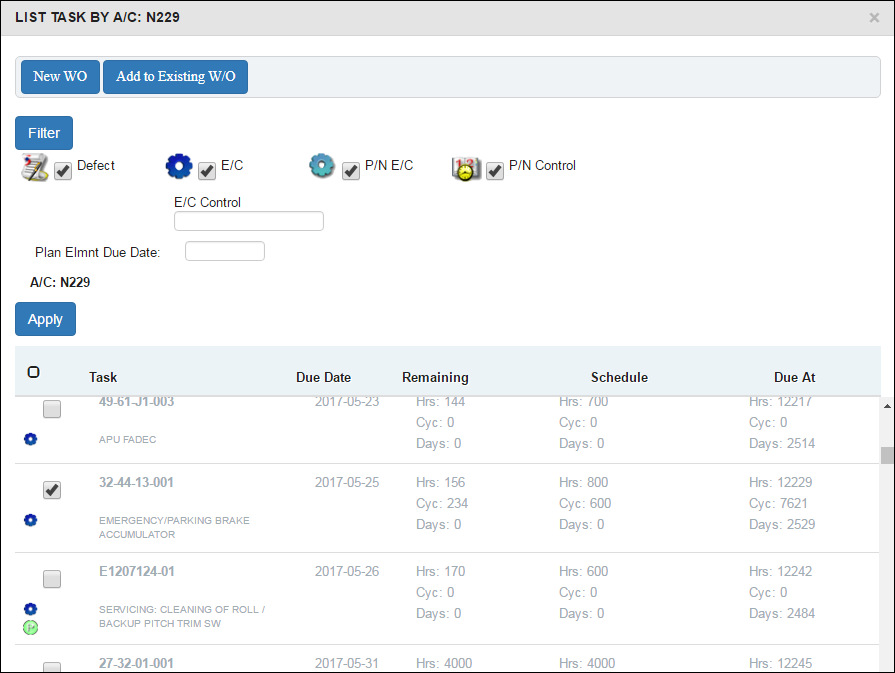
Note: For more information on the details available in this window refer to the Due List.
3. Assign Items to a W/O
There are two options to assign a maintenance item to a W/O:
- Add the item to a new W/O by clicking the New W/O button.
- Add the item to an existing W/O by clicking the Add to Existing W/O button.
Download Online Help
Print
|
©1997-2018 Trax USA Corp. All rights reserved. This manual may not be copied, photocopied, reproduced, translated, or converted to any electronic or machine-readable form, in whole or in part, without prior written approval from Trax USA Corp. |
 |