 Download Online Help
 Print
|
|
|
|
|


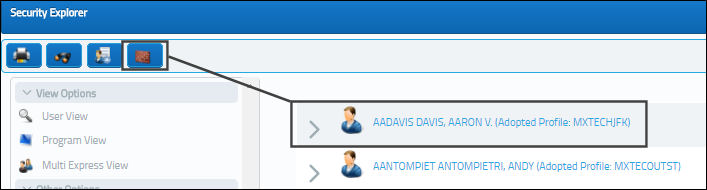
The Employee Wall Password Add  button is the basic method of assigning the Wall Password security to certain users at a time. In this method users must first be selected individually then Wall Security can be assigned to different windows for that user. This button can only be access when in View Options: User View.
Wall Password security is assigned by system administrators to individual employees within single User profiles to track which specific employee is completing transactions and other duties. For example, a user group named 'LINEMX' could be used to combine several mechanics on the floor with one shared login username, but individual Wall passwords can be applied for each Employee record within that user profile.
Note: For a listing of the transactions available for Wall password protection, refer to Wall Protected Transactions via the System Administration Training Manual.
Wall Password Configuration Process
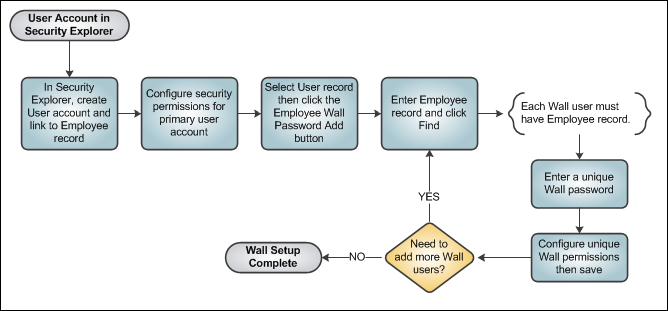
With the User Profile selected, select the Employee Wall Password Add button.
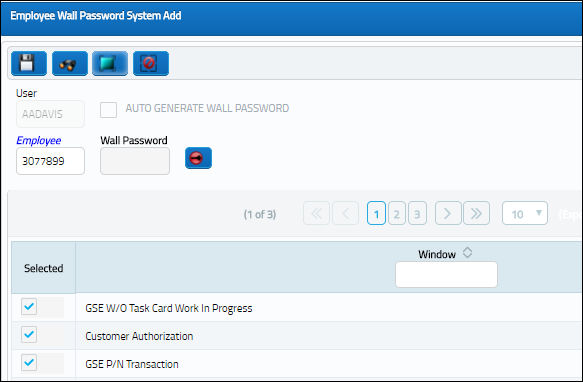
The system displays the Employee Wall Password System Add window. Enter the Employee record then click the Find  button.
An unlimited number of Employees can be configured as Wall users under a User Profile by entering their Employee record, specifying their Wall Password, and configuring their Wall security options.
Note: The alternative method for assigning Wall security is through the Wall By Program function located in the Security Explorer, Other View. There Wall Security can be added by program to specific users or various users at a time.
The following options are available in this window:
_________________________________________________________________________
User
The selected user or user group.
Auto-Generate Wall Password checkbox
Select this checkbox to have the system automatically generate a Wall Password which will then bypass the basic Wall Password. (When selected the Wall Password field and the Change Password  button will not be available.) This functionality is part of the Session and LDAP Wall Password methods.
For example, when the Session log-on option is being utilized, the Windows username and password can also be used for the Wall Password. And although the employee's Windows username and password are being utilized for the Wall Password, a Wall password must still be generated and entered in this window. Therefore, this auto-generated option allows the administrator who is setting up Wall securities to register a Wall password for each employee without having to manually create a Wall Password for each employee. This auto-generated Wall Password is thus linked to the employee's Windows username and password. As such, the auto-generated password is not displayed to the administrator nor to the employee because it is not necessary as it is, in effect, being bypassed.
For more information refer to Logging Into eMRO, Security Explorer, Session Tab, and the Security Explorer, LDAP Tab via the System Administration Manual.
Note: This checkbox must be selected for the Session and LDAP Wall Password Methods to function properly.
Employee
Choose or manually enter the employee who will have Wall Security access. When an Employee is entered, their Wall Password information is displayed.
Keep in mind that a user group named 'MECH' could be used to combine several mechanics on the floor with one shared login password, but individual Wall passwords can be applied for each Employee record within that user group.
Wall Password
Enter the password that will be required by the Employee when accessing the Walled option. Wall passwords must be assigned to each employee record linked to the User or User Group; the same password cannot be used for multiple employee records. If a password already exists for another employee record, a new Wall Password must be entered by selecting the Change Password  button. This field will not be available when the Auto-Generate Wall Password checkbox is selected.
Note: Password requirements are defined by the System Transaction Configuration switches that follow: SECMPAS: Sec. Password Minimum Number of Characters. SECMALP: Sec. Password Minimum of Alpha Characters. SECMNC: Sec. Password Minimum of Numeric Characters.
Change Password button
Select this button to enter a new Wall Password. (This button will not be available when the Auto-Generate Wall Password checkbox is selected.)
Selected checkboxes
In the Selected column, choose the items that will require the wall password by the employee.
_________________________________________________________________________
Select the Save  button to save all information.
Once Wall information has been configured, Employees can use their Wall credentials to log into the system. For more information refer to Wall Password Login.
Download Online Help
Print
|
©1997-2018 Trax USA Corp. All rights reserved. This manual may not be copied, photocopied, reproduced, translated, or converted to any electronic or machine-readable form, in whole or in part, without prior written approval from Trax USA Corp. |
 |