 Download Online Help
 Print
|
|
|
|
|


Flow Tab
The Flow tab contains a flowchart that lists all Tasks by their W/O Phase and are based on W/O Templates. These phases can be registered as closed, overdue, and pending, they can be organized by shift (e.g., Day, Night, etc.), and individual phases can be flagged as task Milestones. This tab helps to better organize all phases of the required work.
When the tab is selected, the Flow graph appears as follows. Notice that the Flow is composed of W/O T/C Phases that are organized throughout the W/O's schedule (schedule start and completion date).
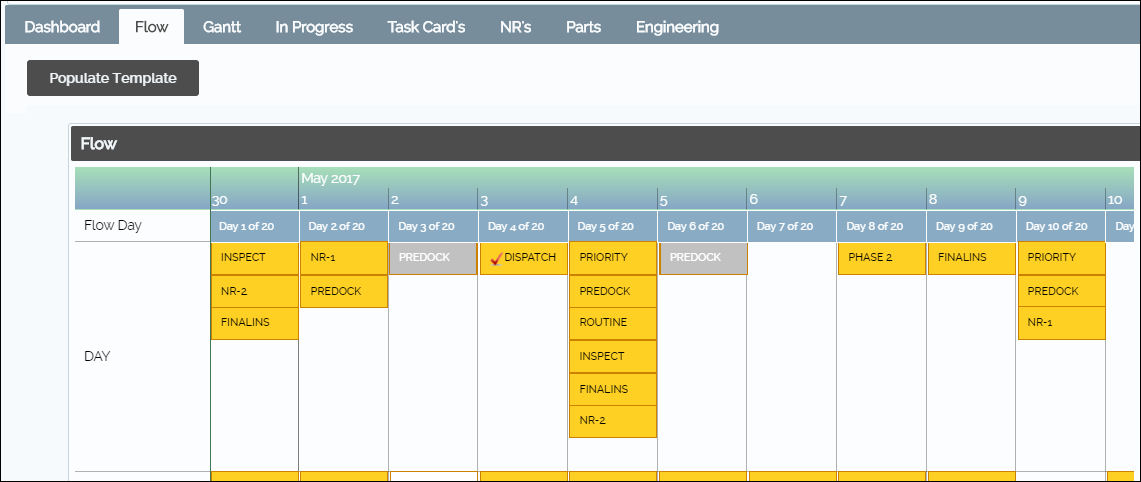
The Flow layout is based on W/O Templates. W/O Templates define the timetables for completing all of the W/O's Phases. These Phases help organize the work required into sections that make a large set of tasks easier to manage. For more information refer to the Shop W/O Template window of the main application. W/Os are linked to templates through the W/O Template  button of the main application. For more information refer to the W/O Template Button, via the Work Order Shop Detail of the Shop Training Manual.
Notice that each daily Phase is color-coded. The colors, and red check mark, quickly indicate the following information:
|
Closed task |
|
Overdue task |
|
Pending/Open task |
|
Phase Milestone (this indicator is added via the W/O Template window) |


Users can click on a task to change the status from open to closed. Select the Save button to make the change.
Also notice that there are multiple shifts for each day (e.g., 'DAY' and 'NIGHT'). These shifts are specified via the W/O Template through the Category field. These shifts are created through the W/O Template Schedule transaction code.
To change the template of the Flow, select the Populate Template button. A window pops up with Template options. They include the Template name and description but also the Number of Days that the template covers. This day schedule should cover the scheduled duration of the W/O. Select the Apply button to apply the selected template to the W/O.
Download Online Help
Print
|
©1997-2018 Trax USA Corp. All rights reserved. This manual may not be copied, photocopied, reproduced, translated, or converted to any electronic or machine-readable form, in whole or in part, without prior written approval from Trax USA Corp. |
 |