
 Share
Share
 Print
Print
|
|
|
|
|



The Cap Import  Button allows users to import repair capability information which may not exist in the database. The button serves as an alternative to the regular Import button, via Vendor P/N Repair Capability and provides a faster way of importing location capability information.
First, the user must prepare the file. For information regarding how to prepare the import file, refer to Preparing File For Import, via the Import Button of the System Standards Training Manual.
Criteria for R/O Capability Import file:
Column Name |
Data Type |
Limitation |
Path |
Part Number |
Alphanumeric |
35 |
Settings/ Update/ P/N Master/ RO Capability Button/ Vendor P/N Repair Capability, General tab |
Location |
Alphanumeric |
10 |
Settings/ Update/ P/N Master/ RO Capability Button/ Vendor P/N Repair Capability, General tab |
Site |
Alphanumeric |
10 |
Settings/ Update/ P/N Master/ RO Capability Button/ Vendor P/N Repair Capability, General tab |
Repair Type |
Alphanumeric |
8 |
Settings/ Update/ P/N Master/ RO Capability Button/ Vendor P/N Repair Capability, General tab |
Prefer |
Y/N |
1 |
Settings/ Update/ P/N Master/ RO Capability Button/ Vendor P/N Repair Capability, General tab |
Price |
Numeric |
9 |
Settings/ Update/ P/N Master/ RO Capability Button/ Vendor P/N Repair Capability, General tab |
Currency |
Alphanumeric |
13 |
Settings/ Update/ P/N Master/ RO Capability Button/ Vendor P/N Repair Capability, General tab |
Lead Days |
Numeric |
5 |
Settings/ Update/ P/N Master/ RO Capability Button/ Vendor P/N Repair Capability, General tab |
Component Group |
Alphanumeric |
20 |
Settings/ Update/ P/N Master/ RO Capability Button/ Vendor P/N Repair Capability, General tab |
Status |
Alphanumeric |
10 |
Settings/ Update/ P/N Master/ RO Capability Button/ Vendor P/N Repair Capability/ RO Capability Button/ RO Capability, General Tab |
Authority |
Alphanumeric |
8 |
Settings/ Update/ P/N Master/ RO Capability Button/ Vendor P/N Repair Capability/ RO Capability Button/ RO Capability, General Tab |
Rating |
Alphanumeric |
8 |
Settings/ Update/ P/N Master/ RO Capability Button/ Vendor P/N Repair Capability/ RO Capability Button/ RO Capability General Tab |
Formal Application On |
Date |
|
Settings/ Update/ P/N Master/ RO Capability Button/ Vendor P/N Repair Capability/ RO Capability Button/ RO Capability, General Tab |
Remarks |
Alphanumeric |
2000 |
Settings/ Update/ P/N Master/ RO Capability Button/ Vendor P/N Repair Capability/ RO Capability Button/ RO Capability, Other Tab |
On Hold |
Alphanumeric |
10 |
Settings/ Update/ P/N Master/ RO Capability Button/ Vendor P/N Repair Capability/ RO Capability Button/ RO Capability, Other Tab |
On Hold Remarks |
Alphanumeric |
2000 |
Settings/ Update/ P/N Master/ RO Capability Button/ Vendor P/N Repair Capability/ RO Capability Button/ RO Capability, Other Tab |
Repair Code |
Alphanumeric |
10 |
Settings/ Update/ P/N Master/ RO Capability Button/ Vendor P/N Repair Capability/ RO Capability Button/ RO Capability, General Tab |
Amendment |
Alphanumeric |
20 |
Settings/ Update/ P/N Master/ RO Capability Button/ Vendor P/N Repair Capability/ RO Capability Button/ RO Capability, General Tab |
Approval |
Alphanumeric |
20 |
Settings/ Update/ P/N Master/ RO Capability Button/ Vendor P/N Repair Capability/ RO Capability Button/ RO Capability, General Tab |
Limitations |
Alphanumeric |
2000 |
Settings/ Update/ P/N Master/ RO Capability Button/ Vendor P/N Repair Capability/ RO Capability Button/ RO Capability, Other Tab |
To Site |
Alphanumeric |
10 |
Settings/ Update/ P/N Master/ RO Capability Button/ Vendor P/N Repair Capability/ RO Capability Button/ RO Capability, General Tab |
Select the Cap Import button for the quick import of many records (instead of manually entering) into the Vendor P/N Repair Capability and R/O Capability windows.
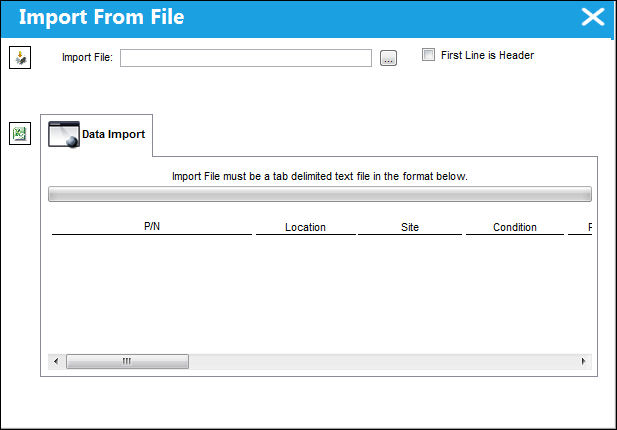
The following information/options are available in this window:
_____________________________________________________________________________________
Import File
The file to be imported must be Tab delimited. Individual records that will be imported must contain a Location/Site that matches the location that is currently selected.
First Line Is Header checkbox
Check to indicate that the first line in the Tab delimited text file represents a Header line and should not be imported.
_____________________________________________________________________________________
Select the Browse  button to browse your computer for the file to be imported.
Once the file is specified, and appears in the Import File field click on the Import button.
The records appearing in the text file will appear in the Data Import Tab of the window.
Note: Data that could not be processed will appear on the Exceptions Tab.
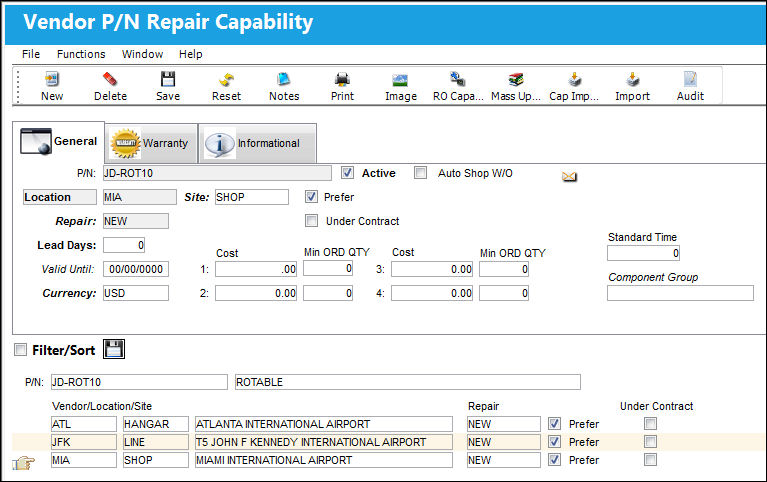
Exit to complete the import and close the window. Imported records will appear as shown below:
Share
Print
|
©1997-2026 Trax USA Corp. All rights reserved. This manual may not be copied, photocopied, reproduced, translated, or converted to any electronic or machine-readable form, in whole or in part, without prior written approval from Trax USA Corp. |
 |